
A useful GIF needs clear movement, a recognizable design, and an export that works where you share it.
GPT Image 2.6 supports animated GIF generation from descriptions and still reference images. It also offers image generation and editing tools.
This AI GIF guide covers the main workflows. You’ll find short prompts, practical adjustments, and ideas for using your GIFs in chats, email, and websites.
TL;DR
Start with one action. Make the movement easy to recognize.
Use references for appearance. Describe motion separately from the details you want to preserve.
Keep prompts short. Add instructions to solve specific problems.
Check the downloaded file. Review its loop, transparency, spelling, and size.
What Is GPT Image 2.6?
Create still images and short animations from one visual idea.
GPT Image 2.6 is OpenAI’s AI image generation and editing family, released on November 4, 2026. The OpenAI update document introduces animated GIF and SVG output alongside new controls for visual planning.
It includes two versions:
GPT Image 2.6 Sunburst: Built for detailed compositions, demanding layouts, and precise edits.
GPT Image 2.6 Flare: Built for fast image generation and frequent creative revisions.
The key GIF feature:
Generate short animations from text or still reference images, with frame-count and frame-delay controls through supported workflows.
This makes room for custom reaction GIFs, animated stickers, and short product loops. Explore GIF output options.
How to Use GPT Image 2.6 to Create GIFs
Choose a starting point that suits your idea.
Begin with text, an image, or a sketch. Your input determines what you need to describe.
Starting point | Prepare | Describe |
Text | A visual idea | Subject, style, movement |
Photo or image | A clear reference | Motion and preserved details |
Sketch | A complete silhouette | Gesture and drawing style |
GPT Image 2.6 GIF Workflow:
1.Add your input. Enter a description or upload a reference.
2.Describe the movement. Include the main action and its return.
3.Name the essentials. Specify the design details that must stay consistent.
4.Generate and download. Play the original GIF through several loops.
5.Adjust for sharing. Resize or compress after checking the animation.
Simple prompt formula
Create a looping GIF of [subject] doing [action]. Return to [starting state]. Keep [important details] consistent. Use [style and framing].
Revise one issue at a time. You’ll have a clearer view of what each change does.
How to Create GIFs from Text
Make the action clear before adding decoration.
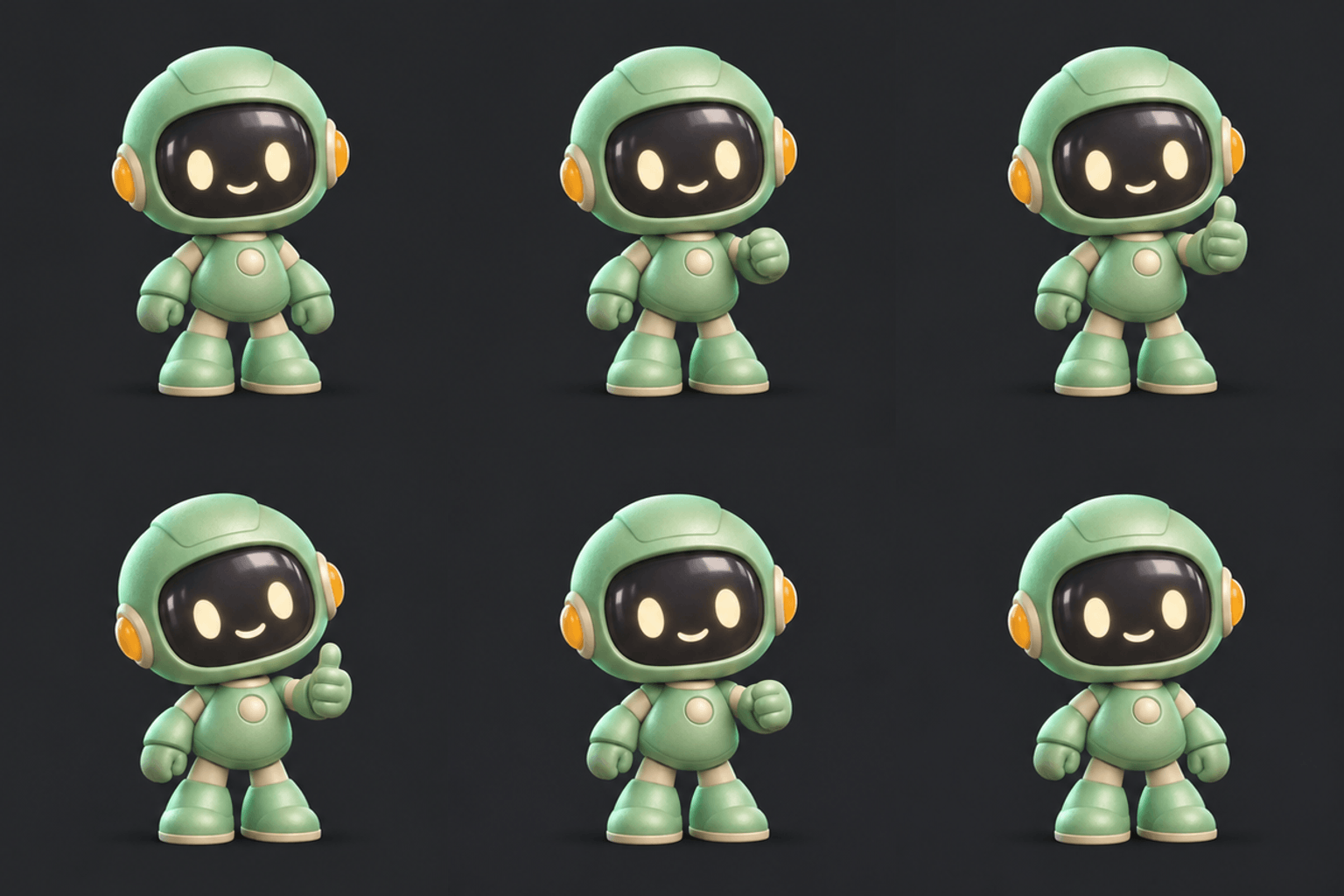
Text-to-GIF generation works from a written idea. A useful starting prompt describes:
Subject: What appears in the frame.
Style: How it should look.
Action: What moves.
Return: How the animation reaches its starting state.
For reaction GIFs, choose a gesture or expression that reads quickly. Explanatory captions are optional.
Example: a friendly 3D reaction
Design: A mint-green toy robot on a charcoal background.
Movement: A thumbs-up, a happy blink, then a return to rest.
Feeling: Approval, support, or encouragement.
Short prompt
Create a looping GIF of a cute mint-green 3D robot. It gives a thumbs-up, blinks, then returns to rest. Keep its design and charcoal background consistent. Fixed camera. No text.
Tips for a clearer result
Hold the gesture briefly. Give viewers time to recognize it.
Leave room around the hands. Keep the full movement inside the frame.
Preview at chat size. The gesture should remain readable after resizing.
If the hand looks unclear, try one focused correction: Keep one thumb clearly extended.
Ways to use the method
Create a custom reaction for a group chat or community.
Save the character design as a reference for future reactions.
Keep the visual style consistent when building a small GIF collection.
How to Turn Images into GIFs
Let the reference define the appearance.
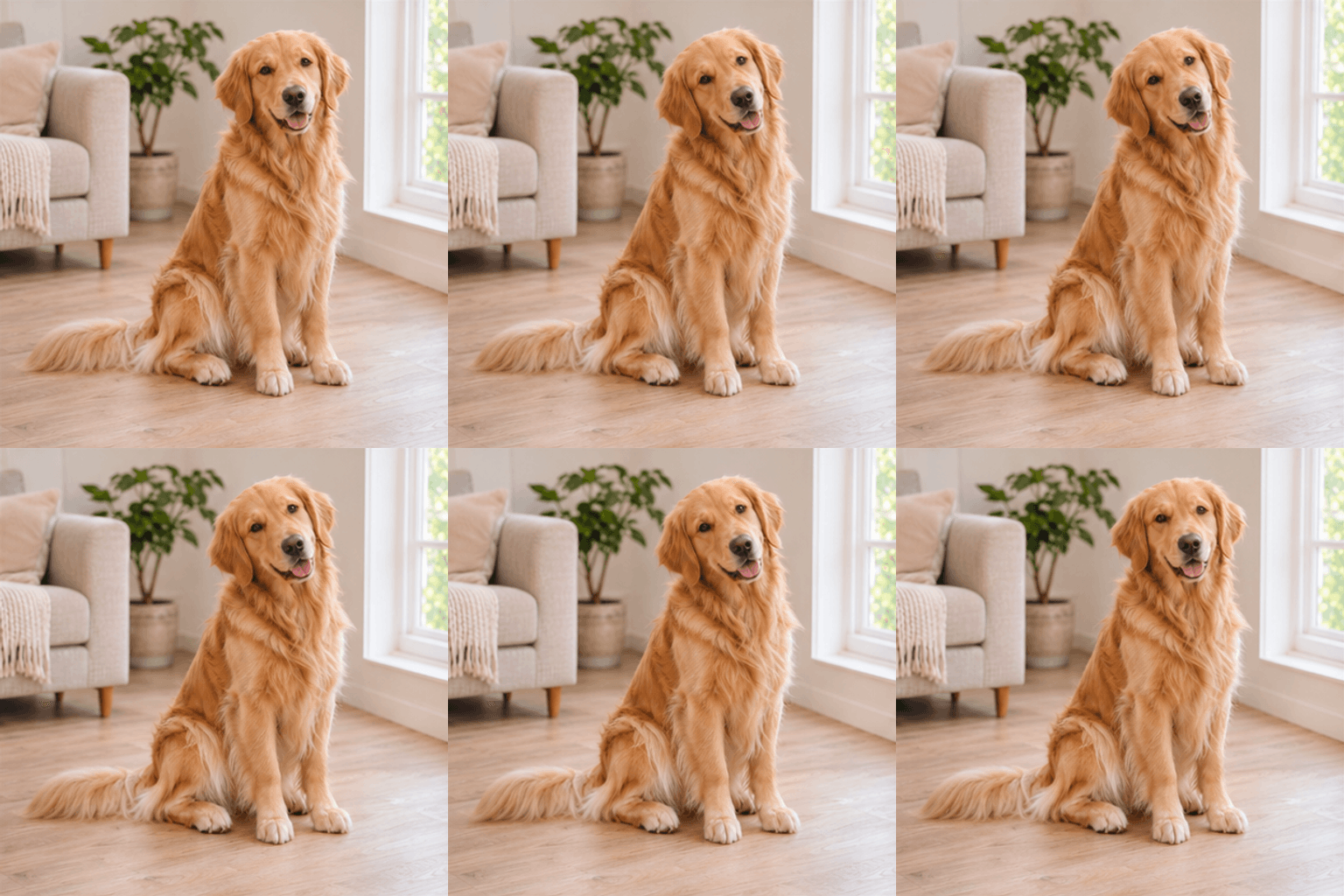
In an image-to-GIF AI workflow, the image supplies the design. Your prompt supplies the movement.
Choose a Useful Reference
Look for:
A sharp, clearly visible subject.
Space in the direction of movement.
Minimal obstruction around important features.
A crop that includes the parts you want to animate.
For photo-to-GIF animation, start with restrained motion. Check the result before asking for a larger movement.
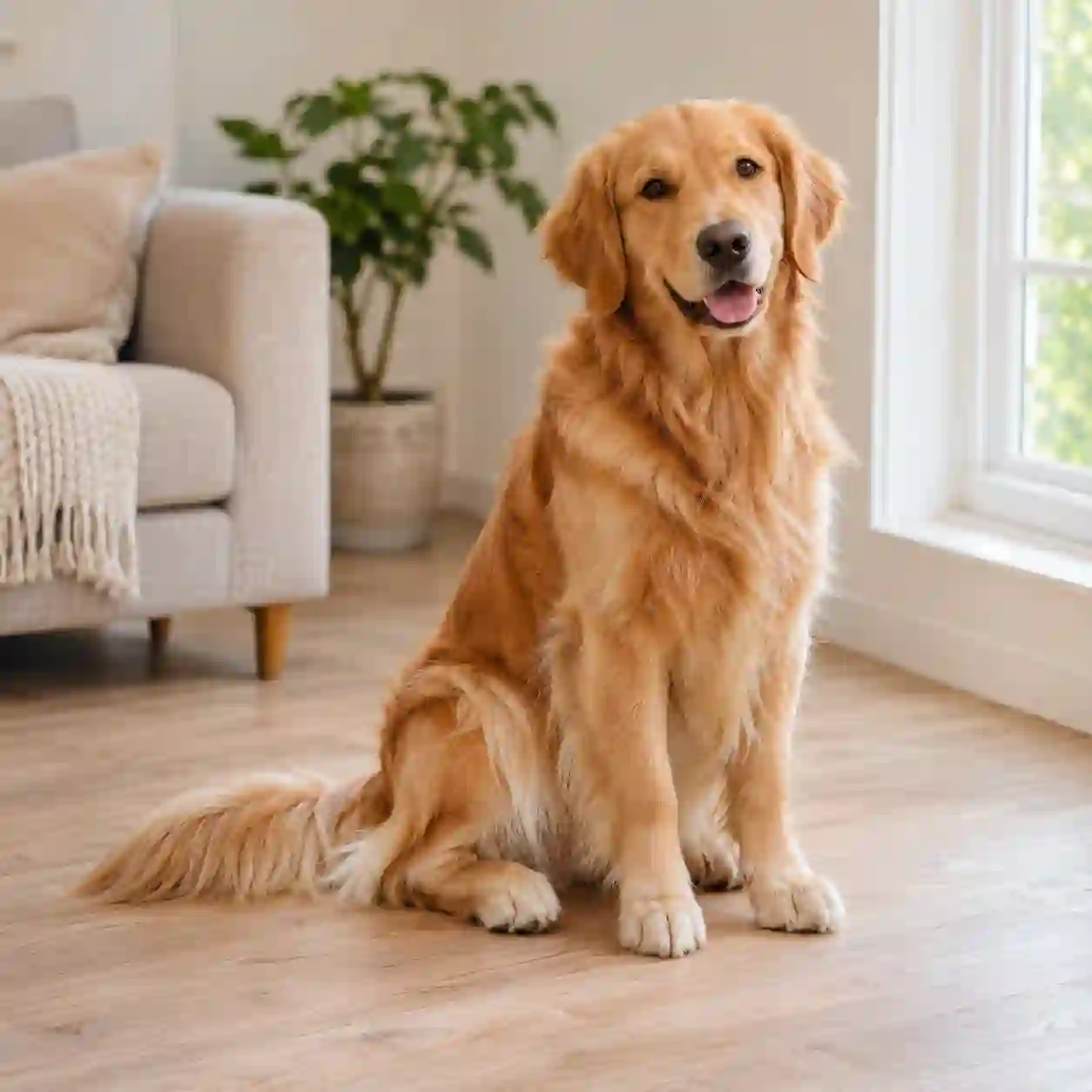
Example: a cute pet greeting
Use a golden retriever photo with clear eyes and ears.
A gentle head tilt and blink can create a warm greeting.
Add a tail wag only when the original photo shows the tail.
Short prompt
Animate this dog photo with a gentle head tilt and a natural blink. Add a small tail wag only if the tail is visible. Preserve the dog’s appearance, background, and framing. No text.
Keep the Important Details Consistent
Check these details during the movement:
Face: The same recognizable features.
Ears: Stable shape and placement.
Coat: Consistent color and markings.
Background: No bending or unwanted movement.
If a detail changes, reduce the motion first. Then name the feature that needs attention.
Ways to adapt the image
Use a closer crop for a personal greeting or avatar-style GIF.
Use a wider image when body movement matters.
Keep the original framing when a body part is out of view.
Using an AI-generated reference? Describe it accurately when sharing your creation process.
How to Make Transparent GIFs
Keep the outline clean and the background flexible.
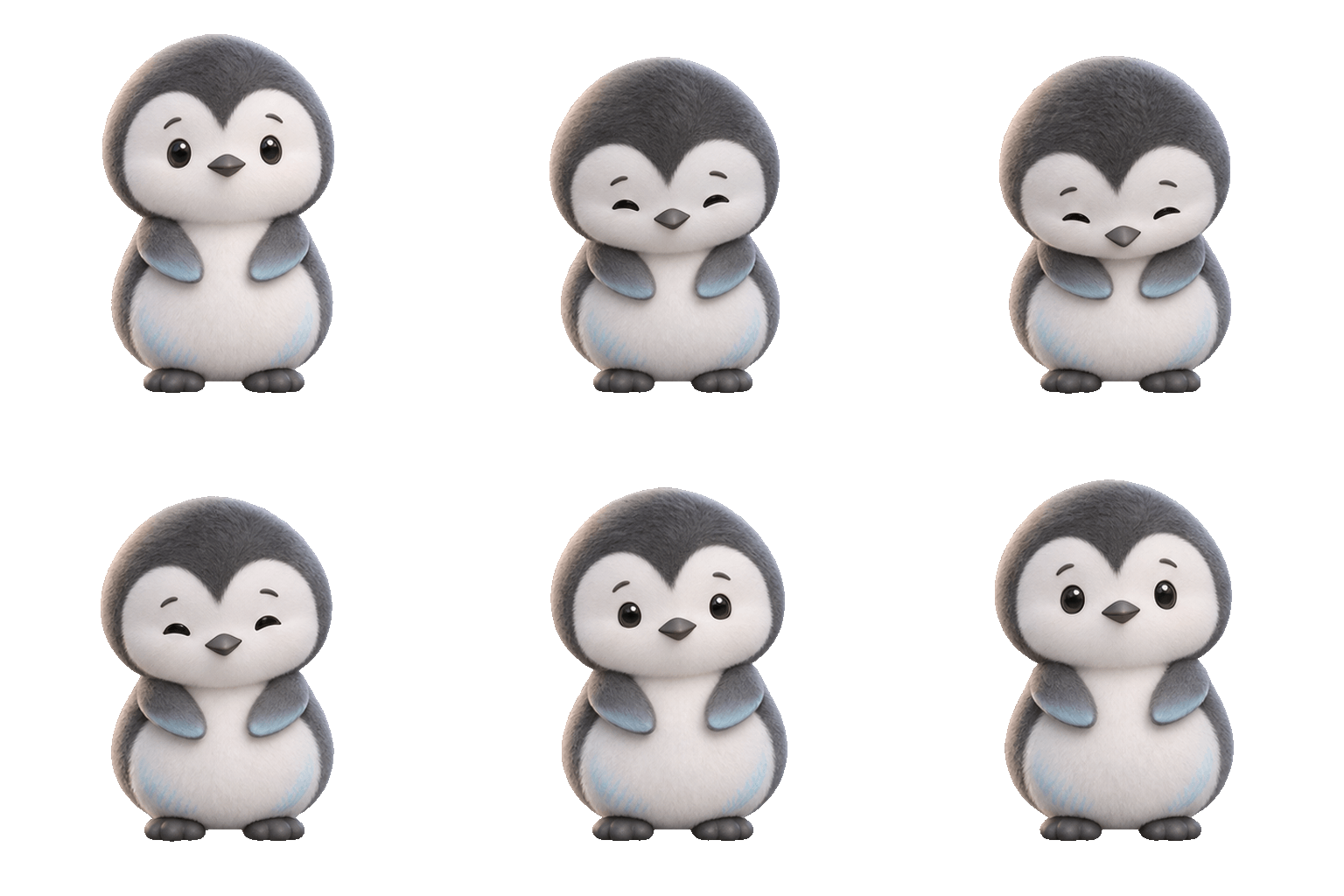
Transparent GIFs work well as stickers, mascots, and webpage overlays.
Prepare a complete silhouette. Leave enough space around every moving part.
Preserve the Drawing Style
For sketch-to-GIF creation, identify what gives the drawing its character:
Line weight.
Flat colors.
Body proportions.
Facial expression.
Keep those features in the animation prompt.
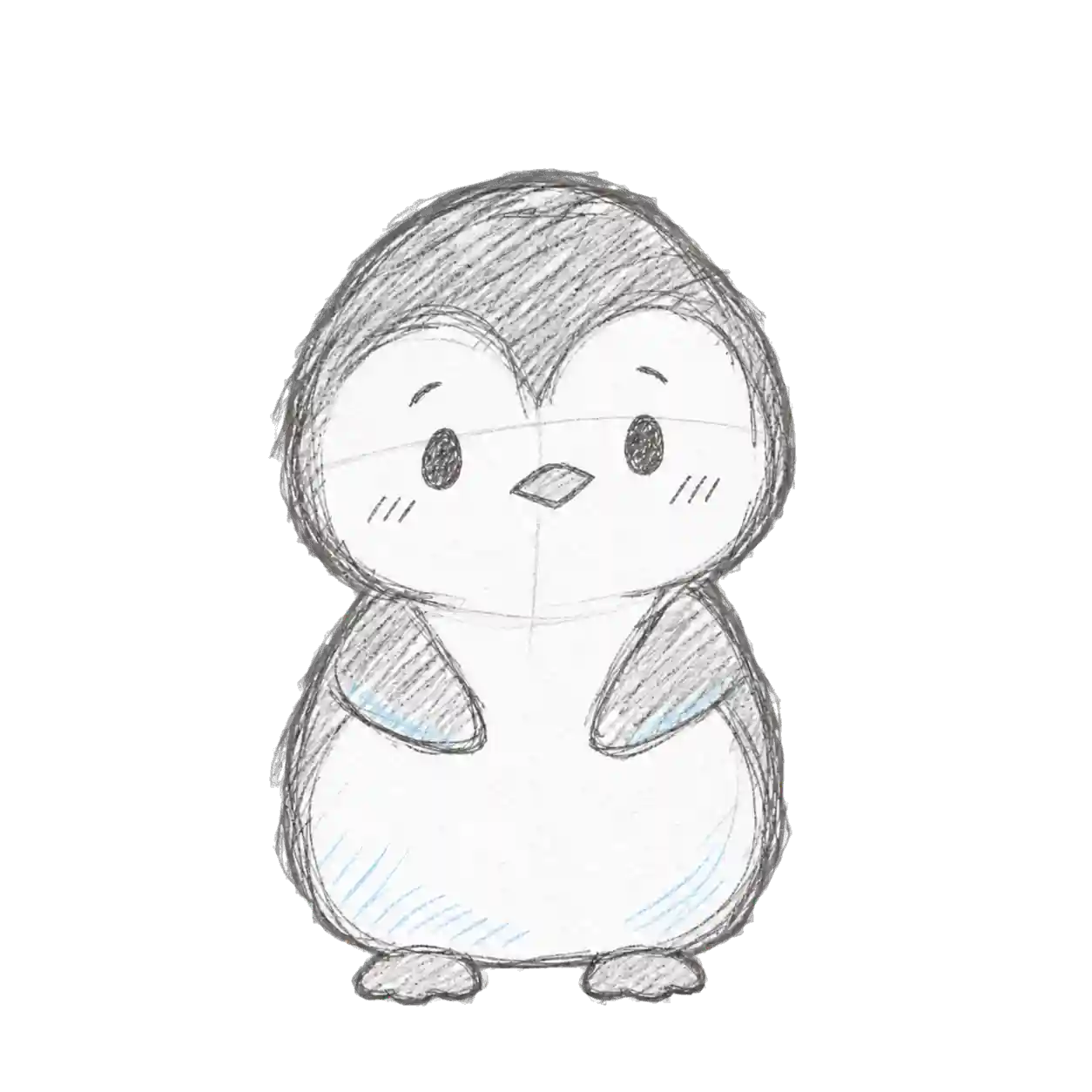
Example: a hand-drawn animated sticker
Use a black-and-white penguin with a pale-blue accent.
The movement stays small:
Flippers move inward → gentle bow → return to the starting pose.
It can express appreciation or simply feel cute.
Short prompt
Animate this penguin sketch with a small polite bow. Return it to its starting pose. Preserve the hand-drawn style and keep its feet planted. Use a transparent background without captions.
Check the Exported Background
1.Place the GIF on a light background. Inspect the outline and moving edges.
2.Switch to a dark background. Look for white borders or halos.
3.Check internal details. Make sure white areas inside the character remain visible.
A checkerboard preview does not prove transparency. Check whether your own background shows through.
If the output is opaque, you can remove the background afterward. Choose a solid background color absent from the subject.
GIF does not support partial transparency. Soft edges may look different on another background. EZGIF’s transparency guide explains the format and removal options.
Ways to use the method
Turn an original drawing into a reusable chat sticker.
Animate a brand mascot for a website greeting.
Favor clean edges when the graphic must work on several background colors.
How to Create Product GIFs
Show an interaction that explains the product.
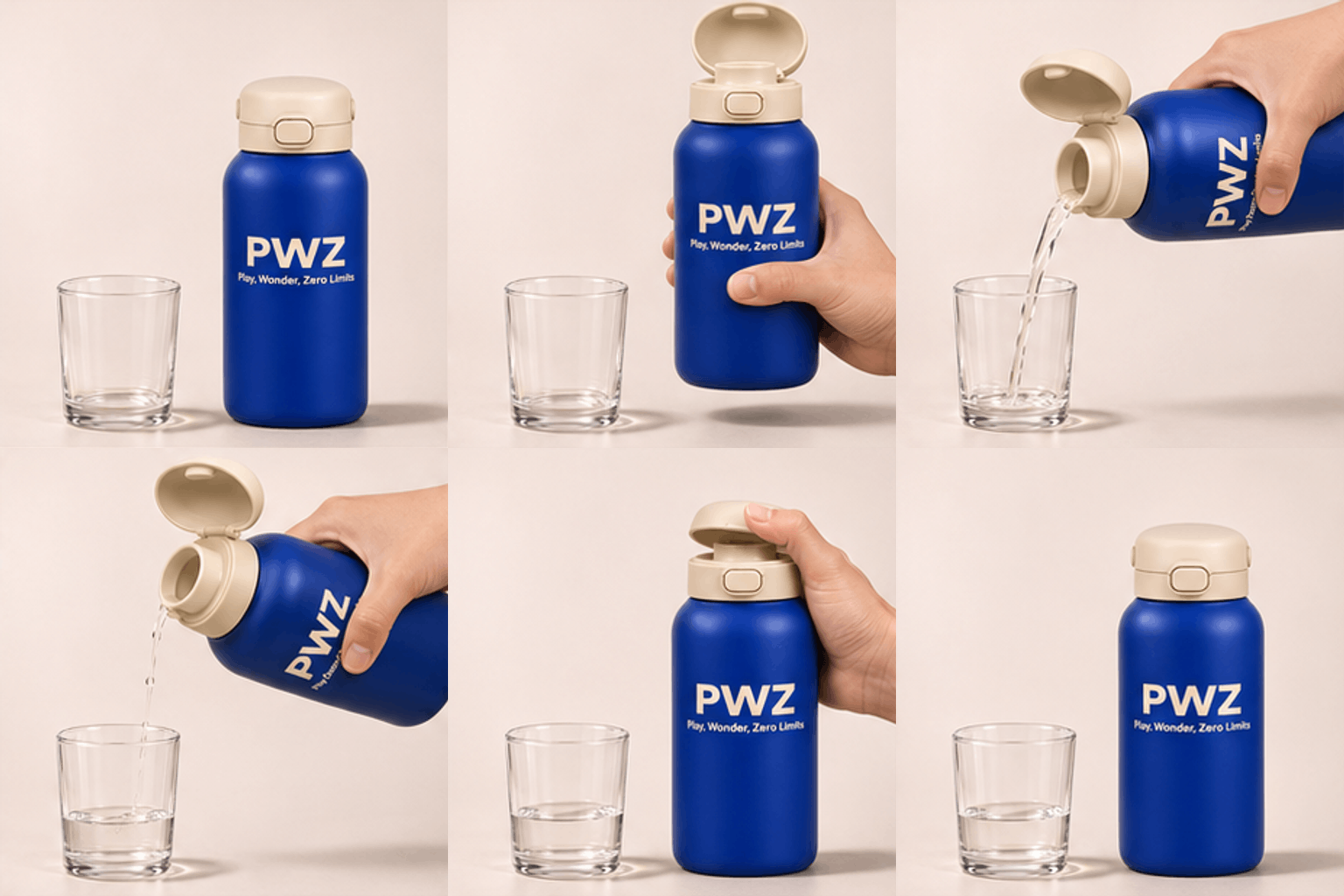
A product animation GIF can help you:
Demonstrate a useful action.
Reveal a design detail.
Show how a feature works.
Choose one purpose before writing the prompt.
Prepare a Clear Product Image
Use static image generation or editing to settle the design first:
Product shape and materials.
Label and spelling.
Lighting and background.
Space for the planned action.
GPT Image 2.6 supports these image workflows. It also supports SVG output for vector assets.
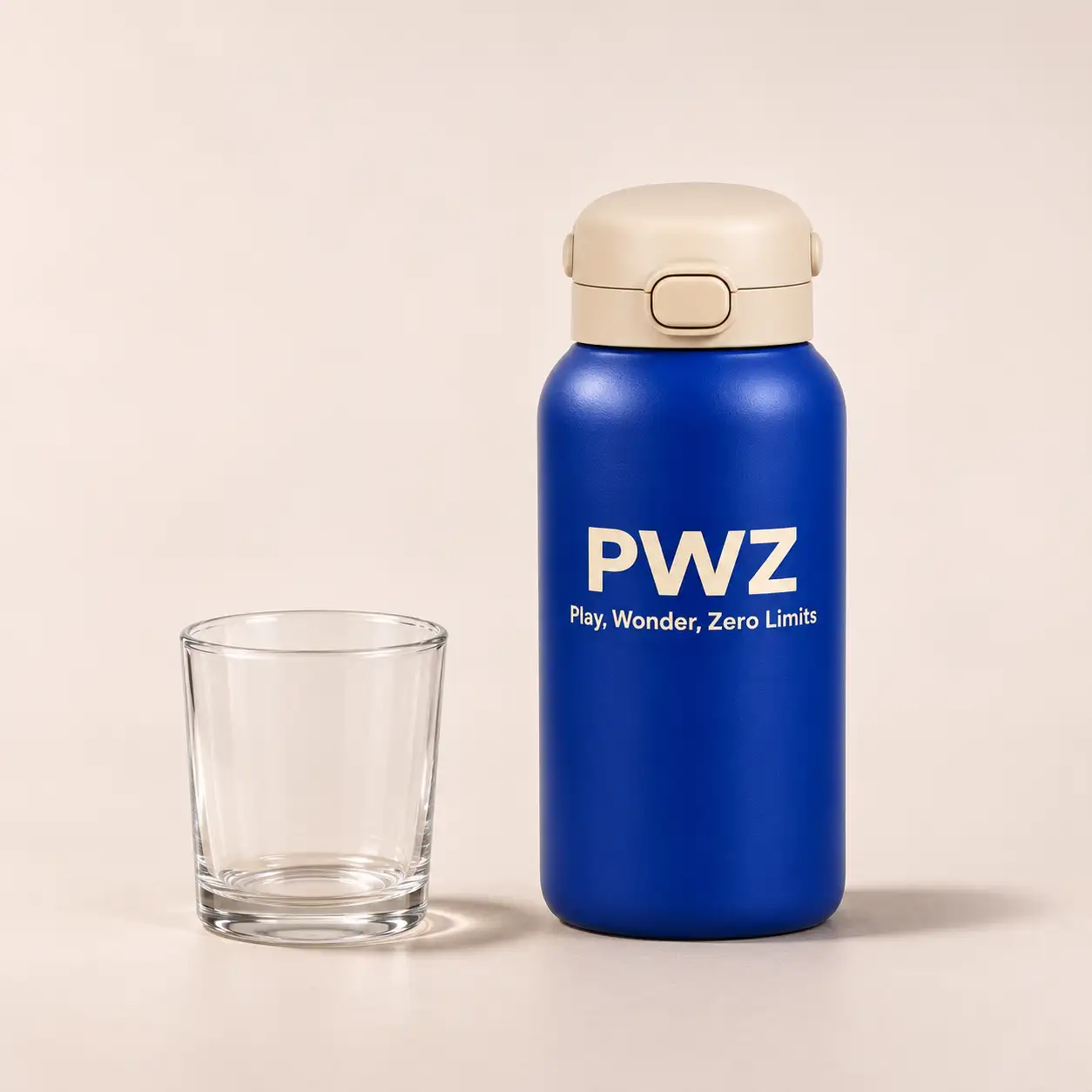
Example: a branded product demonstration
Prepare a PWZ-branded bottle concept with:
Body: Cobalt blue.
Lid: Cream-colored, attached flip-top.
Brand: PWZ.
Slogan: Play, Wonder, Zero Limits
Leave room above the lid and beside the bottle. Place a glass near the lower edge. Keep its water level below the crop.
For a simple image-editing variation:
Change only the background to pastel lavender. Preserve the product, label, glass, composition, and lighting.
Keep the Interaction Logical
Use one continuous sequence:
Open → tilt → pour → return upright → close.
Short prompt
Animate this PWZ bottle in a continuous shot. A hand opens the attached lid and pours water into the glass. It returns the bottle upright, closes the lid, and sets it down. Preserve “PWZ” and “Play, Wonder, Zero Limits”; keep the camera fixed. No captions.
Details to check
Lid: It stays connected and follows its hinge.
Hand: The grip supports the bottle and leaves branding mostly visible.
Water: It flows from the open spout and stops as the bottle returns upright.
Loop: The visible scene returns to its starting state.
Keep the water level outside the crop to avoid an obvious reset.
Let printed text follow the bottle’s perspective. Check spelling and readability during the opening and closing holds.
Ways to apply the method
For an ecommerce GIF, emphasize one useful interaction.
For a community message, choose an action that feels natural to share.
If exact branding needs an edited graphic, document that step separately.
How to Make Animated Text GIFs
Keep the message readable while it moves.
Start an animated text GIF with:
A short word or phrase.
Clear letter shapes.
Strong contrast.
Enough space for movement.
Treat the Lettering as One Design
Check the spelling and spacing before animation. Move the whole word together for the first version.
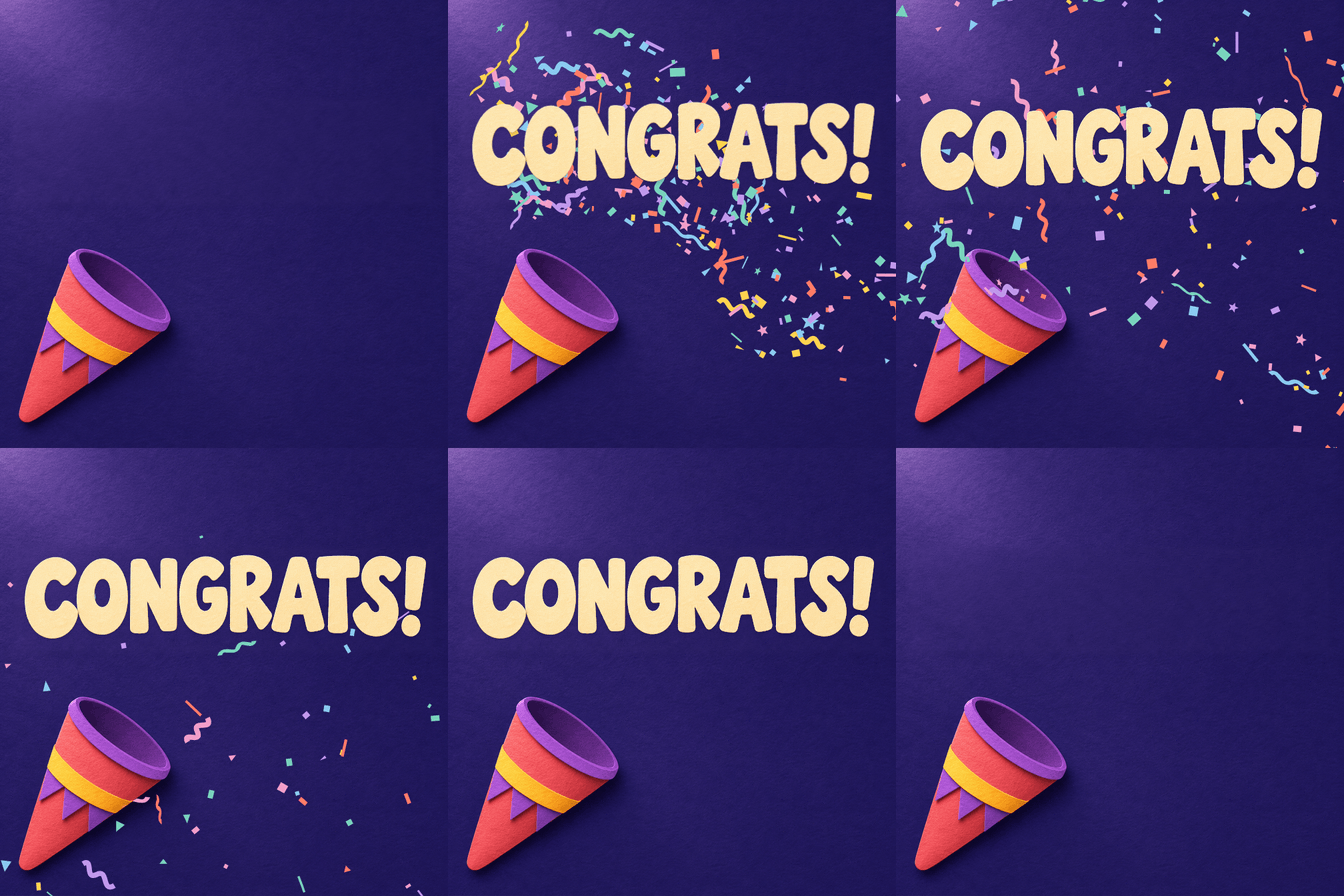
Example: expressive text with a graphic effect
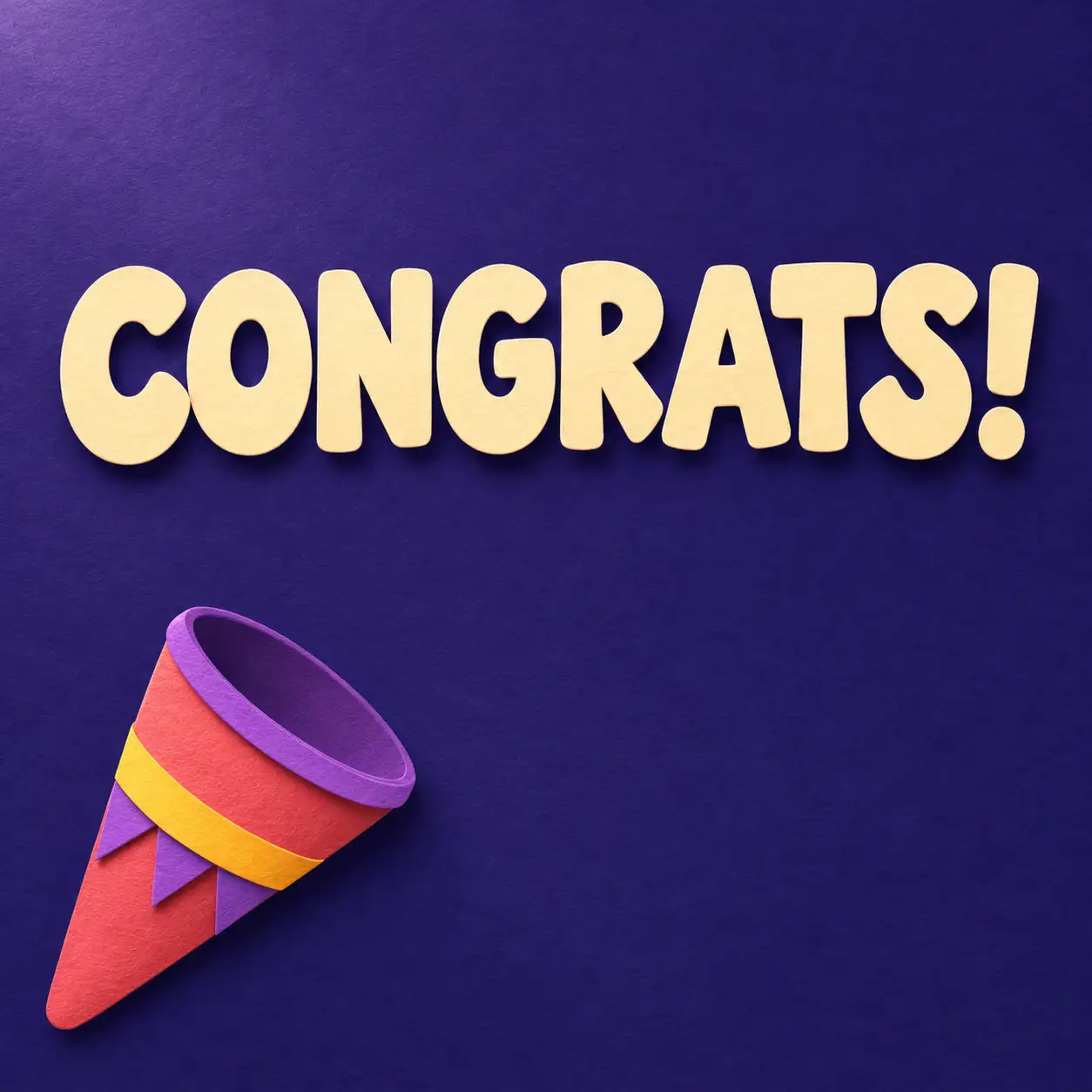
Use CONGRATS! as the main element in a paper-cut design.
Palette: Coral, yellow, and violet on deep indigo.
Effect: A party popper at the lower left.
Movement: The word bounces as the confetti bursts.
Short prompt
Animate “CONGRATS!” with a playful whole-word bounce. Time the bounce with a burst of paper confetti. Let the confetti fall away. Preserve the lettering and paper-cut style. Return to the starting layout.
Coordinate Text and Effects
Give each part a clear role:
1.The burst starts the movement. Time the text bounce with it.
2.The word settles. Hold it long enough to read.
3.The confetti clears. Keep it away from the main letter shapes.
Check before exporting
Correct spelling and punctuation.
Stable letter shapes and spacing.
A readable hold after the movement.
A clear layout at small sizes.
If the letters change, reduce the bounce and simplify the effect.
Ways to adapt the design
Change the phrase for announcements or birthday GIFs.
Match the palette to a campaign or community.
Use the same grouped movement for a simple animated logo GIF.
For brand work, check the mark’s exact shape throughout the loop.
How to Control GIF Motion and Loops
Give the movement a start, an action, and a return.
Replace vague motion requests with visible instructions:
What moves?
In which direction?
Where does it stop?
How does it return?
Control the Source of Motion
For subject animation:
Name the moving part.
Keep the camera fixed.
Keep unrelated background elements still.
Add camera movement when it serves the intended result. Keep the first version focused on one main action.
Adjust Speed and the Loop Point
Playback depends on the frame sequence and frame delay.
OpenAI documents frame-count and frame-delay controls for GIF output. Available interface settings may vary. Read GIF output documentation.
Too fast: Increase the delay or hold the key pose longer.
Too slow: Shorten an unnecessary pause.
Jump at restart: Compare the first and last poses, object states, and movement direction.
Changing speed cannot add a missing action. Revise the movement or edit the transition when the return is incomplete.
How to Resize and Compress GIFs
Keep the useful detail at the size people will see.
Preview the animation at its intended display size. Check the expression, action, and text before reducing the file further.
Reduce File Size in Stages
1.Crop unused space. Keep the full movement in frame.
2.Resize for the destination. Check readability again.
3.Try optimization or fewer colors. Watch gradients and edges.
4.Remove frames cautiously. Compare the motion after each change.
Save the original file before experimenting. EZGIF’s optimization guide explains these options.
Match the Sharing Format
Destination | Prioritize |
Chats | Clear action and compact size |
Custom emojis | Readable silhouette and upload rules |
Useful first frame and loading speed | |
Websites | Display size and format support |
For Discord GIFs
Check the exact upload type. Custom emojis have their own setup and requirements. Discord’s custom emoji guide.
For email marketing GIFs
Make the first frame useful on its own. Test the email in your target clients. Mailchimp’s email GIF guidance.
For websites
Compare animated WebP when the destination supports it. It can be useful for compression and smooth transparency. MDN’s image format guide.
How to Fix Common GIF Problems
Fix the visible issue before expanding the prompt.
Static Output
❕ Problem: The download is a single image or a grid of frames.
✅ Try: Check the original file in an animation-capable viewer. If it is static, request GIF output in a supporting workflow.
A grid of frames needs a separate assembly step.
Inconsistent Appearance
❕ Problem: The subject’s shape or style changes during movement.
✅ Try: Reduce the motion range. Name the feature to preserve. Keep the reference and other instructions stable.
Unclear or Broken Motion
❕ Problem: The action skips a step or passes too quickly to read.
✅ Try: Describe the contact, response, and finish. Add a brief hold where the movement needs emphasis.
Distorted Text
❕ Problem: Letters change shape or become difficult to read.
✅ Try: Confirm the starting spelling. Keep the lettering grouped and reduce overlapping effects.
If exact text is essential, you can add it in an editor.
Loop Jumps or Edge Trails
❕ Problem: The restart jumps, or old edges remain on screen.
✅ Try: Compare the beginning and ending states. Also check whether the editor clears each previous frame correctly.
Motion continuity and frame clearing need different adjustments.
Animation Lost After Upload
❕ Problem: The original GIF plays, but the uploaded version does not.
✅ Try: Check for a static preview or file conversion. Confirm the destination’s supported format and upload method.
Beyond GIFs: GPT Image 2.6 Image Generation and Editing
Build the visual assets around your animation.
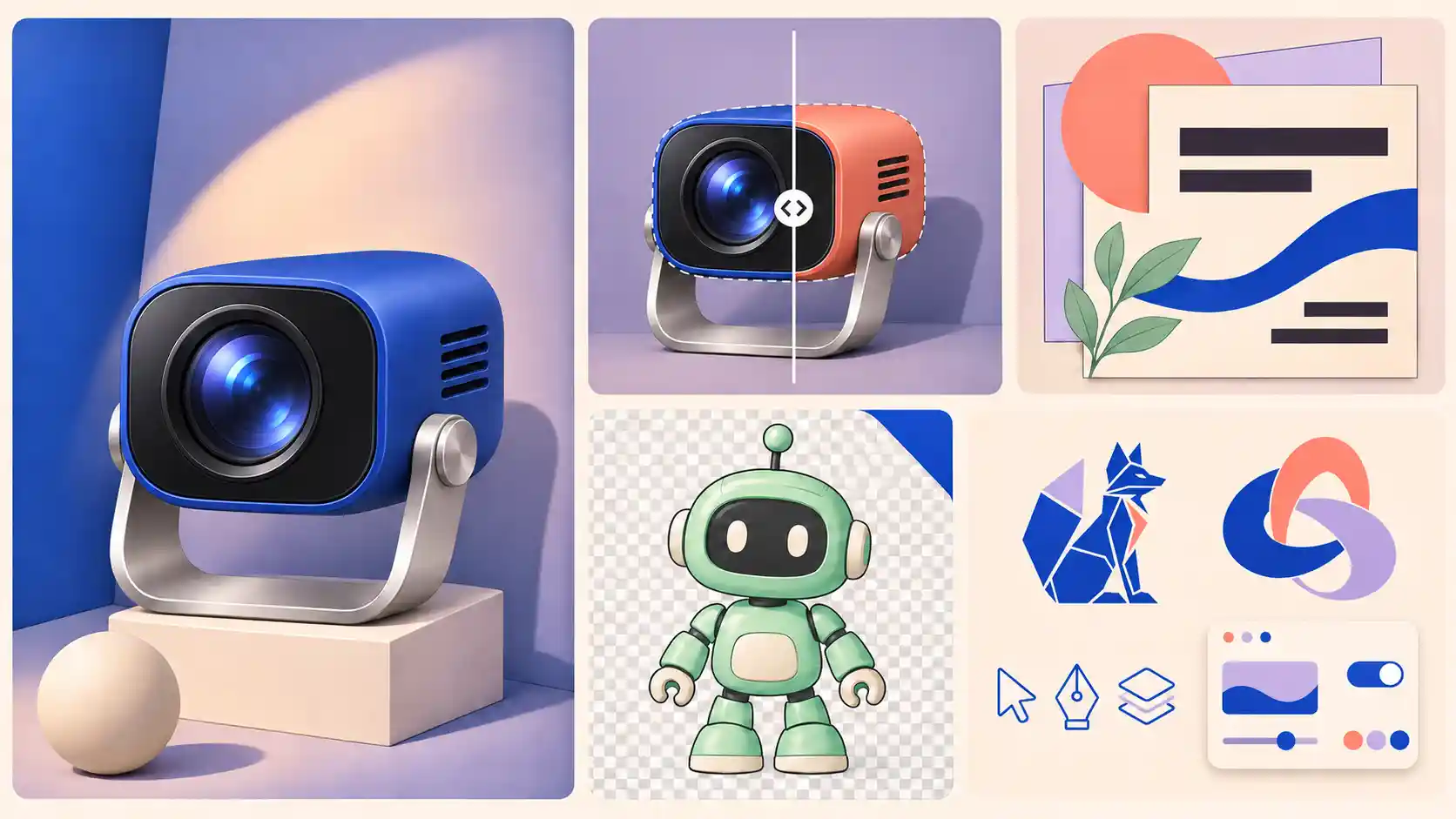
1. AI Image Generation
Create product images, character concepts, and social graphics.
💡 Application tip: Explore different compositions, lighting, and materials for a campaign visual.
2. Targeted AI Image Editing
Request changes to a specific object, color, or scene area.
💡 Application tip: Mark the target area. Create seasonal backgrounds or color variations while specifying what to preserve.
3. Complex Layouts and Text
Adjust complexity for visual planning and quality for fine detail.
💡 Application tip: Design event posters, menus, or illustrated explainers. Check spelling, spacing, and object placement.
4. Transparent PNG Assets
Generate isolated subjects with transparent backgrounds.
💡 Application tip: Reuse a character or product cutout across website cards, email banners, and sticker designs.
5. SVG Vector Generation
Create scalable logos, icons, and illustrations.
💡 Application tip: Build reusable graphics for navigation buttons, presentation slides, and larger banners. OpenAI SVG output guide.
Explore More Image Creation Guide
Create Your Own GIF
Start with one idea you want to share.
Choose your input and describe a clear movement. Generate a short first version. Refine the detail that matters most, then prepare the file for sharing.
AI GIFs FAQs
Is converting JPG to GIF the same as animating an image?
Converting a JPG changes its file format. Animating an image creates changes over time. Describe those changes when you want to generate motion.
Can a GIF contain sound?
GIF files have no audio track. Use a video format for speech, music, or sound effects.
Can I turn an existing video into a GIF?
Yes. Trim the section you need and use a video-to-GIF converter. You can adjust its crop, dimensions, and playback.
Should I use SVG or GIF for a logo?
Use SVG for a scalable vector asset. Use GIF for an animated deliverable. A static SVG still needs an animation step.
Can I generate GIFs for free or without a watermark?
Free allowances and watermark rules depend on the service. Check its current generation and export terms.
Which GPT Image 2.6 model should I choose?
OpenAI positions Sunburst for detailed visual work and Flare for fast iteration.
Use those descriptions as a starting point. Evaluate the output against your own motion and design requirements.