PWZ.COM
Start Creating
OmniHuman 2.0 on PWZ AI

OmniHuman 2.0 AI Video Generator

Bring your photo or original character to life with OmniHuman 2.0 by ByteDance. Upload an image and audio to create a video with synced lip movements, facial expressions, and body motion. Add a text prompt to guide gestures, actions, or camera movement.

Image + audio
0 / 5,000
Video examples

OmniHuman 2.0 Video Examples

See how different characters turn images, audio, and motion prompts into finished videos, with available inputs shown beside each result.

INPUT

Reference image for A Singer Takes the StageIMAGE
Singer performance audio
PROMPT

A glamorous female singer performs emotionally on stage. Match the singing with expressive lip sync, strong emotional facial expressions, and graceful body movement. She holds the microphone close to her mouth, occasionally lifts her chin, and extends one arm outward with feeling. Add gentle swaying, passionate eye closure on higher notes, and confident stage presence. Medium close-up, concert lighting, cinematic performance energy.

GENERATED VIDEO

A Singer Takes the Stage

Expressive singing, graceful movement, and concert lighting shape this cinematic stage performance.

INPUT

Reference image for A Host Brings the Podcast to LifeIMAGE
Podcast voice audio
PROMPT

A warm female podcast host speaks naturally in a cozy home studio. Use conversational lip sync, soft friendly facial expressions, and gentle hand gestures as she explains a topic. She should occasionally smile, lean slightly forward, and gesture openly toward the listener. Keep the motion calm and inviting, with small natural head nods. Medium shot, steady camera, relaxed podcast style.

GENERATED VIDEO

A Host Brings the Podcast to Life

A relaxed, conversational delivery with friendly expressions, natural nods, and open gestures.

INPUT

Reference image for A Fox Mascot Sings on StageIMAGE
Song audio
PROMPT

A cheerful cartoon fox mascot performs on a bright stage with energetic singing. Sync the mouth to the song with exaggerated cute expressions, lively eye movement, and playful body motion. Add rhythmic bouncing, one paw holding the microphone, and the other paw reaching toward the audience. Include enthusiastic gestures, upbeat movement, and a charming showman personality. Medium shot, colorful lights, joyful family-friendly performance.

GENERATED VIDEO

A Fox Mascot Sings on Stage

Playful singing, rhythmic bouncing, and colorful stage energy bring this mascot performance to life.

INPUT

Reference image for A Presenter Speaks to CameraIMAGE
Presenter voice audio
PROMPT

A confident male presenter speaks directly to the camera in a warm modern office. Use natural lip sync, relaxed facial expressions, subtle head nods, and open hand gestures. Keep his posture upright and approachable. Add small emphasis gestures with both hands while speaking. Medium shot, steady camera, clean professional presentation style.

GENERATED VIDEO

A Presenter Speaks to Camera

Steady framing and clear, measured gestures create an approachable professional presentation.

Features

OmniHuman 2.0 Features

OmniHuman 2.0 brings speech, music, expressions, and body movement together to create more complete character performances.

Audio-Driven Lip Sync

Make your character speak or sing in sync with your audio. The model matches mouth movements to the timing of the recording.

Facial Expressions and Body Motion

Add expressions, head movements, and gestures that respond to how the character speaks or sings.

Singing and Rhythmic Movement

Bring a virtual singer to life. The model uses the rhythm, vocal delivery, and timing of your music to guide the performance.

Prompt-Controlled Gestures

Describe how your character should move. Use text prompts to guide hand gestures, posture, and specific actions.

Camera and Scene Control

Set the scene with simple prompts. Describe camera angles, framing, lighting, or movements such as a slow zoom.

Videos Up to 5 Minutes

Create longer talking or singing videos in a single generation. Use them for presentations, lessons, stories, or music performances.

720p Video Output

Generate videos in 720p on PWZ AI, ready to preview and download.

Character and Illustration Animation

Animate portraits, illustrated characters, and original fictional figures. The results depend on the image, audio, and movement you choose.

Use cases

OmniHuman 2.0 Use Cases

Find practical ways to use talking and singing characters across marketing, education, social content, and brand storytelling.

AI Talking Avatars

Create virtual presenters for introductions, announcements, and narrated videos using a photo and recorded speech.

AI Singing Videos

Bring an original singer or illustrated character on stage. Pair the image with your own or licensed music to create a singing video.

Product Explainer Videos

Turn product narration into a presenter-led video. Use a virtual character to introduce features, explain a workflow, or share a product update.

Educational and Training Videos

Create lessons with a virtual instructor. Pair a character image with recorded narration to explain concepts or guide viewers through a topic.

Social Media Videos

Make talking-character clips, short stories, and music videos for TikTok, Instagram Reels, and YouTube Shorts.

Brand Mascot Videos

Give your original mascot a voice and personality. Use it in announcements, campaigns, and brand stories.

How to use

How to Use OmniHuman 2.0

Upload a character image and audio, describe any desired movement, then preview and download the generated video.

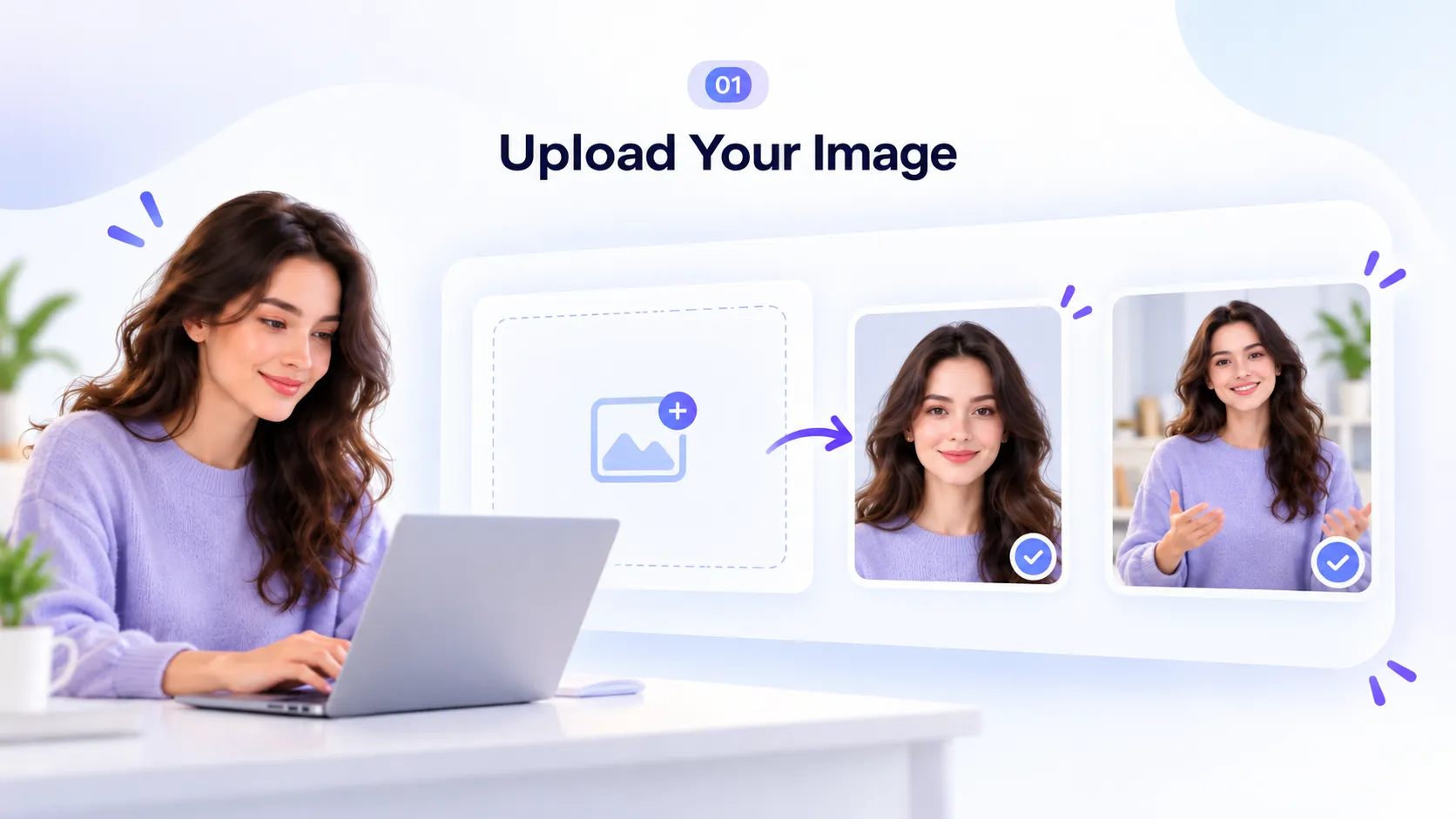
  1. Upload Your Image step illustration01

    Upload Your Image

    Choose a clear photo of yourself, someone who has given you permission, or an original character. Use a well-lit image with a visible face. For hand gestures and body movement, choose an image that shows more of the character's upper body.

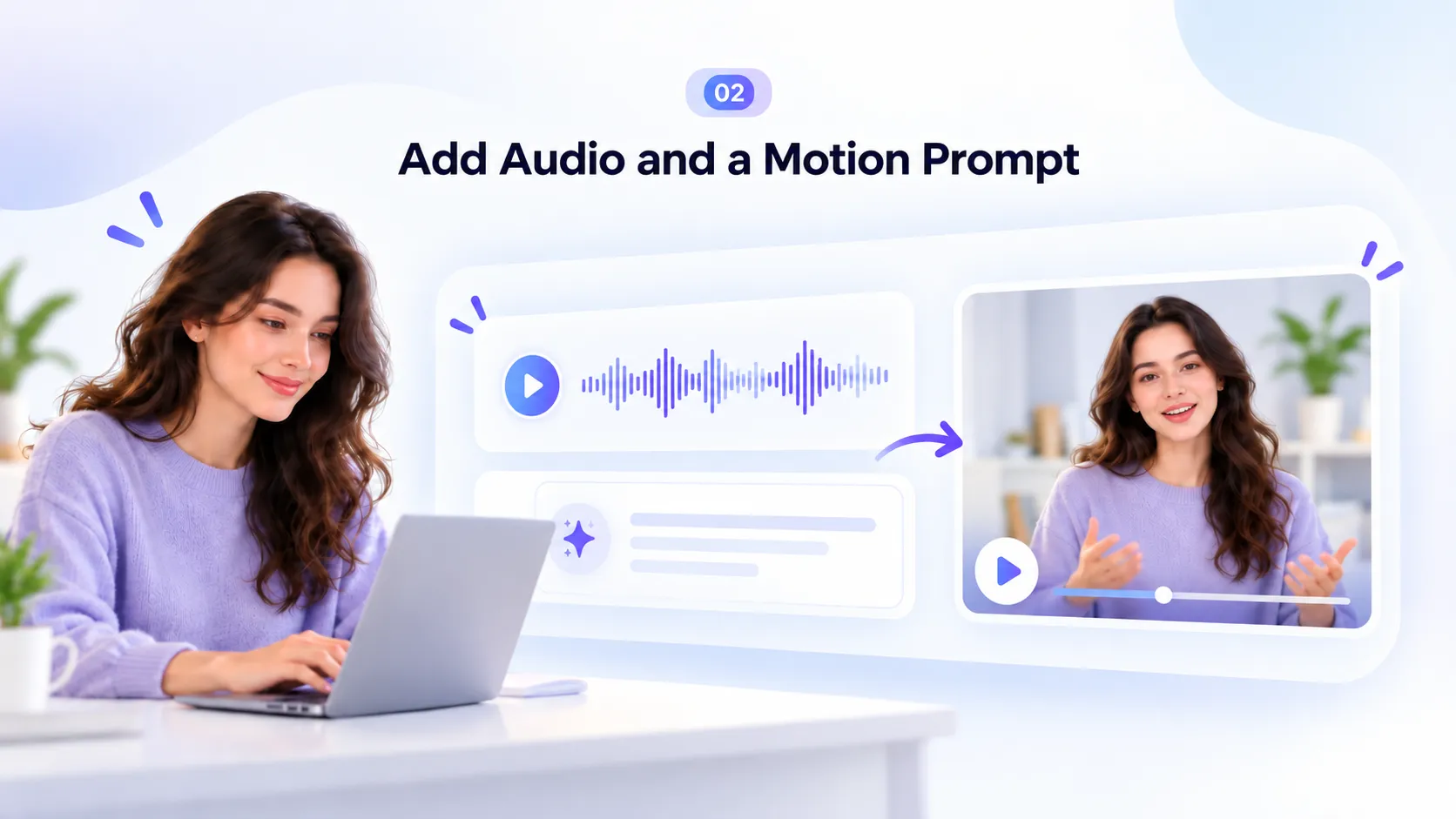
  2. Add Audio and a Motion Prompt step illustration02

    Add Audio and a Motion Prompt

    Upload a voice recording, dialogue, or song. The audio guides the character's speech, expressions, and movement. Want more control? Add a text prompt to describe gestures, actions, or camera movement.

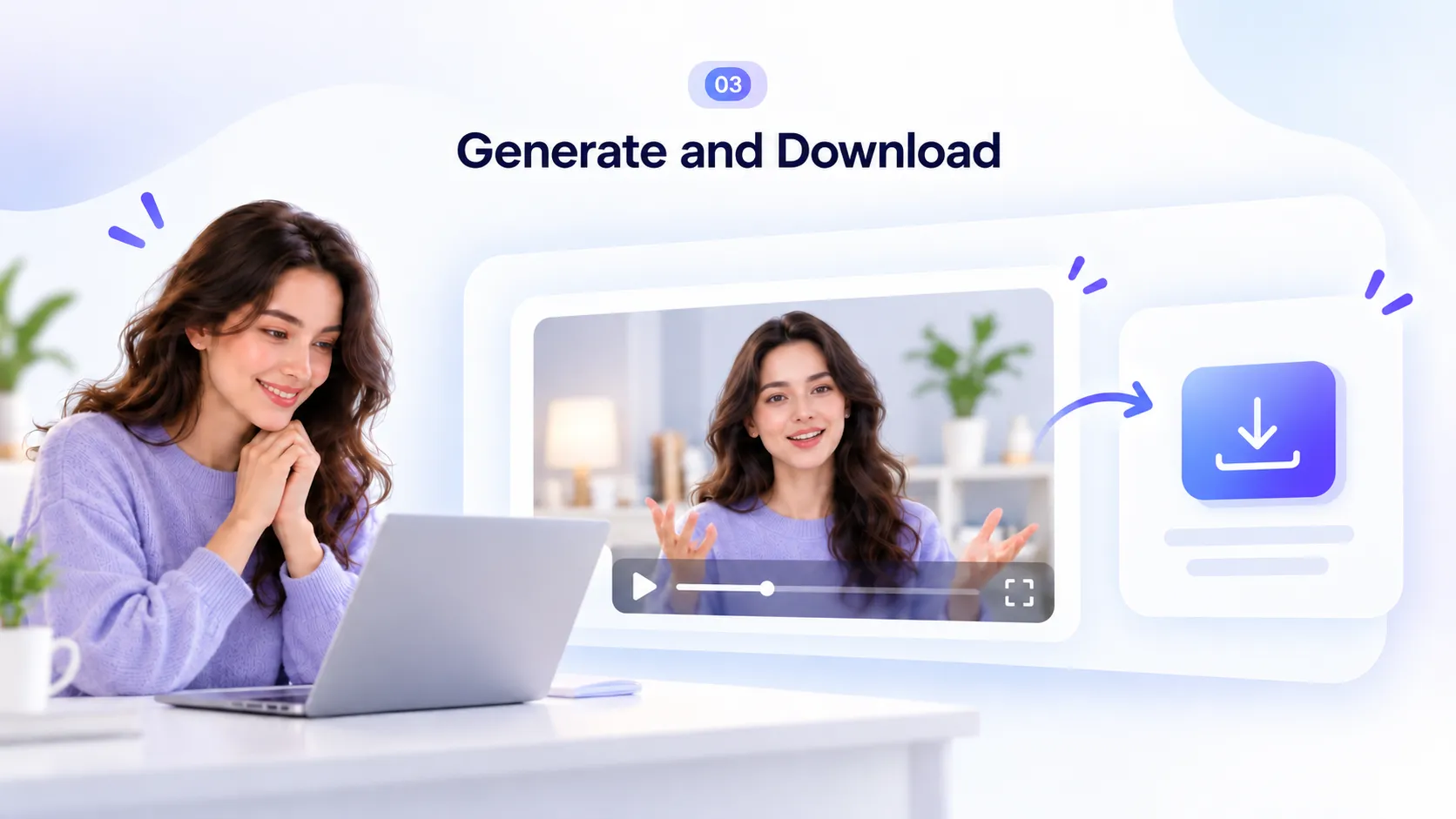
  3. Generate and Download step illustration03

    Generate and Download

    Click Generate to create your video. Preview the result and check the lip sync, expressions, and movement. If something looks off, try a clearer image, cleaner audio, or a more focused prompt. Download your video when you're happy with it.

Pricing

OmniHuman 2.0 Pricing on PWZ AI

Use PWZ AI credits to generate videos with OmniHuman 2.0. Choose a one-time credit pack that fits your needs.

Starter$24.9

600 credits · $0.042 per credit

Perfect for trying out PWZ — get started with a credit balance for your first generations.

  • 600 credits
  • High-resolution output support
Get Started
Pro$59.9

2,000 credits · $0.030 per credit

For creators generating regularly — better per-credit value for daily PWZ workflows.

  • 2,000 credits
  • About 28% lower cost per credit
Get Pro
Best valueScale$99.9

4,000 credits · $0.025 per credit

Best value for teams and content pipelines — more generations at the lowest per-credit cost.

  • 4,000 credits
  • About 40% lower cost per credit
  • Priority processing speed
Get Scale
Specifications

OmniHuman 2.0 Model Specifications

Developer
ByteDance

The company behind the model.

Model
OmniHuman 2.0

The model available on PWZ AI.

Input
One image + one audio track

Use one reference image and one audio track.

Optional Input
Text prompt

Add a text prompt to guide the performance.

Audio
Speech, singing, dialogue

Speech, singing, or dialogue can drive the video.

Max Video Length
5 minutes (300 seconds)

Create a single video up to five minutes long.

Video Resolution
720p

720p video output on PWZ AI.

Character Motion
Lip sync, facial expressions, head and body movement

Lip sync, expressions, and head and body movement.

Prompt Control
Actions, gestures, scene details, camera movement

Guide actions, gestures, scene details, and camera movement.

Prompt tips

Best Inputs and Prompt Tips for OmniHuman 2.0

Use a clear reference image, clean audio, and focused movement instructions to give your character a stronger starting point.

01

Choose a Clear Image

Start with a well-lit image that shows the character's face. Avoid heavy shadows, covered faces, or tight crops. If you want visible hand gestures, include the upper body in your image.

02

Use Clean Audio

Choose a clear voice recording or song with minimal background noise. Start with a short clip to check the result before creating a longer video.

03

Describe What You Want to See

Let your audio handle the words. Use the prompt to guide the character's actions, expressions, and camera movement.

Natural Presenter

"A confident presenter faces the camera, speaks with subtle hand gestures, and occasionally nods. Medium shot, steady camera, natural lighting."

Expressive Singer

"An animated singer performs with expressive facial movements and gentle body motion. Soft stage lighting, medium shot, slow camera push-in."

Calm Storyteller

"A relaxed storyteller speaks with small head movements and natural hand gestures. Warm indoor setting, soft lighting, steady camera."

04

Keep Prompts Simple

Focus on one or two clear actions. Too many directions can make the result less predictable. Start simple, then adjust your prompt as needed.

05

Review and Refine

Not getting the result you want? Change one thing at a time. Try a different reference image, cleaner audio, or a more specific motion prompt. Compare the outputs to see what works best.

Model comparison

OmniHuman 2.0 vs. OmniHuman 1.5

Compare duration, resolution options, and performance controls to choose the model version that fits your video project.

FeatureOmniHuman 1.5OmniHuman 2.0
Image + Audio InputYesYes
Motion PromptsYesYes
Video LengthUnder 60 secondsUp to 5 minutes
Resolution720p or 1080p720p on PWZ AI
Talking and SingingYesYes
Gesture and Camera GuidanceYesYes

Which Version Should You Use?

Choose OmniHuman 2.0 for longer talking or singing videos. It supports performances up to five minutes from one image and audio track.

Shorter Videos or 1080p

Consider OmniHuman 1.5 for shorter videos or when you need a 1080p option offered by a compatible provider. The best choice depends on your video length, resolution needs, and the results you want.

FAQ

OmniHuman 2.0 FAQ

What do I need to create a video with OmniHuman 2.0?

You need one image and one audio track. The image sets your character's appearance, while the audio drives the speech or singing. The model uses your uploaded audio rather than creating a voice.

Can OmniHuman 2.0 make a photo sing?

Yes. Upload a character image and a song to create a singing video with synced lip movements, facial expressions, and body motion.

Can I control gestures and camera movement?

Yes. Use an optional text prompt to guide gestures, actions, and camera movement. Results may vary based on your image, audio, and prompt.

How long can my video be, and what resolution does it support?

You can generate videos up to 5 minutes long in 720p on PWZ AI.

Can I animate illustrations or fictional characters?

Yes. OmniHuman 2.0 works with portraits, original illustrations, and fictional characters. Results depend on the image's style, pose, and clarity.

Can OmniHuman 2.0 animate multiple people?

Yes. OmniHuman 2.0 supports multi-person performances. Results depend on the reference image and audio, especially when multiple characters are speaking.

Can I use OmniHuman 2.0 videos commercially?

Yes, subject to PWZ AI's terms and the applicable model terms. Make sure you have the rights and permissions for any images, voices, audio, or characters you use.

Ready to create

Bring Your Character to Life with OmniHuman 2.0

Turn a single image and audio track into a talking or singing video. Guide the movement with a prompt and create up to five minutes of 720p video on PWZ AI.