
This guide brings together Halloween AI image prompts, video ideas, and music suggestions with practical ways to create them on PWZ. Start with a project that fits your plans, then use the style guide and finishing tips to make it your own.
TL;DR: Halloween AI Creation
Choose the destination first. A phone video, printed invitation, and window projection need different framing and movement.
Build a reference image when appearance matters. Approve the person, costume, product, or setting before animating it.
Use Seedance 2.5 for a fuller video story. Its advertised support for clips up to 30 seconds gives you room for a setup, a change, and a finale.
Choose a talking-video workflow for your own message. A clear character image and clean voice recording are useful starting materials.
Finish for real use. Check text, audio, cropping, and loop transitions before publishing or displaying your creation.
The prompts below are starting points to adapt. Available settings depend on the selected PWZ workflow, and results may need a focused revision or a short edit.
Pick Your Halloween AI Project Idea
Start with something you want to share, send, or display.
Choose one finished output before collecting prompts. You can expand a successful idea into other formats later.
Your goal | Start with | Make this |
Share a seasonal look | A clear portrait | Costume photo or transformation video |
Tell a playful story | A character and a simple plot | A Halloween short film |
Invite friends | Party details and a theme | Static or animated invitation |
Decorate your home | A screen or projection location | Living portrait or atmospheric loop |
Send a personal message | A character image and voice recording | Talking Halloween greeting |
Promote a product | A clean product reference | Seasonal product video |
For a first project, choose one subject, one setting, and one main action.
Decide on the format early.
Try vertical framing for phone-first posts and widescreen for a TV. For a projection or printed design, measure the actual display area rather than assuming a standard ratio will fit.
Turn Your Photo into a Halloween Character
Keep your identity while changing the scene around you.
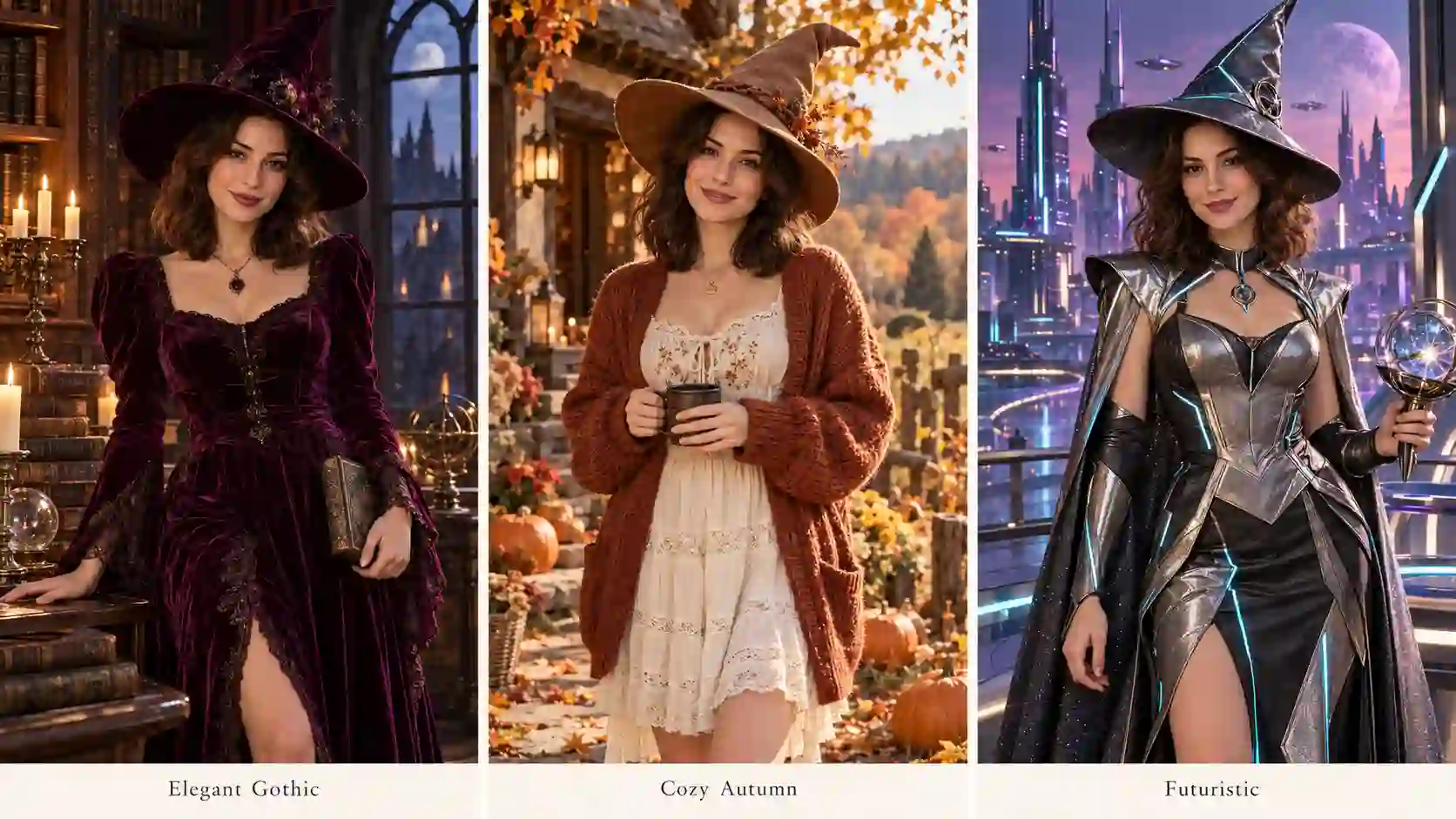
Create a Standout Costume Photo
Start with a well-lit photo where your face is easy to see. Avoid heavy filters and objects covering important facial features.
If the final image should show a complete costume, a wider reference can give you more useful visual information.
GPT Image 2.5 offers reference-guided image editing on PWZ. Use it to describe a specific change, such as replacing everyday clothing with a velvet witch outfit while retaining the person’s recognizable features.
Prompt Example:
Edit the reference photo into an elegant Halloween portrait. Preserve the adult person’s recognizable facial features, hairstyle, and natural proportions. Replace the outfit with a deep plum velvet witch costume and a simple pointed hat. Place the person beside a candlelit window in an old library. Soft light on the face, realistic fabric texture, restrained makeup, natural skin detail. No text.
For a different mood, change one group of details: velvet and candles for an elegant gothic look, autumn leaves and warm daylight for a cozy witch, or polished metal and cool lighting for a futuristic character.
Check the face before refining the background. If the person looks different, simplify the costume and makeup request, then try the edit again.
Keep the approved portrait as your reference for later assets.
Animate a Dramatic Costume Reveal
Turn the finished image into a short reveal: the character lifts a hat, turns toward the camera, or opens a cape. Give the action a clear ending so the final outfit has time to register.
For a before-and-after transformation, Wan 3.0 describes first/last-frame workflows on PWZ. Where those controls are available, use similarly framed images with matching body positions to define the transition.
The person turns slowly toward the camera as their everyday outfit becomes the witch costume shown in the final reference. Keep the face recognizable and the camera fixed. Let the transformation finish before the person gently lifts the brim of the hat. No extra people or scene changes.
Review the middle of the clip, not just its first and last frames.
Hands, facial features, and clothing edges can need correction during the change.
Tell a Longer and Richer Halloween Story
Build toward a moment worth watching.
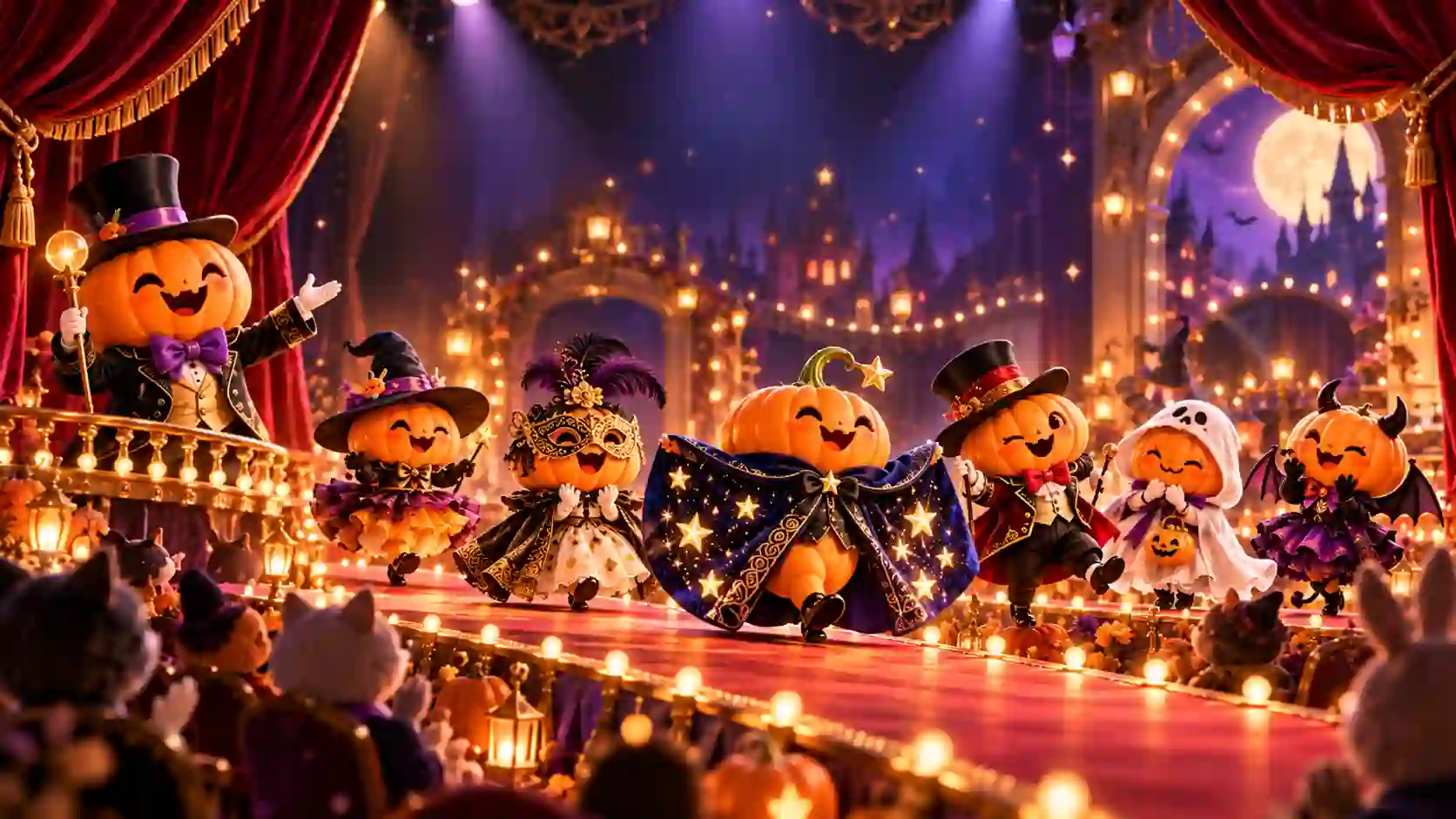
Seedance 2.5 supports clips up to 30 seconds according to PWZ. That gives a Halloween AI video more room to introduce an idea, develop it, and finish with a memorable moment.
Use that time for connected actions. Establishing a stage, introducing its performers, and building toward a final reveal gives the audience a story to follow.
Try a pumpkin Halloween fashion show. Small pumpkin characters walk down a miniature runway in witch hats, velvet capes, and sparkling outfits. The mood is cute and cheerful, with a clear progression toward the final look.
Story beat | What happens | Why it matters |
Opening | Curtains part and a pumpkin host welcomes the audience | Establishes the setting |
Development | Two pumpkin models show different outfits | Adds variety within the same scene |
Highlight | The final model opens a glowing star-covered cape | Creates the main reveal |
Finale | The pumpkins return and bow together | Gives the video a complete ending |
Prepare a reference image showing the stage and character style. Keep costume changes readable: a distinct silhouette or color is more useful than many tiny accessories.
Prompt Example:
Create a 30-second Halloween fashion show featuring cute pumpkin characters on a miniature theater runway. Open with velvet curtains parting and a pumpkin host giving a welcoming wave. Show two pumpkin models taking turns on the runway, one in a tiny witch hat and one in a rich purple cape. Build to a final pumpkin opening a midnight-blue cape covered in softly glowing stars. End with all three models bowing together. Keep the character designs, runway, and lighting consistent. Cheerful theatrical mood, readable movements, a wide opening shot followed by closer views, playful instrumental music, gentle audience applause. No on-screen text.
Select the available 30-second duration and the aspect ratio you need in the generator; mentioning duration only in the prompt is not a substitute for the setting.
If the story feels rushed, remove a performer before adding more directions.
If costumes drift, strengthen the reference image and simplify their details.
Treat the beat sequence as guidance rather than frame-accurate timing; trim or assemble the final cut if needed.
Create your Halloween story with Seedance 2.5, replacing the pumpkins with your own original characters.
Give Your Products a Magical Halloween Twist
Let the seasonal action draw attention to the product.

For a café, bakery, or online shop, choose a Halloween idea that supports what you sell. Steam from a drink could form a tiny ghost; a candy box could open onto a miniature pumpkin stage.
Start with a clear product photo. Use Seedance 2.5 reference workflow to guide its appearance, then describe a single effect around it.
Use the reference takeaway coffee cup as the main subject, preserving its shape, colors, and visible design. On a cozy café counter, steam rises from the drink and briefly forms a small friendly ghost before dissolving naturally. Keep the cup stationary and clearly visible. Warm morning light, a few small pumpkins in the background, a slow gentle camera push, quiet café ambience. No added text.
Check the cup, label, and packaging throughout the clip. If an effect covers the product, reduce its size or move it higher in the frame.
Add prices and promotional copy after generation when exact wording matters.
Make one master scene, then adapt the framing. A vertical post and a store display can share the same visual idea, but both need room for their final text and interface overlays.
Create Eye-Catching Halloween Invitations
Give guests the details and a glimpse of the fun.
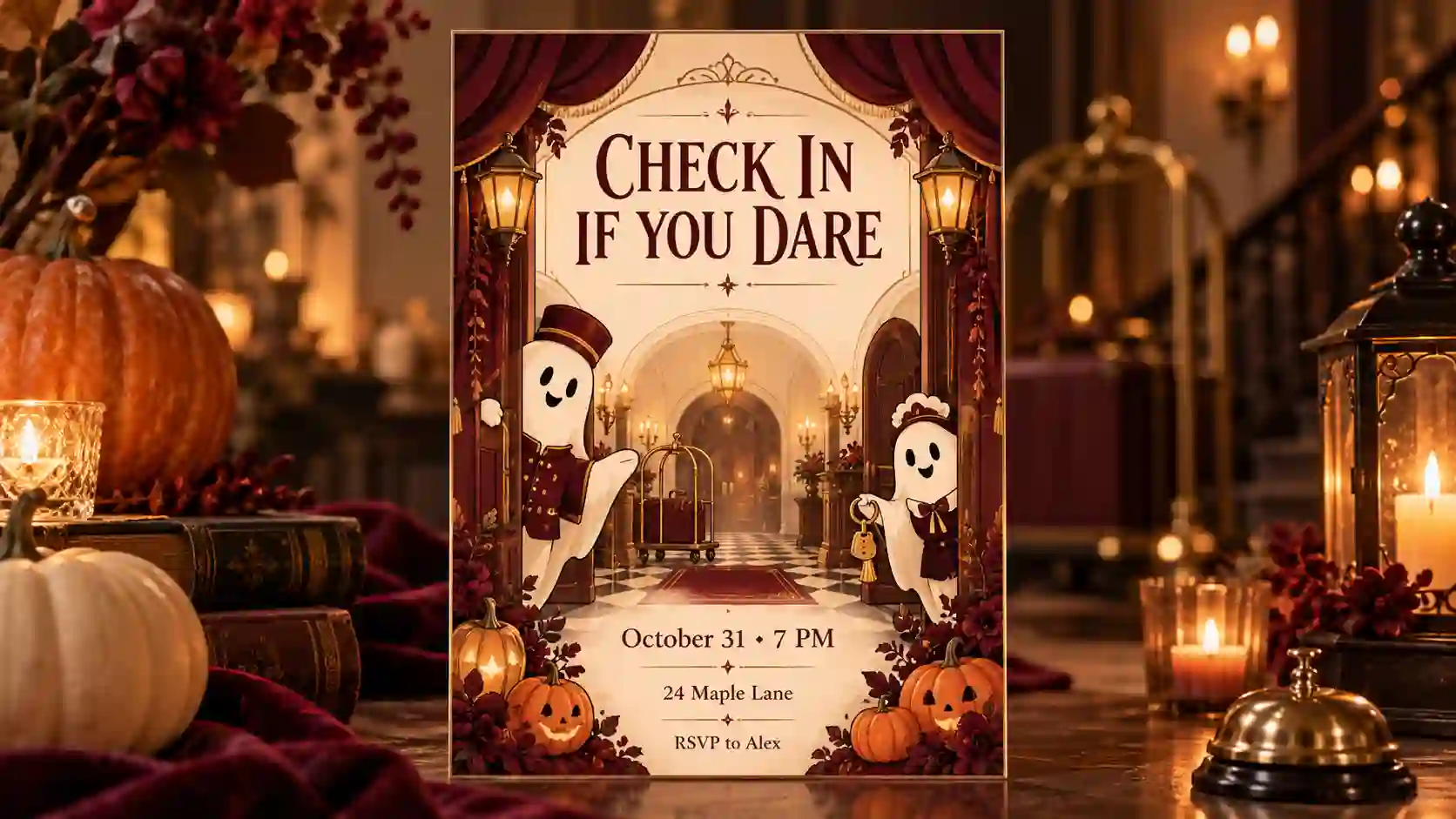
Create a Halloween party invitation that makes the theme clear at a glance. A ghost hotel, enchanted candy shop, or gothic ballroom can guide the colors, decorations, and typography.
Use GPT Image 2.5 to design the artwork and refine its layout. Keep three things prominent:
The occasion: a short party title.
The essentials: date, time, location, and RSVP.
The atmosphere: a few decorations that match your theme.
Try this prompt:
Create a vertical Halloween party invitation for a playful ghost hotel. Friendly ghost attendants, burgundy curtains, warm lanterns, and small pumpkins frame a clean central text area. Include only: “CHECK IN IF YOU DARE”, “October 31 • 7 PM”, “24 Maple Lane”, and “RSVP to Alex”. Clear hierarchy, readable lettering, elegant cream and burgundy palette.
Replace the sample details and proofread the result. For an animated invitation, use Seedance 2.5 to add flickering lanterns or a gentle ghost wave. Keep the event information still and readable; add it over the finished video if necessary.
Send the invitation before the party, using a vertical version for messages and Stories or a static version for printing.
Bring Spooky Halloween Decor to Life
Turn a window, wall, or screen into a Halloween scene.
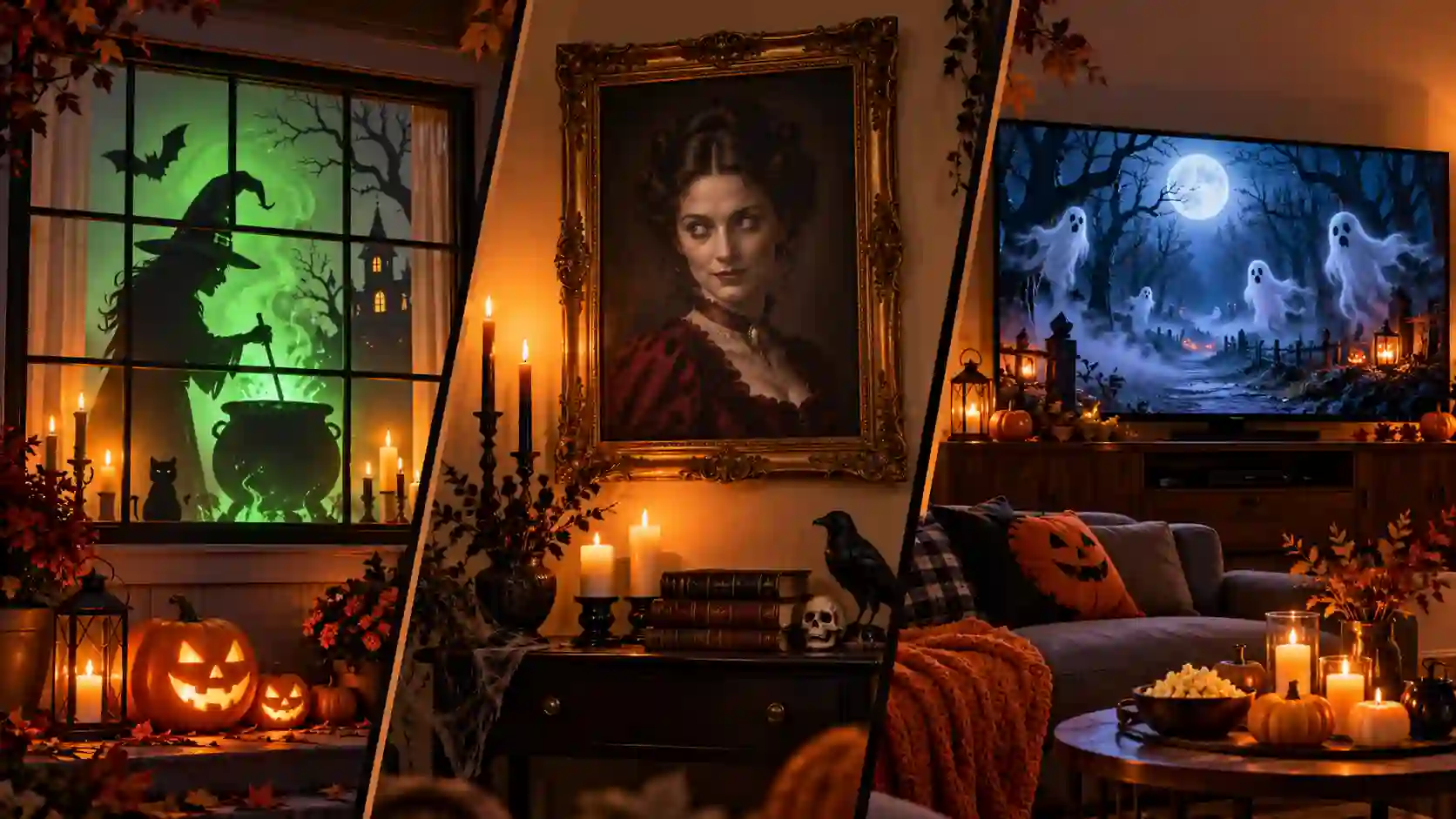
Create an image that fits your display, then use Seedance 2.5 to add subtle movement. A fixed camera and a few controlled actions help the animation feel like part of your home.
Project a Witch in Your Window
Show a witch stirring a glowing cauldron as magical mist rises around her. Keep her silhouette clear and the background simple so the scene remains readable when projected.
Animate a witch slowly stirring a glowing cauldron. Gentle green mist rises as candlelight flickers. Locked camera, stable background, smooth restrained movement. End near the starting pose. No cuts, zoom, or text.
Bring a Haunted Portrait to Life
Display a painted portrait that occasionally blinks, glances sideways, or gives a mysterious smile.
Keep the frame and background still, small movements make the illusion more convincing.
Set the Scene with a Moving Background
Turn a TV into a moonlit forest, a candlelit hallway, or a room of floating ghosts. Use slow ambient motion that adds atmosphere without distracting from the party.
Before displaying:
Match the screen or projection area, test brightness in the actual room, and check the loop transition.
Trim or add a gentle crossfade if needed; requesting a loop does not guarantee a seamless result.
Welcome Trick-or-Treaters with a Talking Character
Make the doorstep greeting part of the Halloween fun.
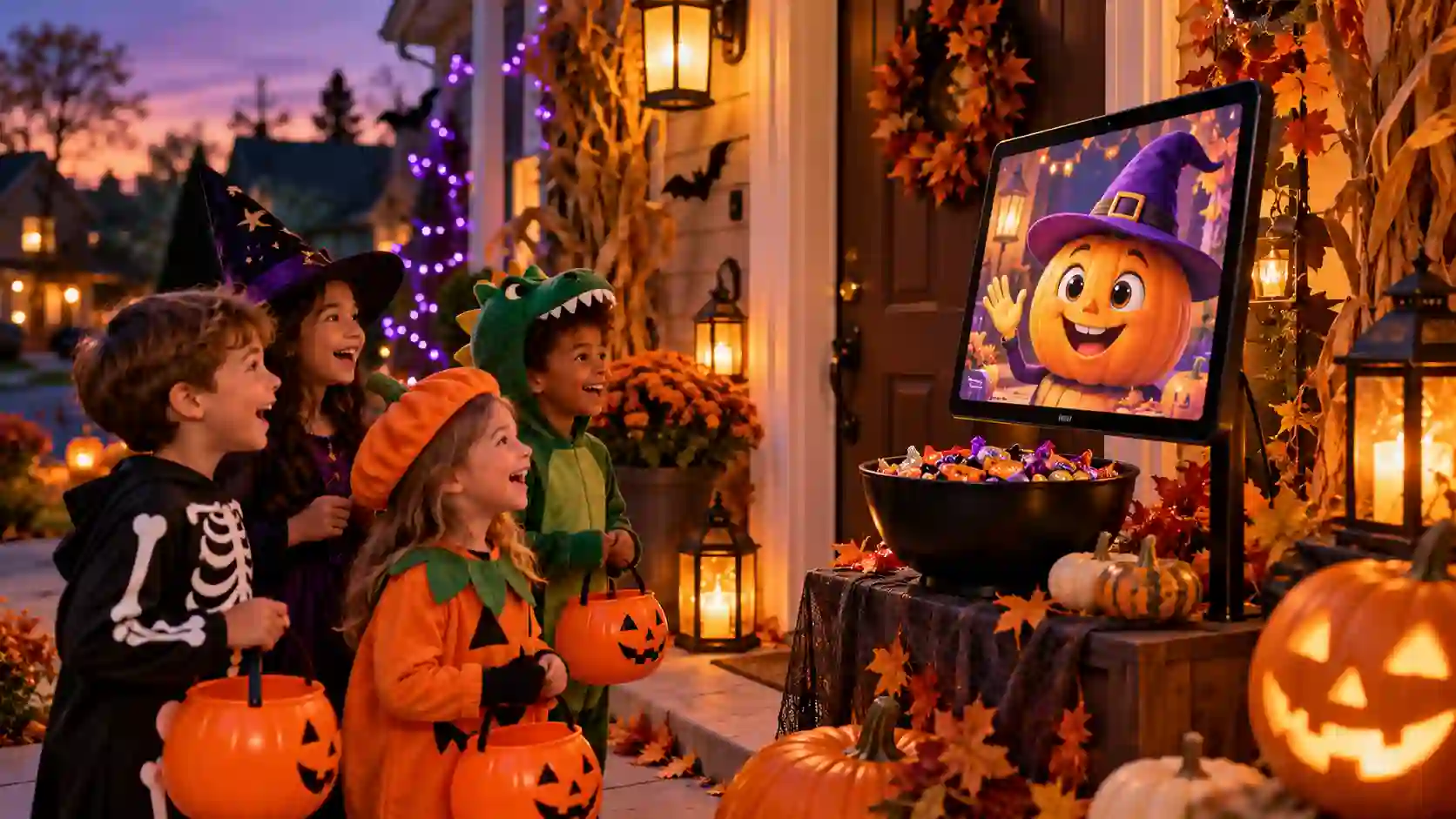
When visitors arrive with “Trick or treat!”, let a talking pumpkin or friendly witch join the welcome. Play a short character video on a porch screen or a display beside the candy bowl to add personality to your Halloween setup.
InfiniteTalk audio-driven lip sync makes it a useful choice for delivering a recorded greeting. Prepare a character image with a clearly visible mouth, then record a warm, easy-to-follow message.
Choose a greeting that fits your setup:
Welcome visitors: “Trick or treat! Welcome, little monsters. Your Halloween adventure starts here!”
Introduce the candy bowl: “You found the pumpkin’s treasure! Please take one treat and save some magic for the next visitor.”
Add a playful moment: “Show me your spookiest wave! Wonderful, have a magical Halloween!”
To create your greeting:
Choose a friendly character with a clear, near-frontal face.
Record one short message in a quiet room, leaving natural pauses.
Add the image and recording to the supported InfiniteTalk workflow.
Check the mouth movement and audio, then test playback on your display.
Keep the message brief so arriving visitors can understand it without watching a full story.
If it plays on repeat, leave a quiet pause between greetings.
For a simple interactive effect, trigger the clip when visitors approach.
The character’s greeting is prerecorded; live responses or automatic triggering require a separate playback setup.
Imagine a Futuristic Halloween with Drones and Robots
Give familiar traditions a new setting.
Design a Dazzling Drone Light Show
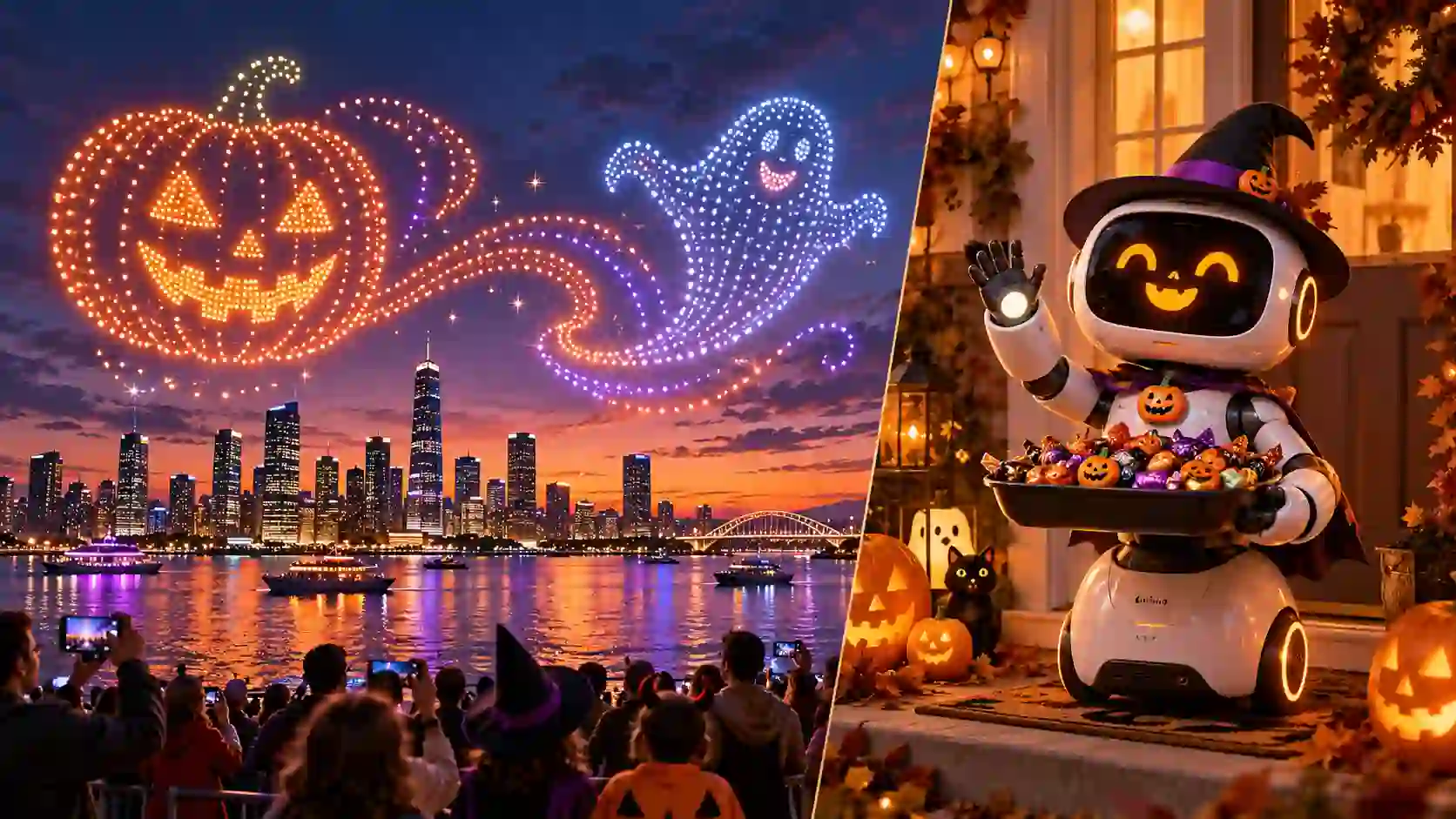
Create a concept video in which light points form a pumpkin, separate into a flowing ribbon, and regroup as a smiling ghost. Seedance 2.5 can be used to explore this visual sequence, with reference images helping communicate the intended shapes.
A fictional Halloween drone light show above a waterfront at dusk, viewed from a fixed wide camera. Hundreds of distinct light points form a bright orange pumpkin, separate into a gentle ribbon, then regroup into a friendly white ghost. Keep the skyline and viewing position stable. Clear silhouettes, gradual transitions, subtle reflections in the water, no fireworks or text.
Limit the sequence to a few recognizable shapes. A fixed view makes it easier to judge whether the transformation reads clearly.
Create a Friendly Robot Candy Host
Design a robot with a small witch hat, a pumpkin expression on its screen, and a candy tray. Keep the interaction simple: it raises the tray, gives a wave, and waits for a visitor.
MiniMax H3 describes multimodal reference workflows on PWZ. Where supported, use a robot image to guide its appearance and explain the desired motion separately in the prompt.
Use the reference robot’s design and proportions. At a decorated front porch, the robot gently raises a tray of wrapped candy and gives one small welcoming wave. Its screen shows a friendly pumpkin face. Keep the tray level, the robot’s structure consistent, and the camera steady. Warm porch lighting, playful Halloween mood.
These are concept-video projects. An AI-generated drone show does not provide flight coordinates, and a robot video does not contain a control program. Real hardware needs its own compatible setup.
Set the Mood with Halloween AI Music
Give your Halloween creation its own atmosphere.
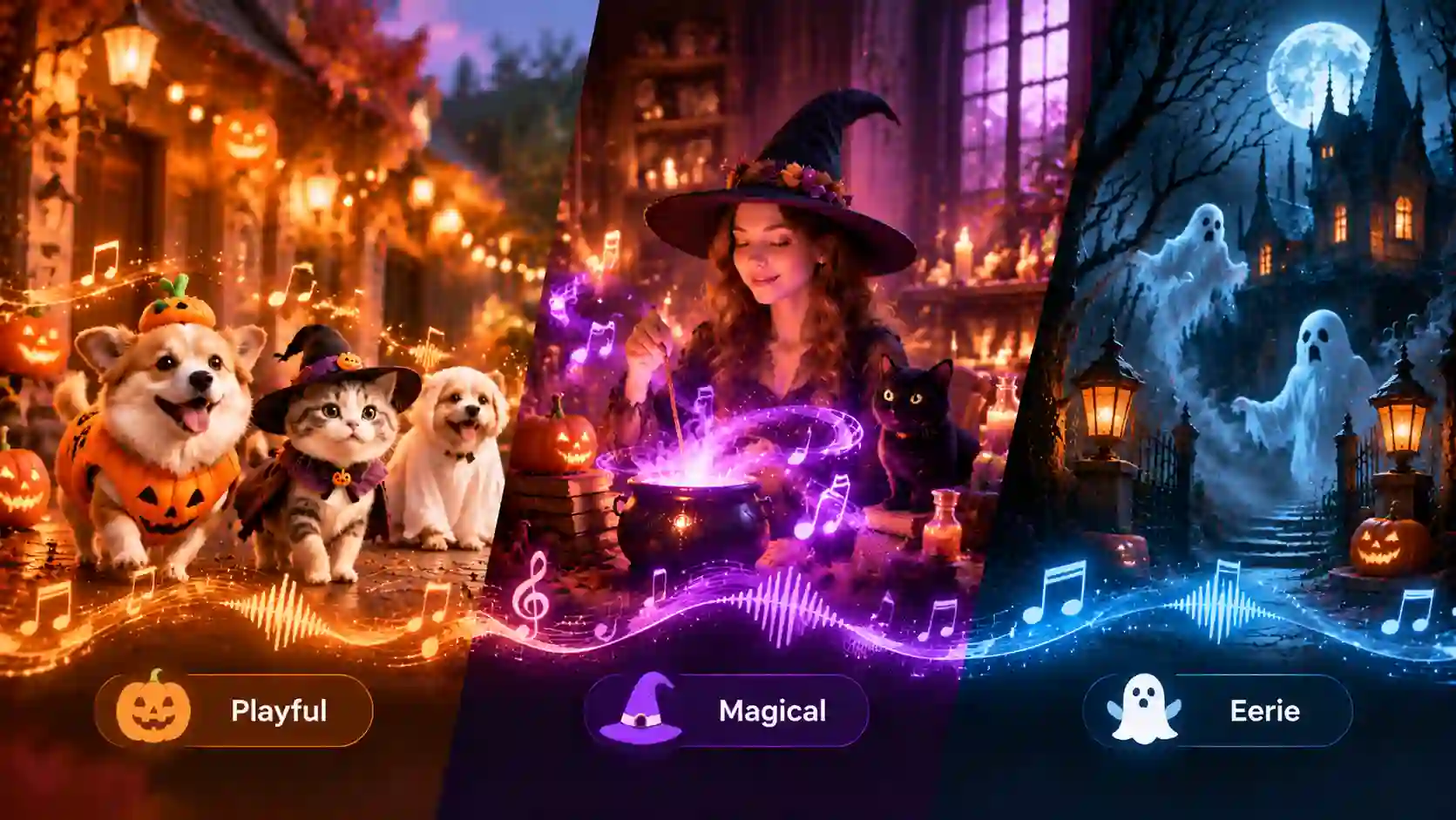
Use MiniMax Music 3.0 to create music that fits your scene, from a playful pumpkin parade to an eerie haunted hallway.
Start with the feeling you want to create, then choose the rhythm and instruments.
Choose the Mood
Playful and lively: Bouncy rhythms, plucked strings, and bright bells for costume reveals, pumpkin fashion shows, and funny videos.
Magical and mysterious: Delicate chimes, soft synths, and a gentle pace for witch scenes and enchanted party backgrounds.
Eerie and suspenseful: Low drones, sparse piano notes, and slow-building textures for haunted portraits and darker settings.
Describe the Scene and Sound
Include the purpose, mood, instruments, and pacing in your prompt.
Playful Halloween music for a miniature pumpkin fashion show. Bouncy rhythm, pizzicato strings, sparkling bells, and light percussion. Build anticipation for the final costume reveal, then finish with a cheerful flourish. Instrumental, no vocals.
Fit the Music to the Moment
Keep background music quieter than speech.
For party ambience, favor a steady mood that remains enjoyable on repeat.
For short videos, align a musical accent with the main reveal, then trim or fade the ending to fit.
Choose Your Unique Halloween Style
Use a few deliberate details to make the project yours.
Pick Your Signature Halloween Elements
Once you have chosen a project, select elements that reinforce its mood. You rarely need every Halloween symbol in one frame.
Element | Mood it can suggest | Useful applications |
Pumpkins and candy | Welcoming, playful, seasonal | Invitations and trick-or-treat scenes |
Friendly ghosts | Cute, humorous, gently mysterious | Greetings and social posts |
Witch hats and spellbooks | Magic, transformation, storytelling | Costume reveals and projections |
Castles, bats, and moonlight | Gothic, nocturnal, dramatic | Portraits and cinematic scenes |
Candles and antique frames | Elegant, historical, theatrical | Living portraits and party graphics |
Autumn leaves and wood | Warm, cozy, familiar | Family gatherings and lifestyle images |
Metal and neon | Futuristic, energetic, technological | Robots and imagined light shows |
Match Colors, Lighting, and Mood
Try soft orange and lavender for cute scenes,
Amber light and autumn browns for cozy settings,
Burgundy and deep charcoal for elegant gothic images,
Cyan and violet for futuristic designs.
Keep the subject readable even in a dark scene.
A lantern near the face, reflected light on a costume, or a lighter background behind a silhouette can preserve the atmosphere without losing detail.
You can explore candidate looks with Nano Banana 2.1, listed among PWZ’s image models. Compare a small set of images before choosing a reference to carry into video creation.
Turn Your Ideas into a Clear Prompt
Build a prompt around:
Subject + setting + key elements + action or composition + lighting and color + output needs.
For example:
A friendly ghost hotel receptionist behind an antique desk, holding a small brass key. Burgundy curtains, two pumpkin lanterns, warm light on the character, playful gothic mood. Vertical invitation artwork with clear empty space at the top for text.
For video, add the action order and camera behavior.
For music, describe the role of the track and its sound.
Change one important choice at a time so you can see what improved the result.
Polish Your Halloween Creation for Sharing
Fix the detail that matters most to the finished piece.
The person no longer looks familiar.
Return to the approved reference. Simplify changes to makeup, hair, and facial expression, then adjust the outfit or background separately.
The video tries to do too much.
Remove an action or scene change. State what happens first, what changes, and how the clip ends.
The image is too dark.
Name a light source and where it falls. Preserve shadows in the environment while making the face, product, or key prop visible.
Invitation text is wrong or unstable.
Use shorter copy, check it manually, or add final typography in a design editor. For video, a separate text overlay avoids relying on animated lettering staying unchanged.
The loop jumps.
Compare the first and last frames for position, light, and camera differences. Trim to compatible moments or add a suitable transition in an editor.
The sound competes with the message.
Lower the music and remove unnecessary effects. Listen once without watching to check that the words remain clear.
The final crop cuts off important details.
Reframe for the intended platform or device. Preview the actual upload or display before calling the project finished.
Bring Your Halloween Idea to Life
Start with one costume photo, a short pumpkin story, or a talking invitation.
Once you like the result, reuse its characters and style across your party visuals and social posts.
Explore PWZ AI Generators and turn your first Halloween idea into something ready to share.
Halloween AI Creations FAQs
Can I create a Halloween AI video without a photo?
Yes. Start with a text-to-video workflow and describe an original character, setting, and action. A reference image becomes useful when you need a particular appearance to carry across several outputs.
How can I keep one character consistent across different creations?
Choose an approved reference and reuse it in supported workflows. Keep the character description stable, including distinctive clothing and proportions. Check each result; references guide consistency but do not guarantee an exact match.
Can I use my own voice for a Halloween greeting?
An audio-driven workflow such as InfiniteTalk is designed for that type of task. Prepare a clear recording and a suitable character image, then check the supported upload formats and settings on PWZ.
What do I need to display a Halloween projection?
You need the finished video, a playback device, a projector, and a suitable display surface. Test placement, brightness, and framing in the intended lighting conditions. Projection mapping onto shaped surfaces needs additional preparation.
Can I use Halloween AI content for my business?
Check the current Terms of Service linked in the PWZ website footer and the conditions for your plan and chosen model. Also make sure you have permission to use any uploaded photos, branding, voices, or music.