
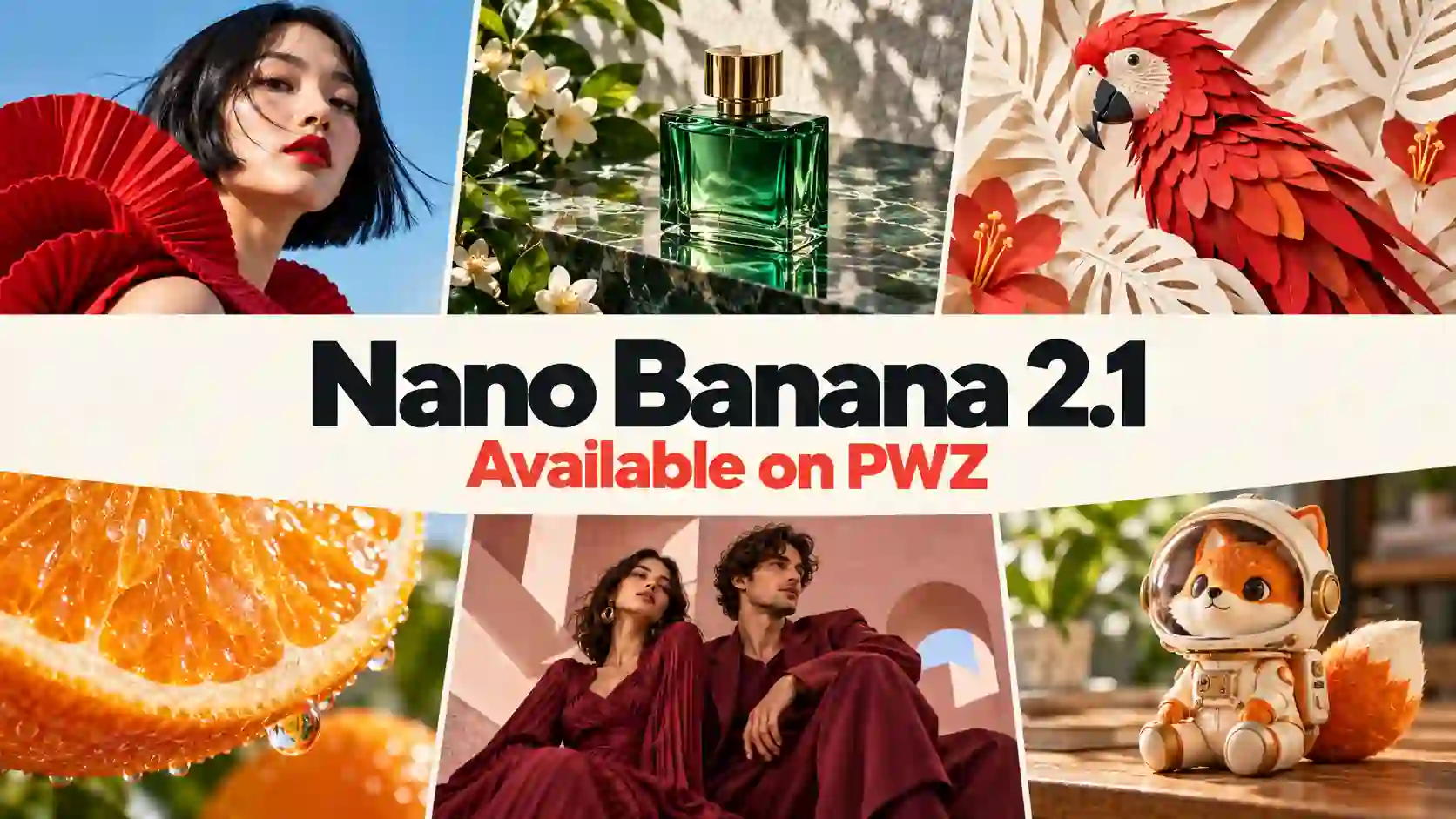
Nano Banana 2.1 is now available on PWZ, bringing new opportunities to generate, edit, and develop those ideas. Its improvements in visual design, local editing, and subject consistency are especially relevant when you want more control over the finished image.
Below, explore Nano Banana 2.1 creative ideas and prompts you can adapt to your own photos, products, and projects.
TL;DR: Nano Banana 2.1 on PWZ
Start with a result you want: an editorial portrait, readable poster, detailed close-up, collectible figure, or coordinated image series.
Make prompts specific: name the layout, materials, lighting, and details that should stay consistent.
Use marked areas and references deliberately: explain what each mark or image controls.
The prompts below are starting points to customize. Review lettering, identity, and product details before publishing.
Give Your Photos a New Creative Direction
One photo can support very different creative directions.
Turn a Portrait into an Editorial Cover

Give a personal photo the visual structure of a fashion publication: confident framing, deliberate lighting, and a short headline.
This works for personal branding, creator announcements, or an imaginative profile image.
Try this prompt:
Use the uploaded portrait as the identity reference. Create a 4:5 fashion magazine cover with a deep blue background, soft facial lighting, and a subtle hair light. Preserve the person’s recognizable features. Place “ALEX” at the top and “A NEW PERSPECTIVE” below the shoulders. Use bold editorial typography and generous spacing. Include only the specified text, with no logos.
💡 Make it work:
Start with a short headline and one supporting line.
Check spelling and letter spacing before adding more copy.
Replace the sample name and headline with your own.
Create a Natural Lifestyle Portrait

For a relaxed visual, describe an everyday moment rather than a studio session. Window light, loose hair, and realistic clothing folds can help establish that direction.
Try this prompt:
Create a natural lifestyle portrait using the uploaded person as reference. Show them sitting beside a café window, relaxed and looking slightly away from the camera. Preserve facial features, natural skin texture, loose strands of hair, and clothing folds. Use warm daylight and a softly blurred background. Avoid heavy retouching. No text.
💡 Make it work:
Choose a source photo with clear facial detail.
Review whether the result still looks like the intended person, especially after several edits.
Design Posters That Look Intentionally Composed
Give every word and visual element a role.
Build a Poster Around Bold Typography
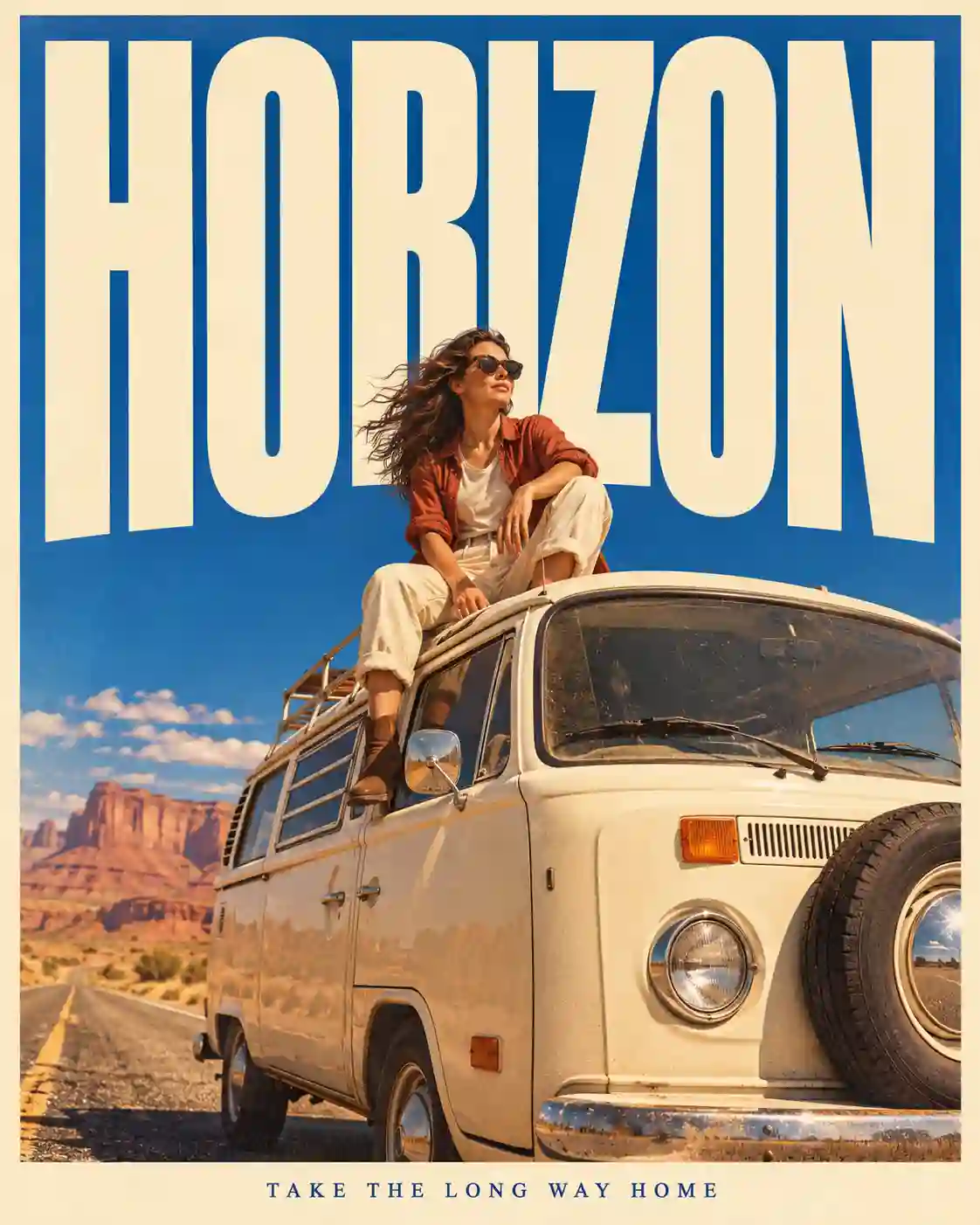
Nano Banana 2.1 poster prompts can go beyond “make a beautiful poster.” Describe the hierarchy: what readers see first, where the subject sits, and how the image interacts with the headline.
Try this prompt:
Design a vertical retro travel poster with a cobalt blue background and a warm cream border. Place the large condensed headline “HORIZON” across the upper half. A traveler sitting on a vintage camper van overlaps the lower edges of the letters without making the word unreadable. Add “TAKE THE LONG WAY HOME” in small type at the bottom. Use warm photographic colors and restrained film grain. No extra text or logos.
💡 Make it work:
Put exact wording in quotation marks. Specify “only the listed text” rather than “no text,” which would contradict your headline request.
For a different treatment, replace the condensed lettering with expressive brush lettering or reduce the composition to one geometric shape and a short title.
Give a Familiar Place a Seasonal Makeover
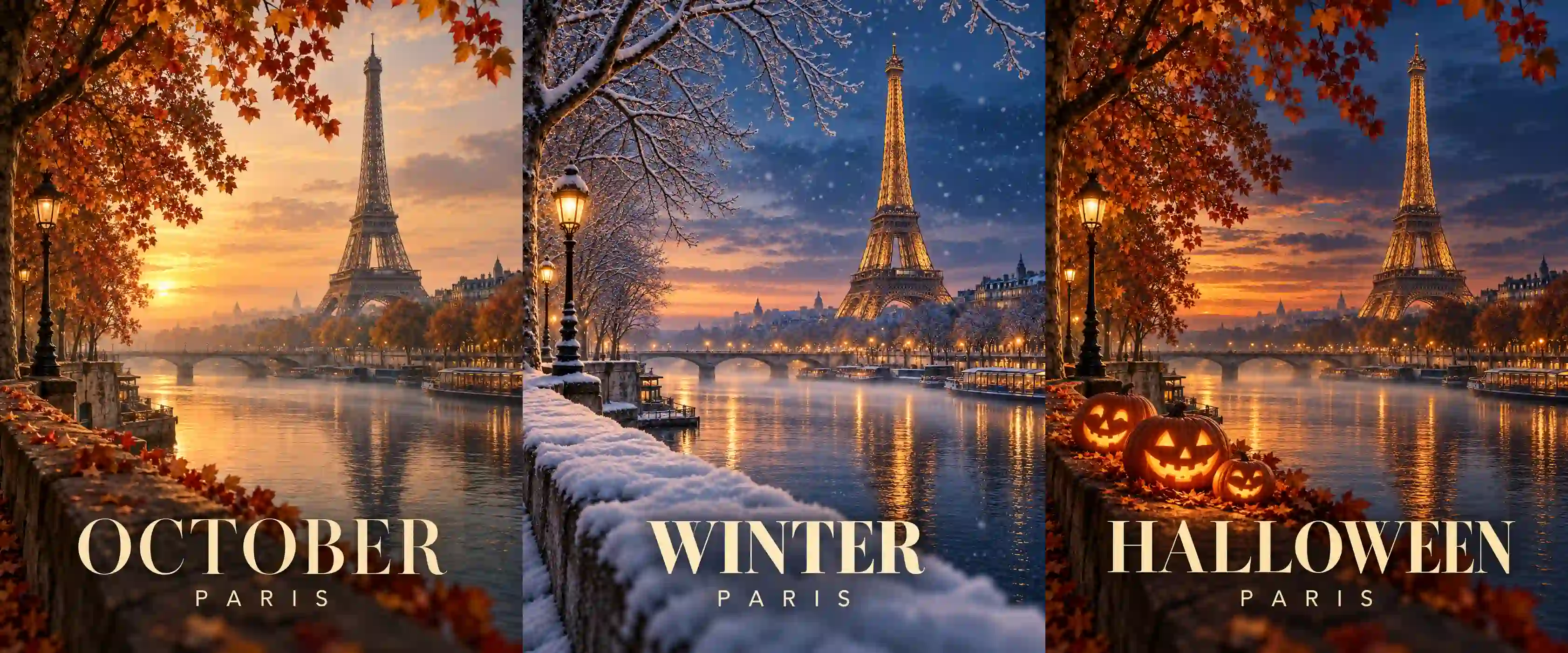
Use a recognizable location as the anchor for seasonal content. A consistent composition can support an autumn version, a Halloween variation, and a later winter design.
Try this prompt:
Turn this landmark photo into an elegant autumn travel poster. Preserve the building’s recognizable structure. Add amber evening light, rust-colored foliage, and subtle mist. Use a restrained film look with clear architectural detail. Place “OCTOBER” and “[LOCATION]” at the bottom in clean, readable type. Keep decorations minimal.
For Halloween, request a few glowing pumpkin lanterns and more atmospheric shadows while keeping the landmark visible.
💡 Make it work:
Change the seasonal accents without changing everything at once.
Keep the location, composition, and typographic treatment recognizable across variations.
Explore Close-Ups, Camera Looks, and Artistic Styles
Describe how the image should look, not just what it contains.
Make Small Details the Main Subject
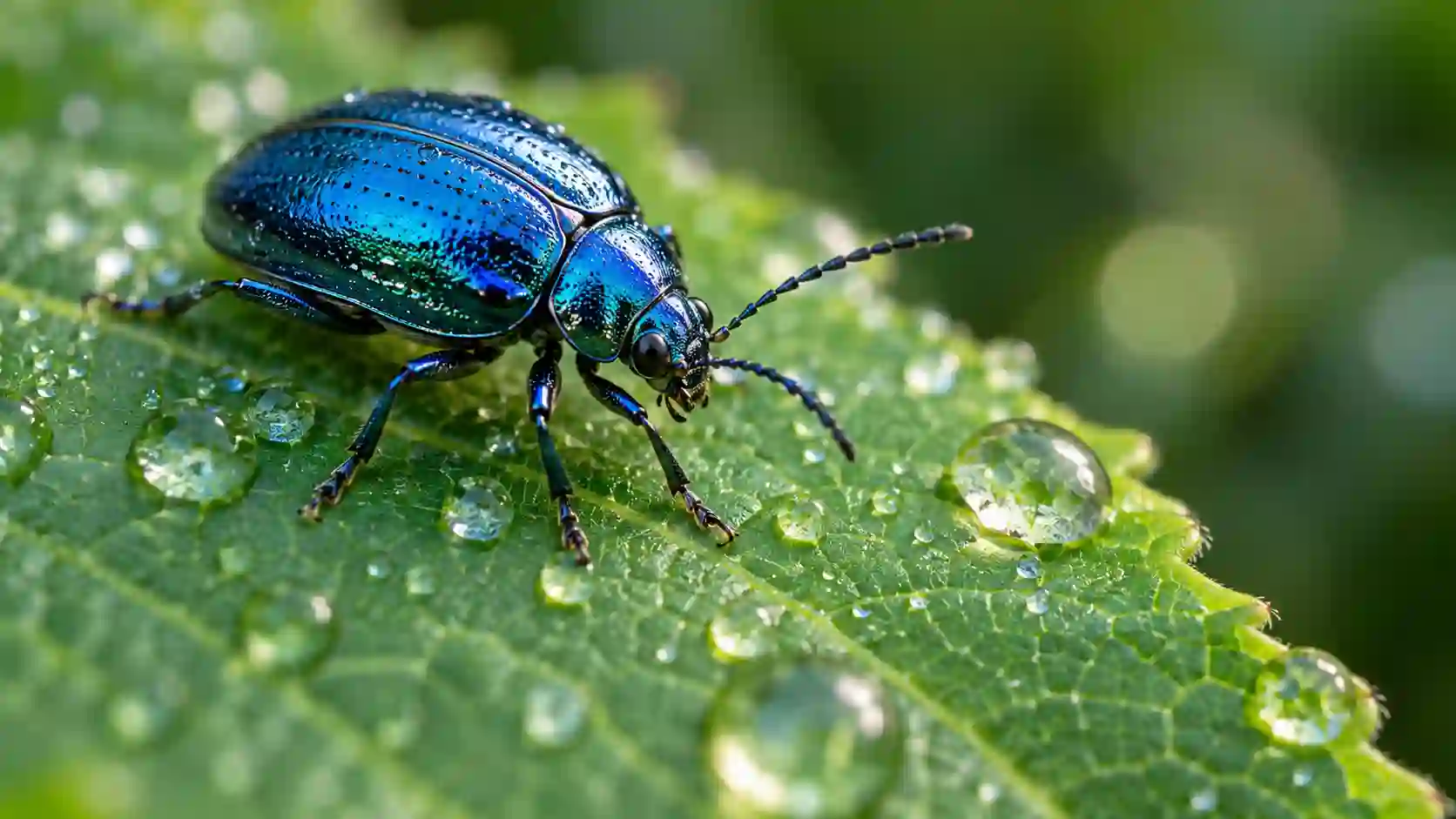
A water droplet, leaf vein, or textured product surface can become the focus of an image. AI macro photography prompts work best when they identify both the sharp detail and the softer surroundings.
Try this prompt:
Create a macro photograph of a small beetle on a dew-covered leaf. Focus sharply on its head and the fine texture of its blue shell. Show believable water droplets and delicate reflections. Let the leaf gradually fall out of focus behind it. Use soft side lighting and a diagonal composition. No text.
💡 Make it work:
Check whether droplets, surfaces, and body parts look coherent.
More visible texture does not automatically mean more believable detail.
Describe the Photograph You Want
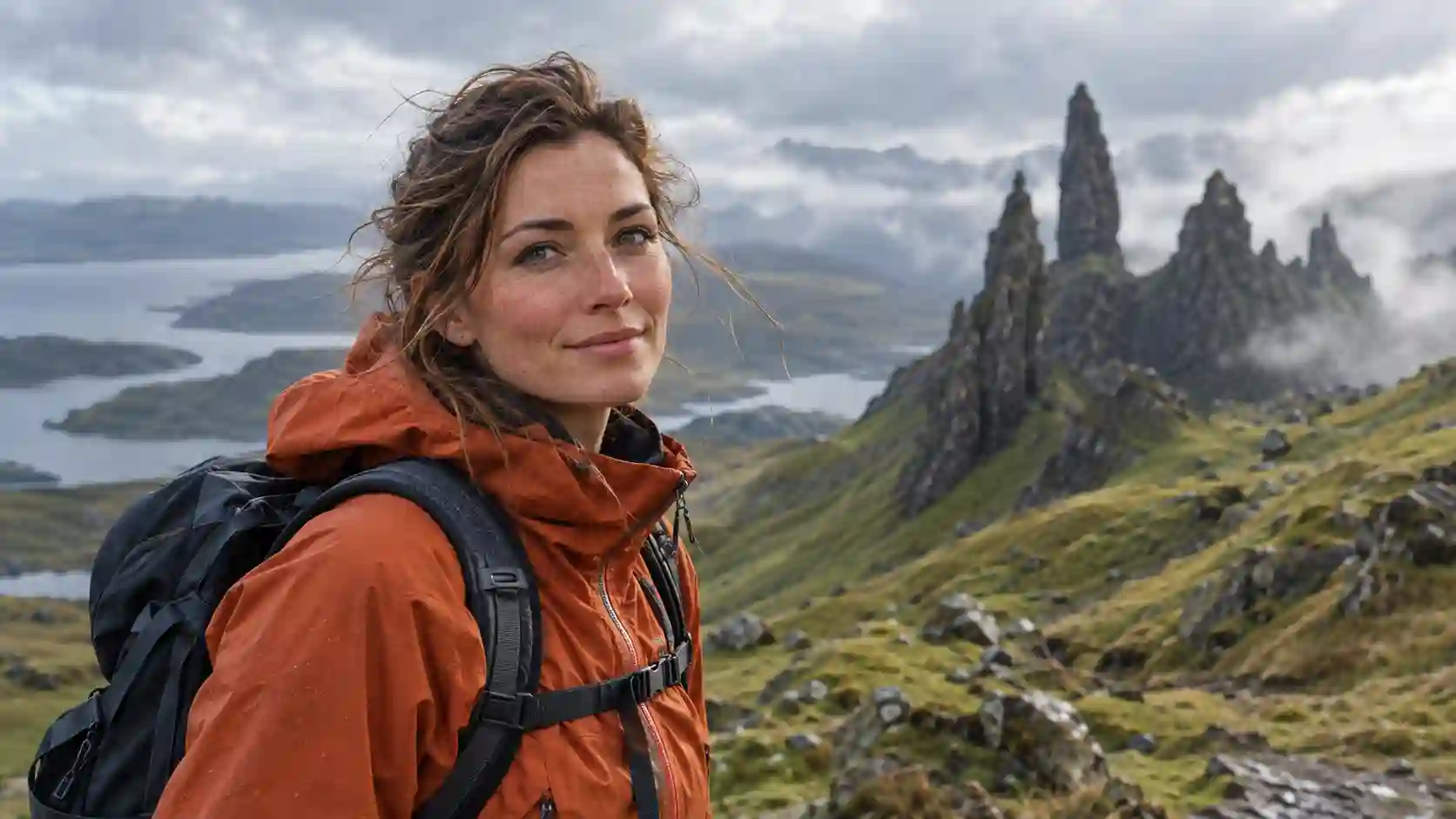
Lens and aperture terms can help communicate a visual direction, but combine them with the effect you want to see.
Try this prompt:
A cinematic portrait of a hiker on Scotland’s Isle of Skye, with the Old Man of Storr in the background. Use a 50mm lens look and shallow depth of field inspired by f/1.8. Keep the hiker’s eyes sharp and the distant rock formations softly recognizable. Overcast daylight, natural skin texture, muted greens, and gentle contrast.
💡 Make it work:
Avoid contradictory instructions such as extreme background blur and equally sharp distant details.
Camera settings in a prompt describe an intended appearance; they are not proof of an actual camera setup.
Turn a Scene into a Different Medium
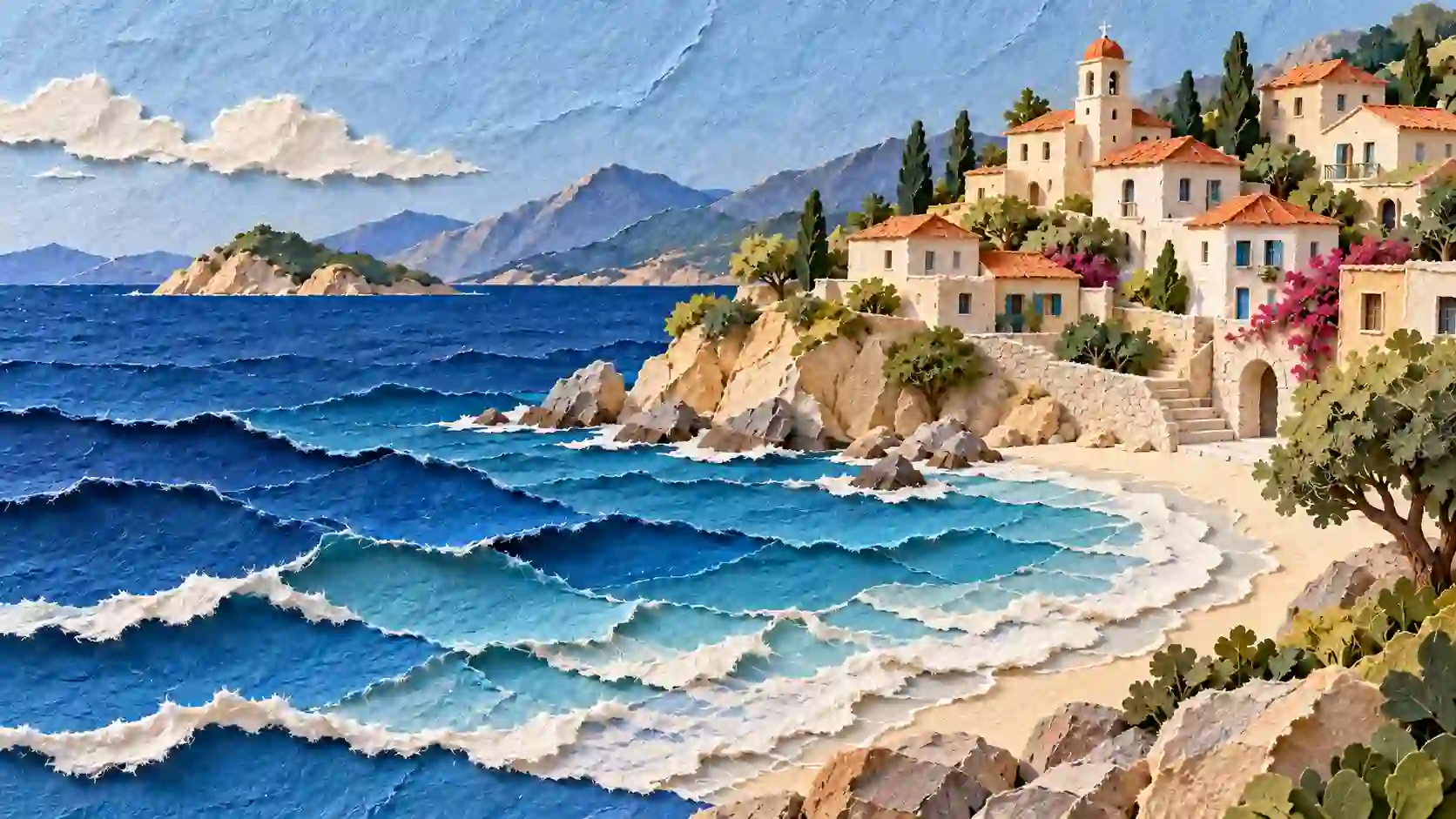
For stylized AI art, describe the material and mark-making. Thick paint, torn paper, and layered cutouts produce different kinds of images.
Try this prompt:
Reinterpret this coastal photograph as layered paper art. Preserve the main shoreline and building arrangement. Use cream paper, torn edges, subtle fiber texture, and overlapping blue shapes for the sea. Create soft shadows between paper layers. Keep the composition simple and recognizable. No text.
For an oil-painting variation, replace paper layers with visible impasto brushwork, directional strokes, and a limited palette.
💡 Make it work:
Pick one dominant medium first. Add only the details that reinforce it.
Draw What to Keep or What to Change
A simple mark can make a local edit easier to explain.
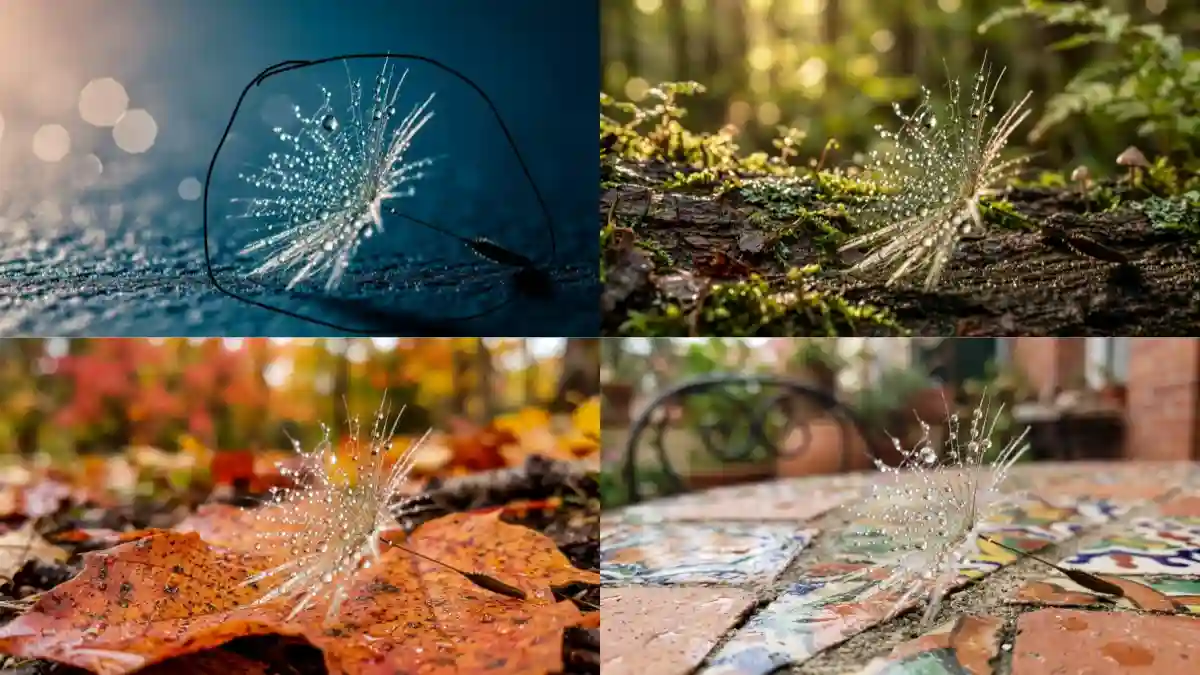
Instead of describing a tiny region with a long sentence, use a marked reference image to identify it. Crucially, explain whether the marked area should be preserved or changed.
A useful creative exercise is to keep a delicate subject, such as a seed covered in water droplets, and place it in several environments. The Nano Banana 2.1 showcase demonstrates this type of marked-reference editing.
Try this prompt:
Preserve the seed inside the hand-drawn outline, including its size, position, shape, and water droplets. Replace the surrounding environment with a moss-covered log. Remove the drawn outline from the final image. Match the lighting and contact shadows naturally. Output one 16:9 image.
💡 Make it work:
A circle does not automatically mean “replace this.” State its role explicitly, then inspect the boundary and the relationship between the subject and its new surroundings.
A marked reference image is also different from a dedicated mask control; use the input options available in your workspace.
Build a Visual Series from Reference Images
Keep the identity stable while the setting changes.
One Product, Several Creative Settings
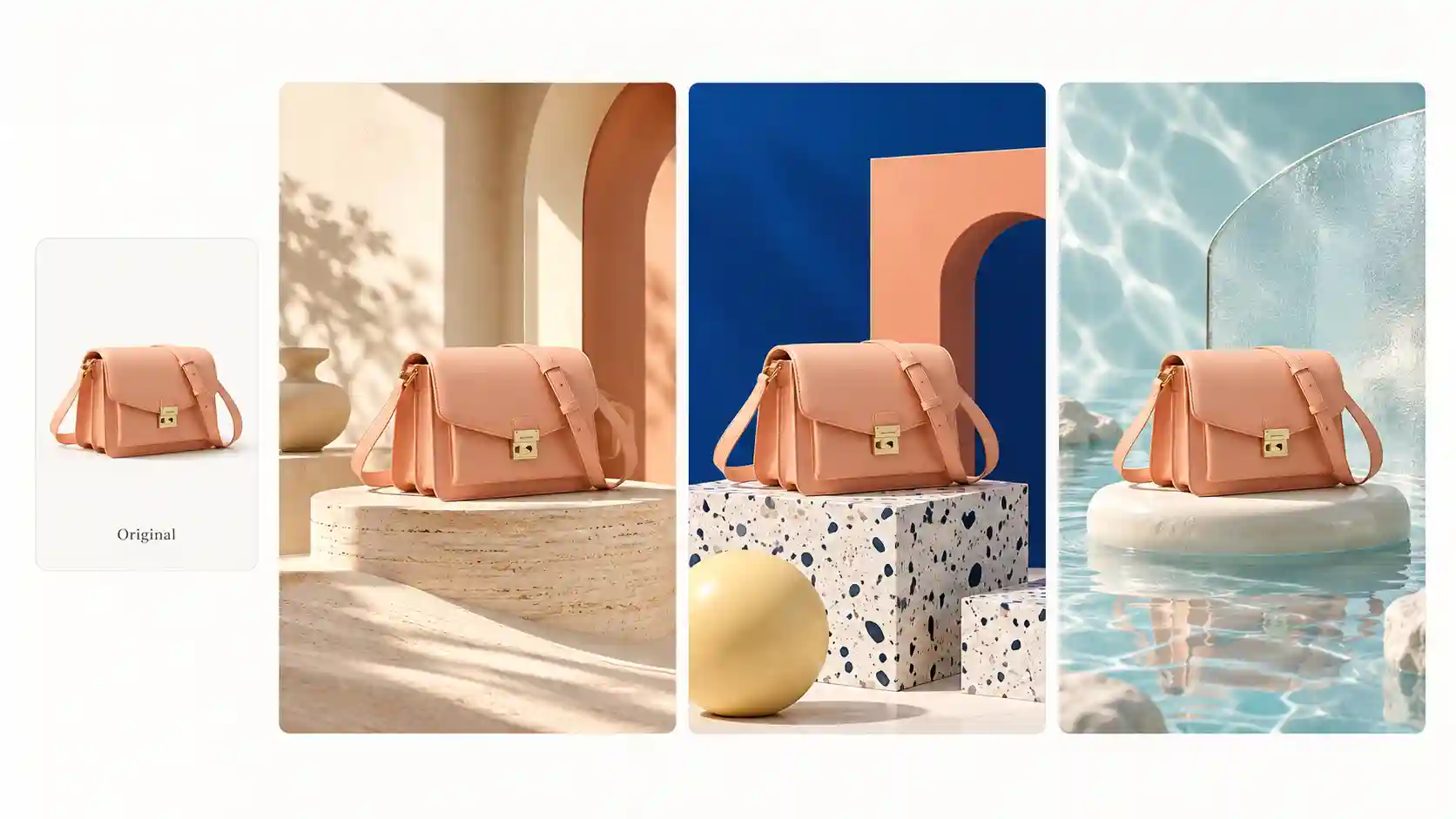
Start with a clear product reference and build several environments around it. A peach crossbody bag, for example, can appear on a quiet geometric display or a lively patterned set.
Try this prompt:
Use the uploaded peach crossbody bag as the product reference. Preserve its silhouette, leather texture, color, strap, stitching, and gold clasp. Place it on layered cream cylindrical platforms with soft peach geometric shapes. Use gentle studio lighting and realistic contact shadows. Create a refined 4:5 product photograph. No added text or logos.
For another version, change only the set to black-and-white terrazzo steps with restrained pastel geometric accents.
💡 Make it work:
Separate fixed product details from changeable styling.
Inspect hardware, seams, and proportions across the series before using it in a campaign.
These images can become parts of a product presentation: a hero image, a detail view, and a lifestyle scene.
Supply real specifications separately rather than asking the model to invent sizing or material claims.
Bring Multiple People into One Composition
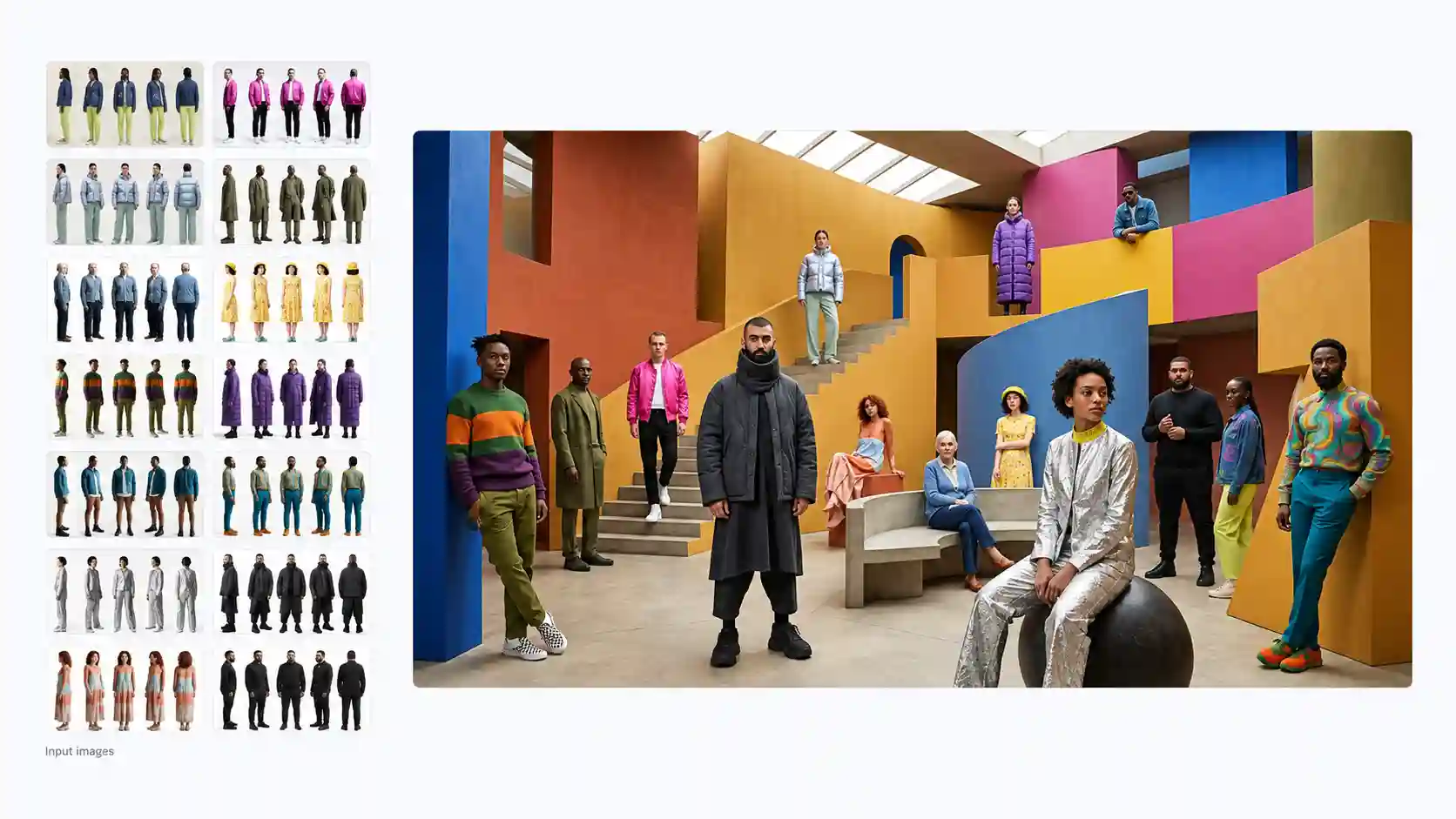
Multi-reference prompts can combine separately photographed people into a coordinated editorial scene.
Try this prompt:
Use Images 1 and 2 as references for Person A, and Images 3 and 4 for Person B. Preserve each person’s facial features, hairstyle, and assigned outfit. Create a fashion editorial in an abstract colorful studio. Use cohesive lighting and a dramatic but balanced composition.
💡 Make it work:
Label references by person and purpose.
Several views can describe one person; the number of uploaded images is not the number of characters.
Check for mixed facial features, swapped outfits, and inconsistent scale.
Turn People and Characters into Collectible Figures
Change the material while keeping the character recognizable.
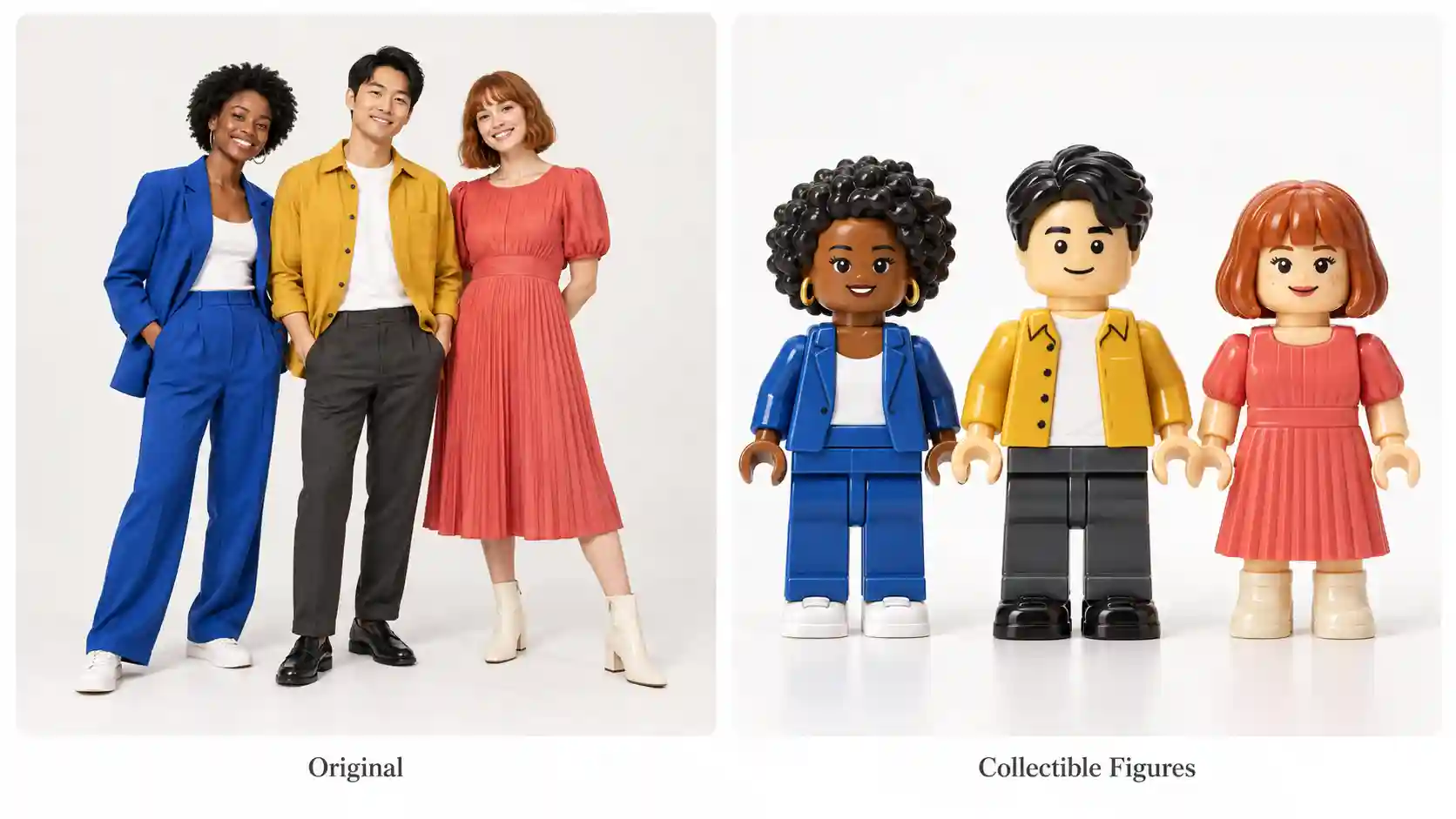
Transform a group photo into a toy display, or imagine a character as a life-size exhibition figure.
The creative challenge is preserving distinctive features while changing proportions and surface materials.
Try this prompt:
Turn each person in the uploaded group photo into a stylized plastic building-block figure. Preserve the number of people, hairstyles, clothing colors, accessories, and relative positions. Show every figure fully on a clean white surface. Use molded plastic textures, subtle highlights, and soft toy-photography shadows. No text or logos.
For a life-size display version, request a painted PVC figure on an exhibition base, with subtle assembly seams and surrounding objects that establish scale.
💡 Make it work:
Specify whether you want a small tabletop collectible or a full-size display.
Review the people individually so nobody is omitted or given someone else’s accessories.
A Few Technical Details Behind Nano Banana 2.1 Upgrade
The Gemini API documentation describes improved visual quality at 1K, 2K, and 4K, better text and infographic layout, and fixes for tiling artifacts in extreme aspect ratios at 2K and 4K.
It also lists up to 14 reference images, with consistency support for up to four characters and fidelity for up to ten objects, plus configurable thinking levels.
Higher resolution is worth considering when small text or material detail matters. It will not automatically correct inaccurate copy, an unclear composition, or conflicting references.
Try Your Creative Ideas on PWZ
Choose one idea and make the first version easy to evaluate.
Open PWZ Studio and select Nano Banana 2.1.
Add your photo or references if the idea needs them.
Adapt one prompt with your subject, wording, style, and preservation requirements.
Choose the available output settings and check the displayed generation cost.
Generate, inspect the result, and adjust one main issue at a time.
Start with something you already have: a portrait, a product photo, or a place you love.
Give it a new visual direction, then refine the details that make it yours.
Create Your Next Visual on PWZ
Nano Banana 2.1 on PWZ FAQs
Can I use these Nano Banana 2.1 prompts with my own photos?
Yes. Replace the sample subject and wording, and identify the uploaded image’s role. Use a clear original when possible. For portraits or products, specify the recognizable details you want to preserve.
How do I stop unwanted text from appearing?
List the exact permitted wording and add “include only this text.” For an image without lettering, explicitly request no text. Avoid combining a request for a headline with a blanket instruction to remove all writing.
Can I create matching images for a campaign?
Use the same subject references, palette, and fixed design instructions across generations. Change the scene or composition deliberately, then review the images together for differences in identity, color, and product structure.
Can Nano Banana 2.1 restore old photos accurately?
You can request scratch removal and restrained restoration, but missing details and added colors may be inferred. Preserve the original file and ask to retain facial features and natural grain. A restored image is not proof of the original historical appearance.
Can it create an accurate product exploded view?
Use exploded views as concept illustrations unless you have reliable component references. Supply the real structure, labels, and specifications, then verify the result. A convincing image does not guarantee engineering accuracy.