
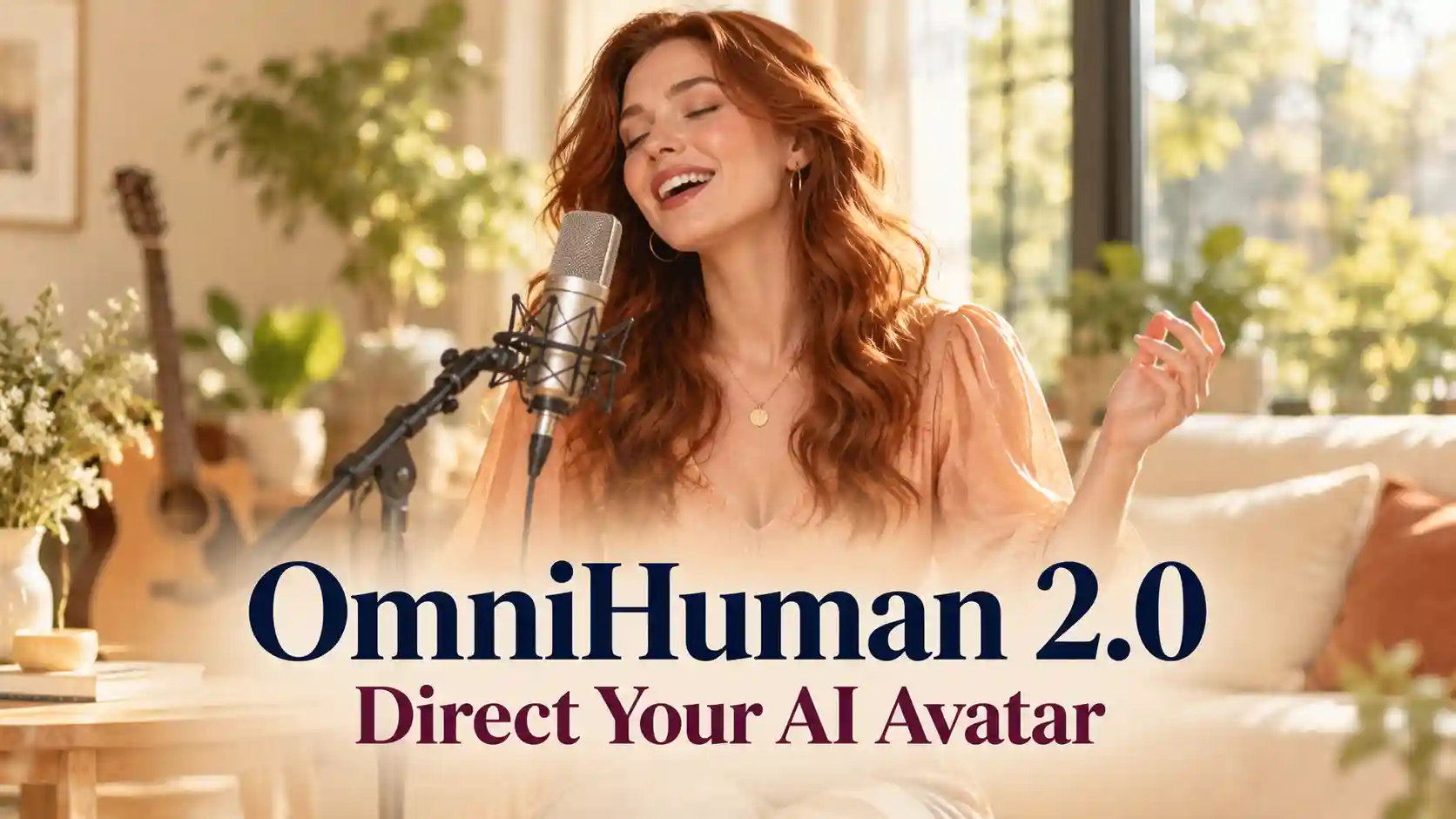
With OmniHuman 2.0, audio is an important part of directing the performance. This guide explains how to prepare it, add useful motion prompts, and create expressive talking, storytelling, and singing videos on PWZ.
TL;DR: OmniHuman 2.0 AI Avatar Guide
Use audio to communicate the words, emotion, and rhythm you want your AI avatar to perform.
Keep the image and prompt unchanged when comparing different voice deliveries. This makes differences easier to assess.
Add focused motion prompts for visible actions and camera choices; spoken words do not guarantee an exact gesture.
Test a short, meaningful excerpt before generating a longer presentation, story, or song.
How OmniHuman 2.0 Reads Your Audio
Your recording carries performance cues as well as words.
ByteDance describes OmniHuman 2.0 as generating character animation aligned with speech rhythm, prosody, and semantic content. It also identifies audio comprehension as the ability to produce actions related to audio meaning.
For creators, that suggests three useful ways to think about audio:
Audio cue | What to consider when preparing it |
Meaning | Is the character explaining, questioning, reassuring, or revealing something? |
Emotion and intonation | Does the delivery actually sound curious, confident, excited, or uncertain? |
Rhythm | Where should the listener notice a pause, a stressed word, or a change in pace? |
Treat these as inputs to explore. The practical goal is to find a recording and visual direction that work together for your character.
Same Avatar, Different Voice: Change the Performance
One sentence can support several different performances.
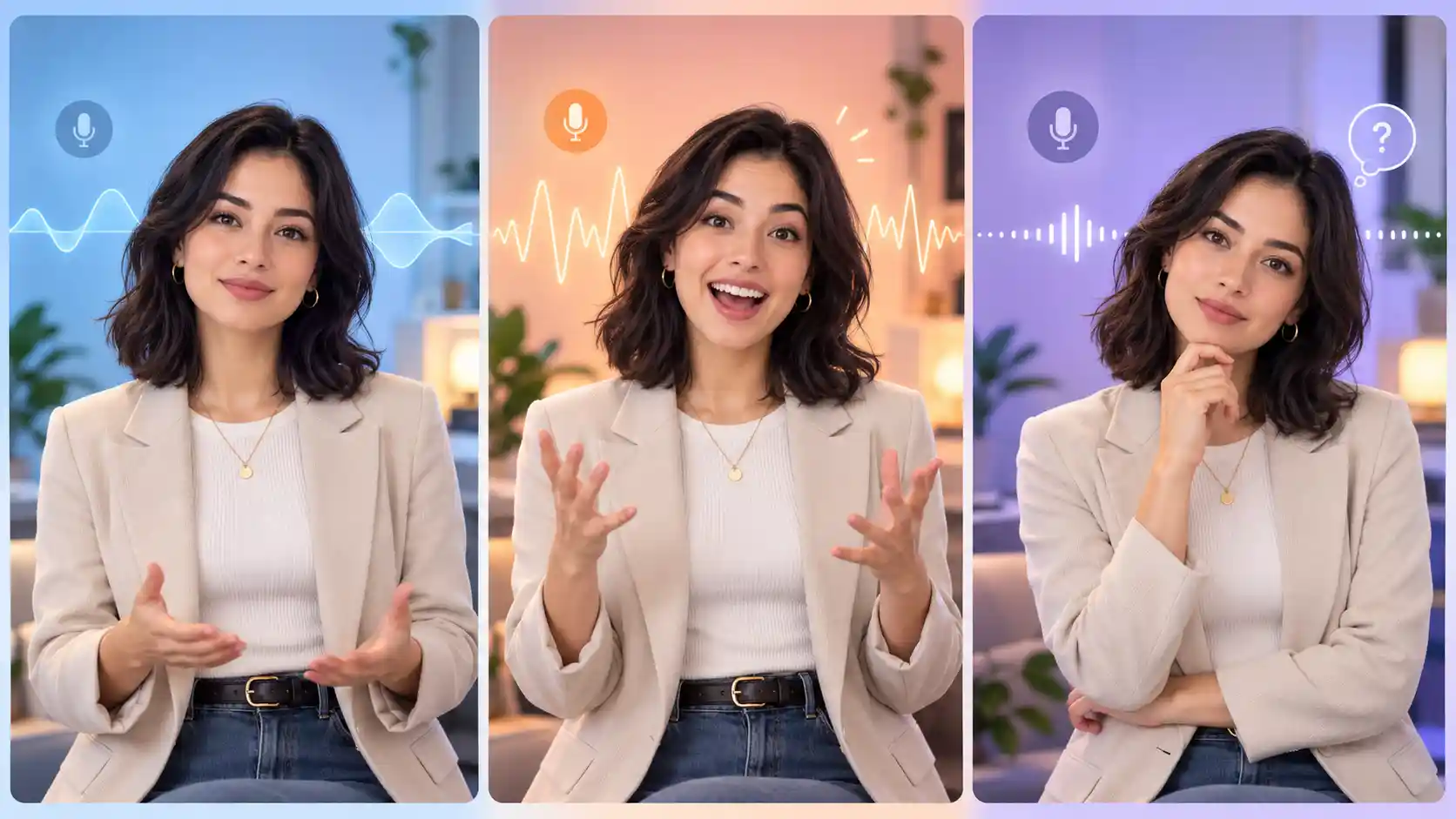
Start with a clear character image and a short line:
I have something to show you.
Record or prepare three versions:
Calm and confident: an even pace, clear articulation, and a relaxed finish.
Bright and excited: a more animated tone with emphasis on “show you.”
Quiet and curious: a softer delivery with a brief pause before the final words.
Use the same image and a neutral prompt for each generation:
The character faces the viewer. Medium shot, steady camera.
Compare the facial expression, head movement, and overall energy.
Watch what happens during the pause as well as during speech. Does the character’s delivery feel appropriate to the recording?
This is a comparison exercise, not a promise of three predetermined results. Generations can vary. If one result looks unusually different, repeat the test before attributing the change entirely to the audio.
Shape Your Audio Before You Generate
Give the voice a clear intention.
You can use your own recording, an authorized voice performance, or suitable synthesized speech.
Listen to the audio on its own before uploading it: does it already communicate the mood you want?
Give Each Line a Purpose
Decide what the character wants the listener to understand or feel. A presenter explaining a setting needs a different delivery from a storyteller revealing a secret.
Instead of asking for a vaguely “emotional” voice, choose a specific direction: explain patiently, share good news, or build curiosity before a reveal.
Use Emphasis and Pauses Deliberately
Take this line:
You only need one photo. Let me show you how.
Emphasize “one photo,” pause briefly, then make the invitation sound welcoming. The pause separates the benefit from the demonstration and gives the delivery room to breathe.
Avoid dramatic pauses after every phrase. They can make a simple explanation feel unnatural.
Keep the Emotional Progression Clear
A short excerpt usually needs one main mood or one understandable change. If a character moves from uncertainty to relief, make that shift audible rather than relying on a prompt to supply it afterward.
Keep speech intelligible and avoid distracting background noise. If you use a voice-generation tool, follow its own controls for pauses and delivery.
Add Motion Prompts That Support the Voice
Describe the visual choices the recording leaves open.
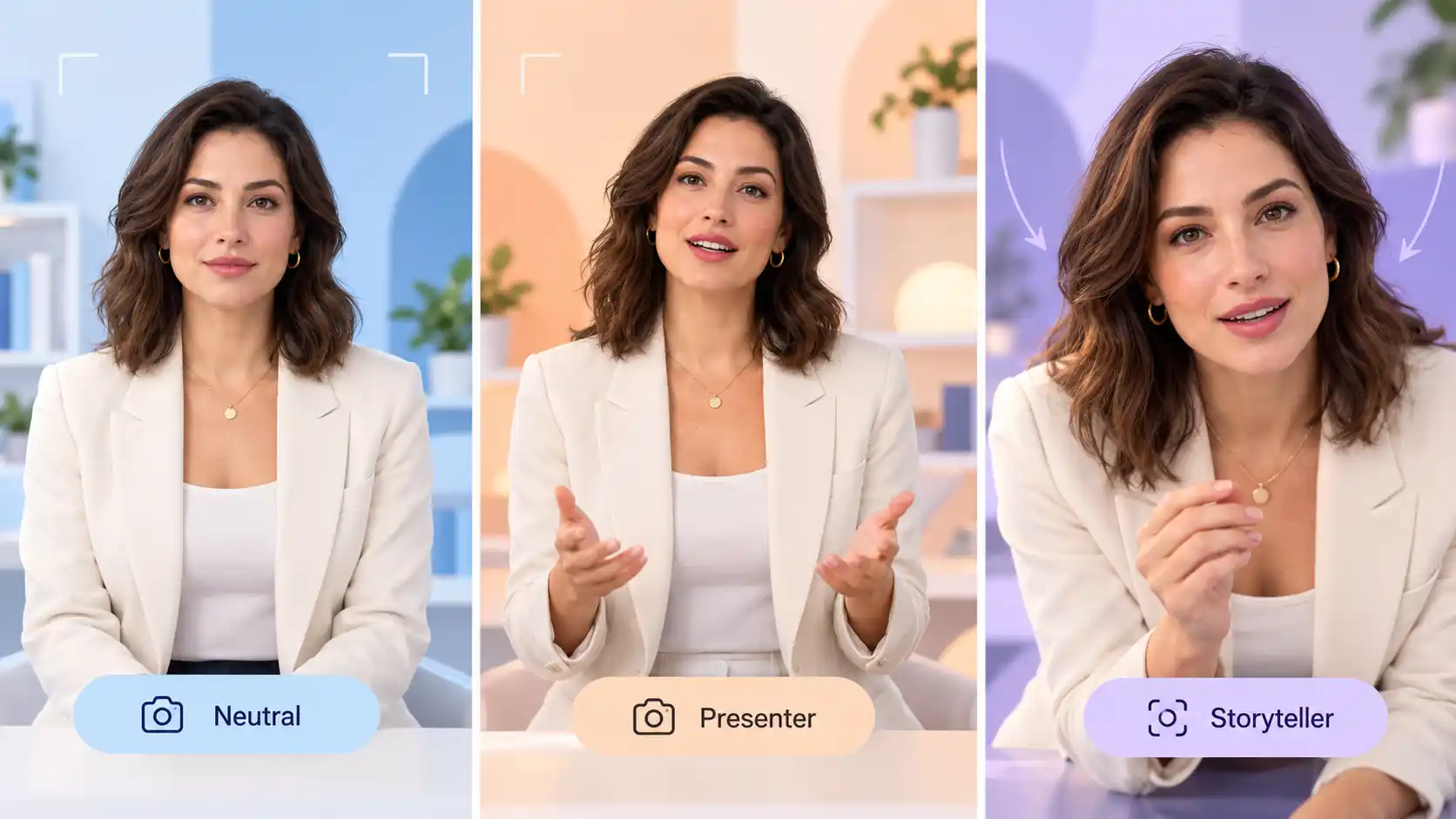
A useful starting structure is:
Performance style + one or two actions + framing or camera direction.
For a restrained presenter:
A composed presenter speaks to the camera with small open-hand gestures and a relaxed expression. Medium shot, steady camera.
For a curious storyteller:
A curious storyteller leans forward slightly, with subtle changes in expression. Medium close-up, gentle camera push-in.
Keep the prompt compatible with the image.
A tightly cropped face gives you little space to show hand gestures.
For visible upper-body movement, start with a composition that includes the relevant body parts.
Also check for conflicting instructions. Quiet, reassuring audio paired with a request for constant energetic movement may create a mismatched performance.
To evaluate a prompt, keep the image and audio fixed. Compare a neutral version with one focused addition, such as “small open-hand gestures.” Add further direction only when it serves the scene.
Give Your AI Avatar a Role Worth Performing
Choose the performance around what the audience needs.
The following workflows are starting points you can adapt. Each uses audio direction and a short motion prompt to serve a specific creative goal.
Explain with Confidence: Product and Tutorial Videos
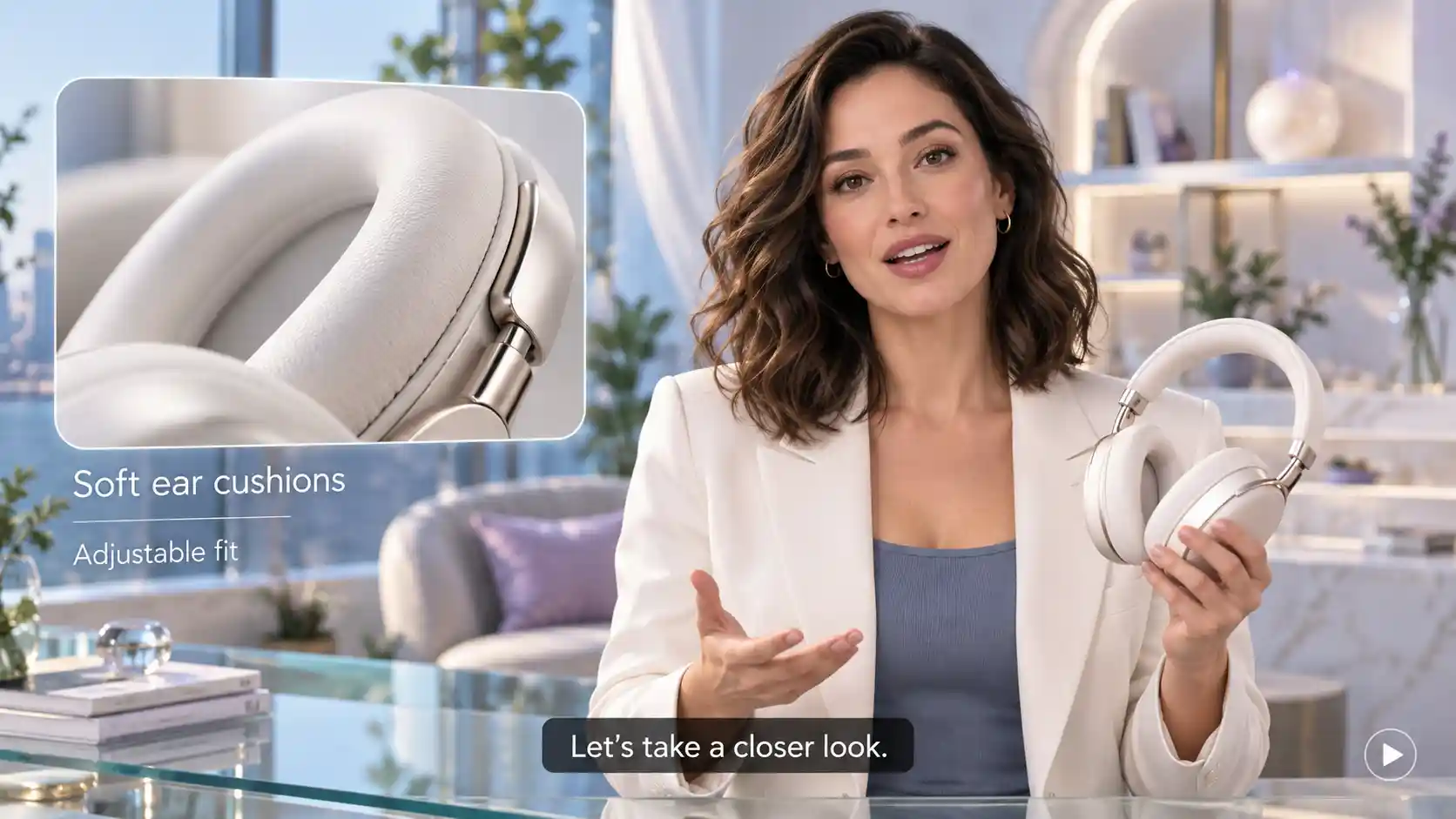
For an AI presenter, prioritize an understandable message and an approachable delivery. Too much movement can compete with the information.
Build a short explanation. Introduce one benefit, explain one action, and tell the viewer what happens next.
You can turn a photo into a presenter video. Add your recording, choose how the character should move, and preview the result.
Prepare the voice. Use a conversational pace. Emphasize the main benefit, then slow slightly for the action the viewer needs to follow. Read it as if you were explaining the process to one person.
Choose the image. Use a clear upper-body composition with a simple background. Leave enough room for gestures without placing distracting objects around the face.
Try this motion prompt:
A friendly presenter explains a process directly to the viewer. Relaxed posture, occasional small open-hand gestures, steady medium shot.
Refine the video:
Add actual screen recordings or product close-ups where the explanation needs visual proof.
If the avatar points, do not assume the gesture will land precisely on a button or feature; add those instructional visuals during editing.
Check:
Can a viewer follow the explanation without being distracted by the character’s hands or head movement?
Tell a Story with a Turn: Character Monologues
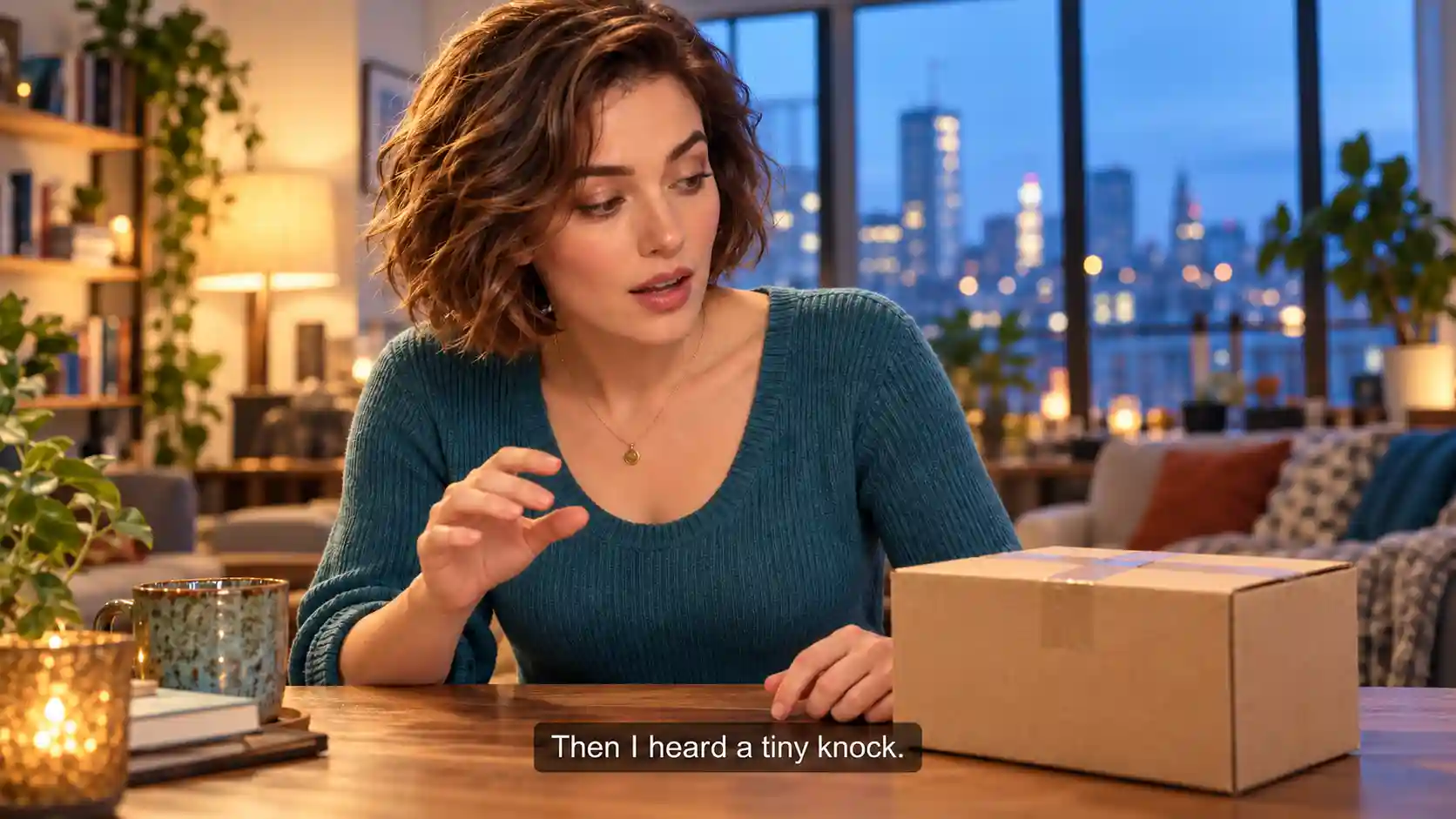
A short story becomes more engaging when the voice gives the audience a reason to keep listening. Build around one change in what the character knows or feels.
Write three connected beats: setup, pause, and reveal.
I thought the package was empty. Then I heard a tiny knock. It was coming from inside.
Perform the turn. Begin matter-of-factly. Pause after “empty,” introduce curiosity in the second sentence, and give the last line a quieter, more focused delivery. Keep the performance believable rather than making every word dramatic.
Choose the image. A face that is easy to see matters more than an elaborate background. Leave the character’s mouth unobstructed and select an initial expression that can plausibly fit the scene.
Try this motion prompt:
A storyteller shares a mysterious discovery. Subtle curiosity, a slight forward lean, medium close-up, steady camera.
Refine the video:
Use a separate insert shot of the package if you need to show the source of the knock.
Audio comprehension should not be treated as a guarantee that the model will create every object or event mentioned in the narration.
Check:
Does the expression follow the story’s shift, and does the pause feel intentional?
If the timing is wrong, revise the recording before adding more actions to the prompt.
Sing with Personality: Virtual Performers
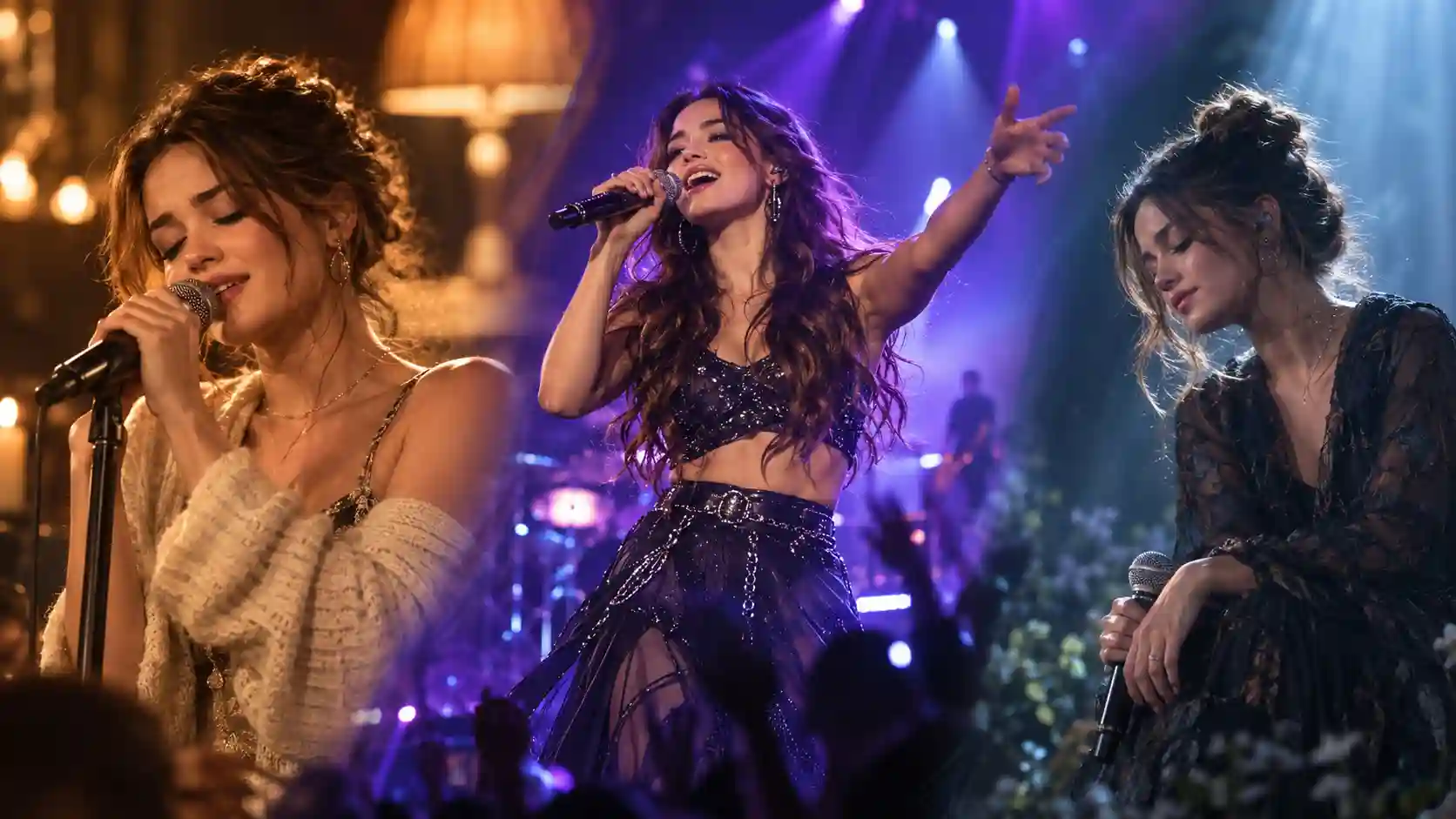
For an AI singing video, choose an excerpt with a clear vocal mood. A gentle verse and a powerful chorus may call for different visual direction.
Select the musical moment. Start with a short passage where the lead vocal is easy to hear. Include a meaningful phrase and a natural breath or pause, rather than cutting randomly through a word.
Match the image to the performance. An intimate song may suit a closer portrait and simple setting. A more energetic performance can benefit from an upper-body composition with space for movement.
Try an intimate performance prompt:
An intimate vocal performance with a soft expression and gentle body movement. Medium close-up, warm stage lighting, steady camera.
Try a stronger stage presence:
A confident singer performs with expressive facial movement and measured rhythmic swaying. Medium shot, concert lighting, subtle camera push-in.
Refine the video:
Keep the music fixed while adjusting the visual direction. If the performance becomes distracting, simplify the gestures or camera movement rather than adding more effects.
Use your own music or audio you have permission to use. For a finished music clip, add titles, alternate shots, or transitions in an editor; do not expect a single generated performance to provide every shot the song needs.
Check:
Does the movement suit the vocal energy, and do quieter moments still feel natural?
Directing AI Avatars with Audio on PWZ
Make a useful short test before committing to a longer video.
Open OmniHuman 2.0 on PWZ and prepare your character image and audio track.
Add a focused motion prompt if the scene needs extra direction, then generate an initial sample.
Choose an excerpt that contains the important performance challenge: a change in tone, a pause, or a stronger musical phrase.
Review the result in two passes.
First, watch with sound to judge whether the performance fits the delivery.
Then watch silently to spot repetitive or distracting motion.
If the result needs work:
The performance feels flat: listen for a clear intention in the recording. Try a more purposeful delivery before stacking emotional adjectives into the prompt.
The gestures are excessive: remove unnecessary actions and request smaller movement. Check whether the voice itself is more animated than intended.
The mood feels inconsistent: compare the recording, the image’s starting expression, and the prompt for conflicting cues.
A specific action is missing: describe it plainly, simplify the scene, and test it separately. Spoken meaning does not provide frame-accurate choreography.
Change one variable at a time and keep notes on the input and result.
Create your AI avatar video on PWZ, compare the results, and develop the version that best fits your story.
Start OmniHuman 2.0 Video Generator
OmniHuman 2.0 Video Generation FAQs
How does audio influence an AI avatar beyond lip sync?
OmniHuman 2.0 includes speech rhythm, prosody, and semantic content as cues for character animation. In practice, evaluate expression and movement alongside mouth synchronization rather than judging the result on lip sync alone.
Should I change the audio or the motion prompt first?
Listen to the recording without the video. If the mood or pacing is wrong, revise the audio first. If the voice already works but the visible behavior does not, keep the recording and refine the image or motion prompt.
Can the same avatar perform different emotions?
You can test different deliveries with the same reference image. Keep the other inputs consistent and compare the outputs. Differences will depend on the image, recording, prompt, and generation, so treat this as a creative test rather than a guaranteed emotion switch.
Do I need to record my own voice?
No. You can use an authorized recording or suitable synthesized audio. OmniHuman 2.0 on PWZ uses an uploaded audio track, so prepare the voice or song before generating the avatar video.