
Seedance 2.5 lets you create AI videos from text, animate still images, and use reference materials to guide a scene. With native audio and videos up to 30 seconds, you have room to develop movement, atmosphere, and a short story.
Now available on PWZ, Seedance 2.5 brings these capabilities into a browser workspace with video editing, extension, and final-frame export. This guide explains how to choose your starting point and continue developing a video after the first draft.
TL;DR: Seedance 2.5 on PWZ
Start with what you have: a prompt, a still image, or a collection of visual and audio references.
Plan a complete short scene: up to 30 seconds of video and native audio provide room for movement, atmosphere, and storytelling.
Continue developing the result: edit an input video, extend a scene, or save its final frame as a reference for another shot.
Meet Seedance 2.5 on PWZ
More room to develop your next video idea.
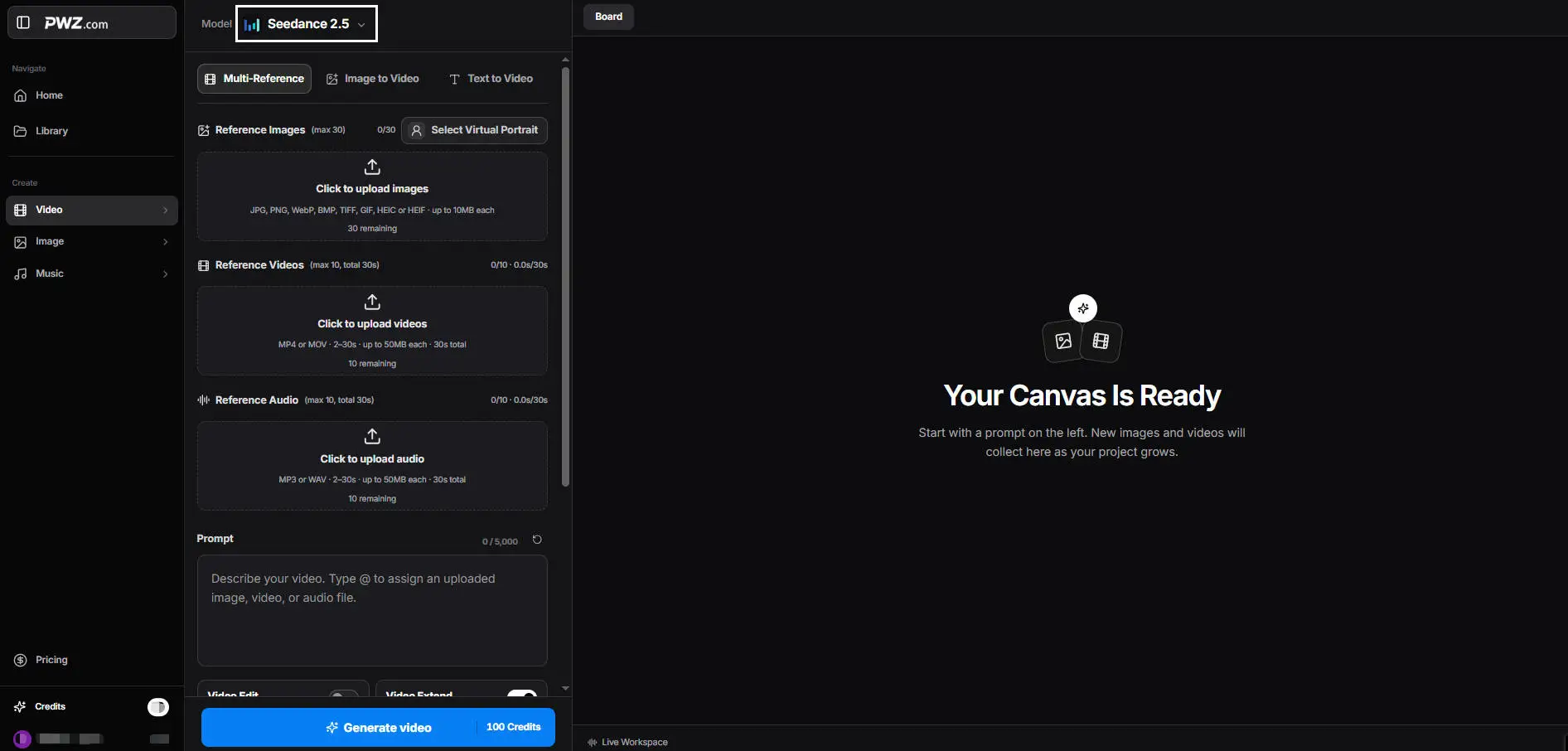
Seedance 2.5 combines video generation with native audio and reference-based creative control. On PWZ, you can access these capabilities through a visual interface, with controls for your prompt, reference materials, resolution, duration, and aspect ratio.
The advantage of using Seedance 2.5 online AI video generator is a direct path from your creative brief to generation settings. You can choose a workflow that matches your materials and see the displayed credit cost before submitting.
PWZ also provides image and music creation tools for preparing other parts of a project. These offer additional creative starting points when you need a visual concept or a separate soundtrack.
Choose Your Starting Point: Text, Images or References
Start with the material you already have.
Text to Video: Turn a Brief into a Scene
Use Seedance 2.5 text to video when you have an idea but no source image. Describe the subject, what happens, how the camera moves, and the intended lighting or mood.
Prompt Example:
A perfume bottle on black marble, a slow camera orbit, and warm light moving across the glass. That gives the model a clear visual task without requiring a long screenplay.
Tip: Begin with one main action and one camera movement. Add complexity after reviewing whether the initial result captures your idea.
Image to Video: Give Your Visuals Motion
With Seedance 2.5 image to video, an existing visual becomes the starting point for a moving scene. This is useful for product images, character artwork, and prepared scene compositions.
PWZ also offers an Add end frame option. A starting image establishes the opening composition, while an end frame provides a target for the closing image.
Tip: Focus your prompt on what should change: the subject’s movement, camera direction, or environmental motion. Choose compatible start and end images so the requested transition has a clear visual relationship.
Multi-Reference: Give the Model Clearer Direction
Seedance 2.5 multi-reference video generation lets you work with images, video clips, and audio in the same setup. Use references to communicate elements such as a character’s appearance, a scene’s visual direction, or the motion and sound you want to guide.
In the prompt, type @ to assign an uploaded file, then explain its role.
For example
Use @Image1 as the character reference and @Video1 as the movement reference. Keep the character’s appearance consistent with @Image1 while following the actions in @Video1.
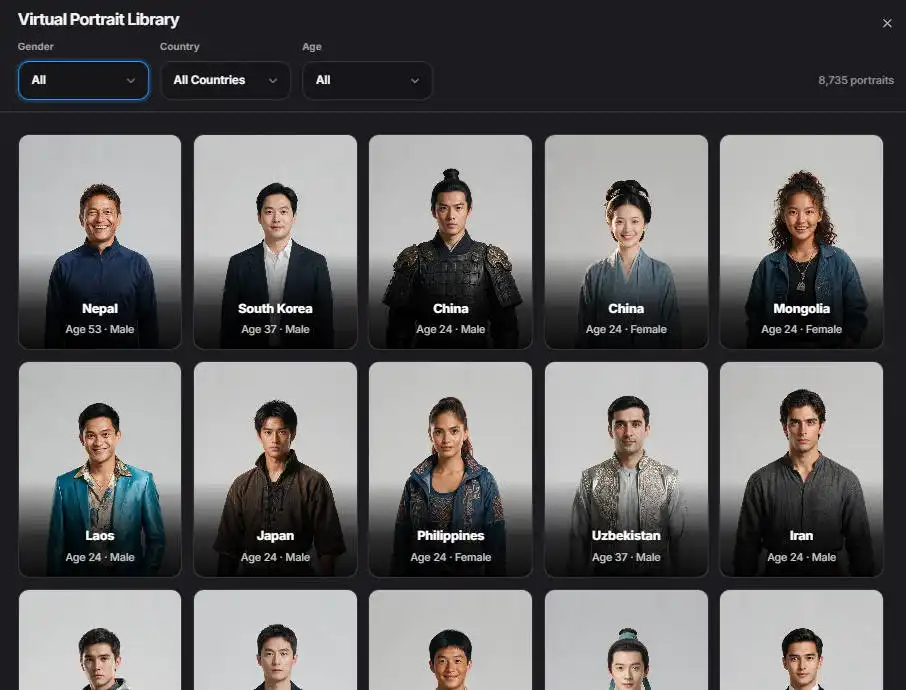
PWZ includes a Virtual Portrait entry for choosing a character template; accessing the template selection requires signing in.
Tip: Give each reference a distinct purpose. Several conflicting examples can make your direction harder to follow than a small, focused set.
Keep Creating with Video Editing and Extension
Build on a clip instead of starting over.
Refine or Extend an Existing Video
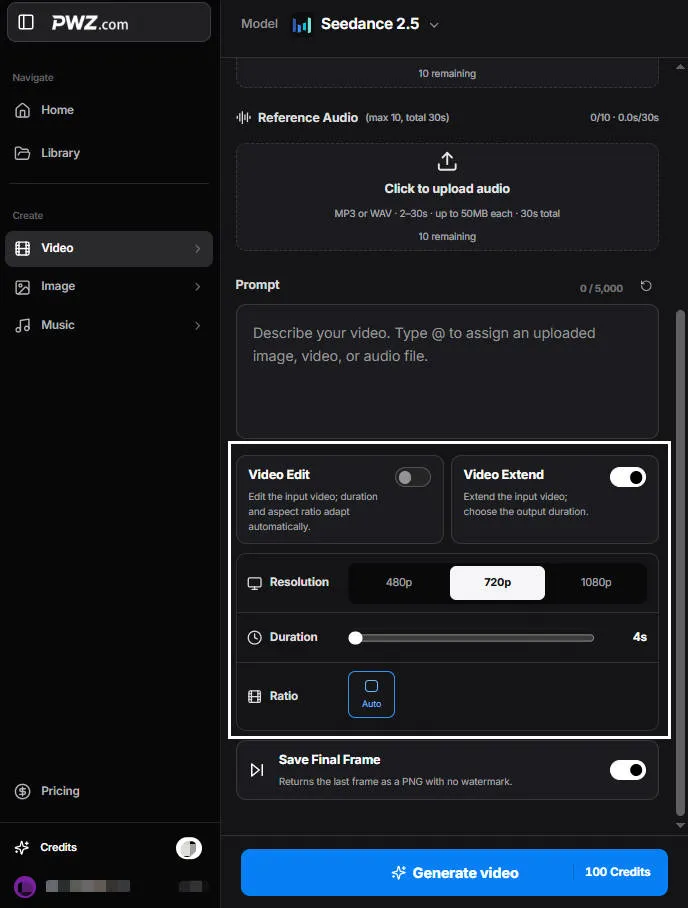
PWZ provides two separate controls for working with an input video:
Video Edit: Describe the changes you want to make to the input video. In this mode, duration and aspect ratio adapt automatically.
Video Extend: Continue the input video and choose the output duration. Describe what should happen next to give the continuation a clear direction.
Use Seedance 2.5 video editing when the existing scene needs a revision. Choose extension when your goal is to develop the action further.
Tip: Keep revision instructions specific. Name what should change and what should remain consistent, rather than asking the model to simply “make it better.”
Save the Final Frame for Your Next Shot
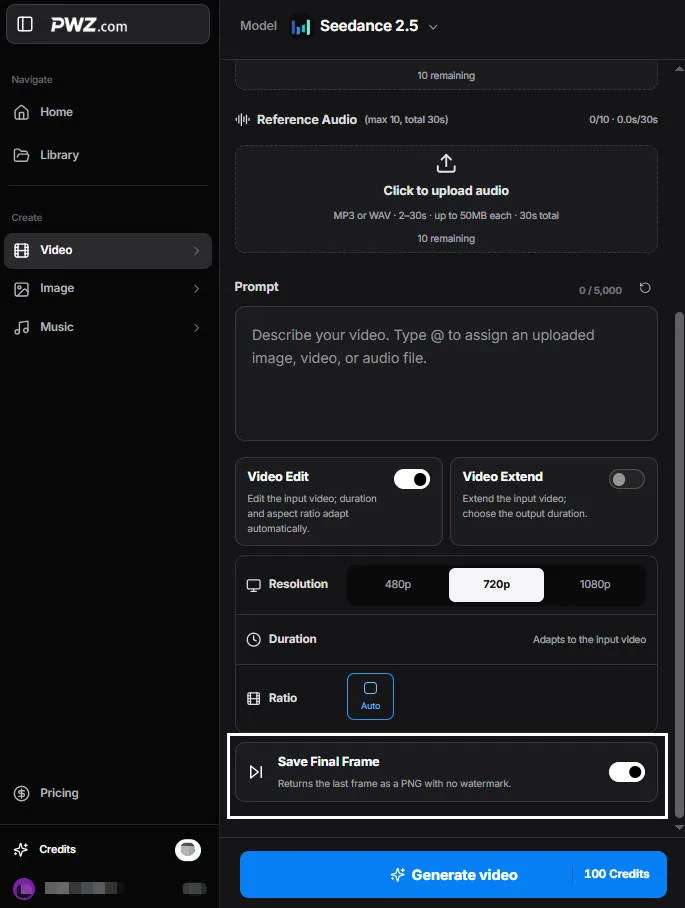
Enable Save Final Frame to return the video’s last frame as a PNG with no watermark. You can use that image as a starting reference for a subsequent generation.
This is useful when planning connected shots. A shared frame provides a visual anchor, although you should still check character appearance, composition, and motion across the transition.
What Can You Create with Seedance 2.5?
Match the workflow to your creative goal.
Product and Brand Videos
Use product imagery to plan a short reveal, a close-up, or a change in lighting. Seedance 2.5 for product videos is a useful direction for exploring advertising concepts before developing a longer campaign.
Keep the product as the visual priority, and check labels, shapes, and packaging details before using the output in promotional material.
Character and Dialogue Scenes
Character references and dialogue descriptions can help shape a short interaction. Establish who is speaking, what they say, and the intended expression or tone.
For an AI dialogue video, review mouth movement, facial detail, and speaker attribution together. A convincing scene depends on how those elements work across the clip.
Cinematic Shorts and Story Concepts
Use Seedance 2.5 cinematic video generation to explore an establishing shot, a character entrance, or a brief action beat. A focused shot can help you assess the atmosphere and direction of a larger story.
Plan longer ideas as individual shots with clear purposes. This makes it easier to refine a particular moment and assess how the shots fit together.
How to Use Seedance 2.5 on PWZ
Set up your first generation in a few clear steps.
Open PWZ Studio and select Seedance 2.5. Choose Text to Video, Image to Video, or Multi-Reference.
Add your creative direction. Write a focused prompt and upload any materials required by your chosen workflow.
Choose your settings. Set resolution, duration, and aspect ratio. Enable Save Final Frame if you want the additional image output.
Check the cost and generate. Review the displayed credit requirement before submitting, then inspect the result against your brief.
You can try Seedance 2.5 online with free credits on PWZ. Check your available balance and the credit cost of your selected settings before generating.
Your first project can start with a single image or a short scene description.
Choose one clear creative goal
Generate a first version
Use what you learn to shape the next
Seedance 2.5 Video Generator FAQs
Do I need to install software to use Seedance 2.5 on PWZ?
No. PWZ provides a browser-based workspace, so you can access the generator without setting up a local model environment.
How can I check the credit cost before generating a video?
Look at the credit amount displayed on the generation button after choosing your settings. Check it again when you change your setup, rather than assuming every generation costs the same.
Why might my reference upload fail?
Check the upload area’s supported formats, file size, and duration limits. Requirements vary by media type and workflow; video and audio references can also have total-duration limits.
What should I change if my first result misses the brief?
Identify the main mismatch first: subject, action, camera, or style. Change one major variable at a time and review the next output. This makes it easier to tell which adjustment helped.