
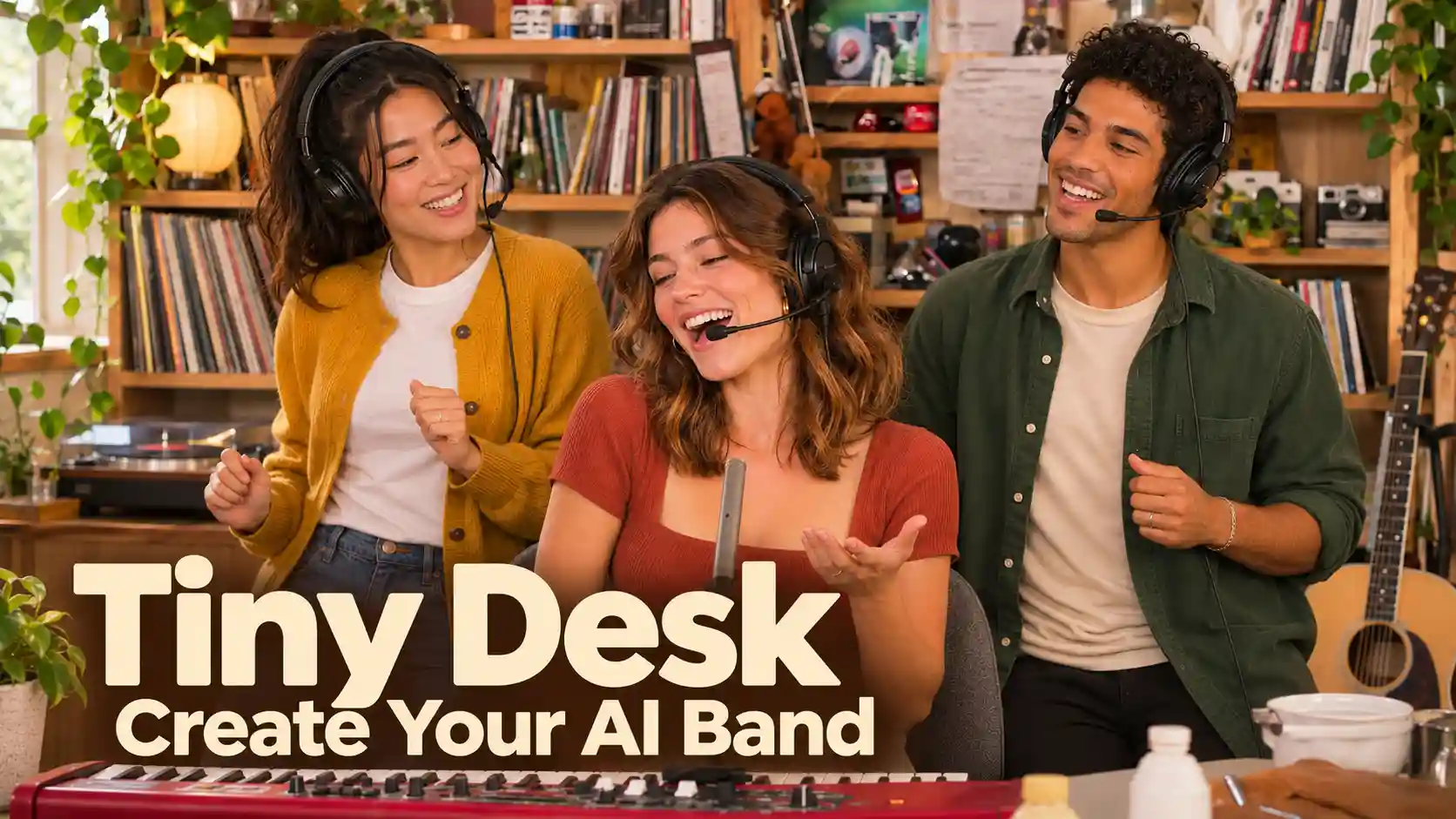
Start your Tiny Desk AI Band Video with a clear lineup and a short musical passage. Prepare a band image, then direct the performance in Seedance 2.5.
Want to remake Outstanding Tiny Desk ? Choose its audio and movement references first. For an original performance, design your own cast, setting, and music.
TL;DR
Recreating Outstanding? Start with the performance reference and song excerpt. The setting alone will not recreate the meme.
Building your own band? Assign roles and prepare a clear group image.
Directing the performance? Give members different actions and someone to respond to.
Choosing music? Use a suitable existing track. MiniMax Music is an optional route to an original song.
Checking the result? Review identities, mouth timing, and instrument contact separately.
What is Tiny Desk AI and Where Does Outstanding Fit?
Know the reference before you remake it.
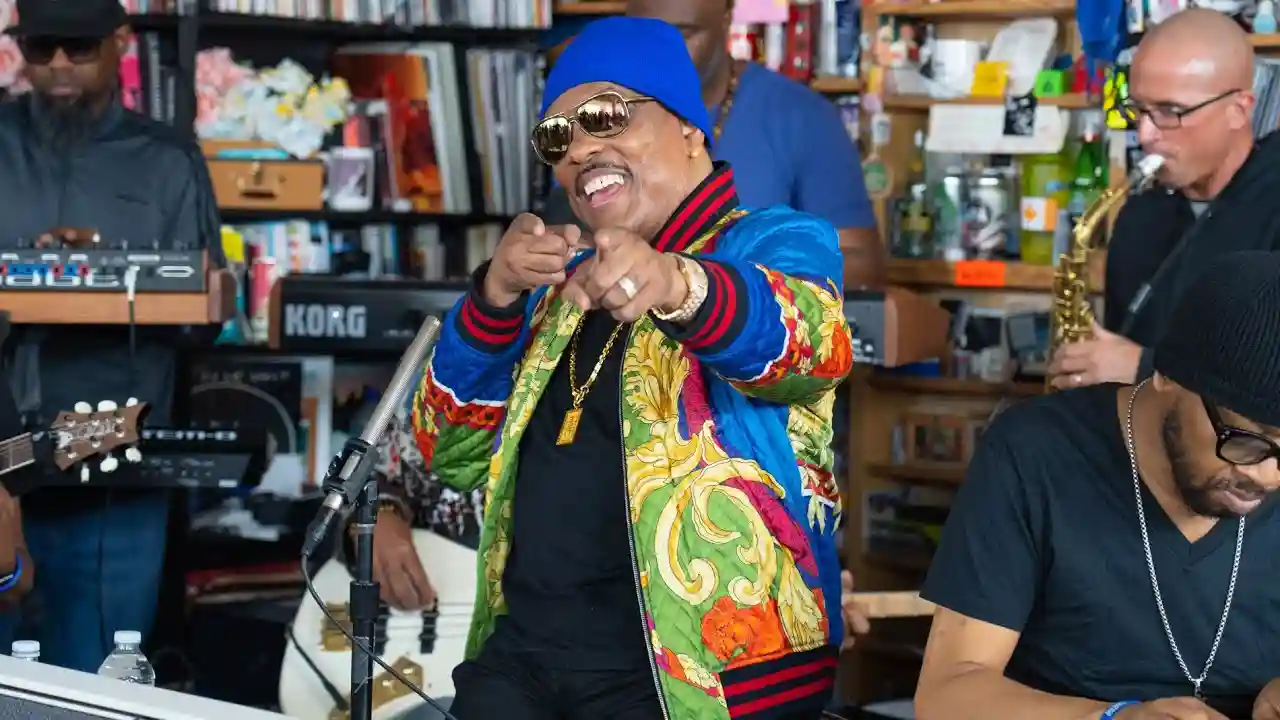
Tiny Desk AI brings a new cast into an intimate desk-concert scene. Many versions follow the Outstanding meme.
Here’s how the names connect:
Tiny Desk: NPR Music’s live concert series. Musicians perform close together in an office setting.
Outstanding: The Gap Band song featured in Charlie Wilson’s 2023 Tiny Desk concert.
Outstanding Tiny Desk AI: AI remakes with new band members. Familiar music, expressions, and instrumental moments keep the format recognizable.
The creative hook: An unexpected lineup performs with joyful enthusiasm. Casting and reactions give each version its personality.
Make it your own: Recast the band to join the meme. Or create a Tiny Desk-inspired performance with your own characters, setting, and music.
What Do You Need to Make a Tiny Desk AI Video?
Choose the performance you want to make.
Your goal determines the materials:
Goal | Starting materials |
Outstanding remake | Cast references, movement reference, song excerpt |
Original band video | Band image, musical direction, performance plan |
Give each input a clear job:
Images: Appearance, clothing, instruments, and setting.
Video references: Movement, positions, and camera behavior.
Audio: The musical passage or vocal performance.
Text: Roles, actions, and details to preserve.
Seedance 2.5 supports these reference types and native audio-video generation.
A Tiny Desk AI template can provide a preset sequence. A custom workflow gives you room to design your own performance.
How to Make Your Own Tiny Desk AI Band Video
Build the band, then direct the performance.
Step 1: Choose a Short Musical Moment
Pick a complete vocal phrase or instrumental passage.
Give it a clear beginning and ending.
Using a specific song? Select the excerpt before directing the visuals.
Using original music? Choose a passage from your recording or generated song.
Exploring a mood? Describe the sound through the model’s audio options.
Keep the first attempt short. This makes performance details easier to check.
Adding music afterward does not create lip sync. Plan an audio-driven performance when recognizable lyrics matter.
Step 2: Give Every Band Member a Clear Role
Start with a small cast. Use different hairstyles, clothing, positions, and instruments to distinguish members.
Lead: Delivers the main vocal.
Accompanist: Maintains an instrumental part.
Backing performer: Joins or reacts during a chosen phrase.
Match visible actions to the music. Decide who performs and who listens at each moment.
Step 3: Create a Band Photo That Can Be Animated
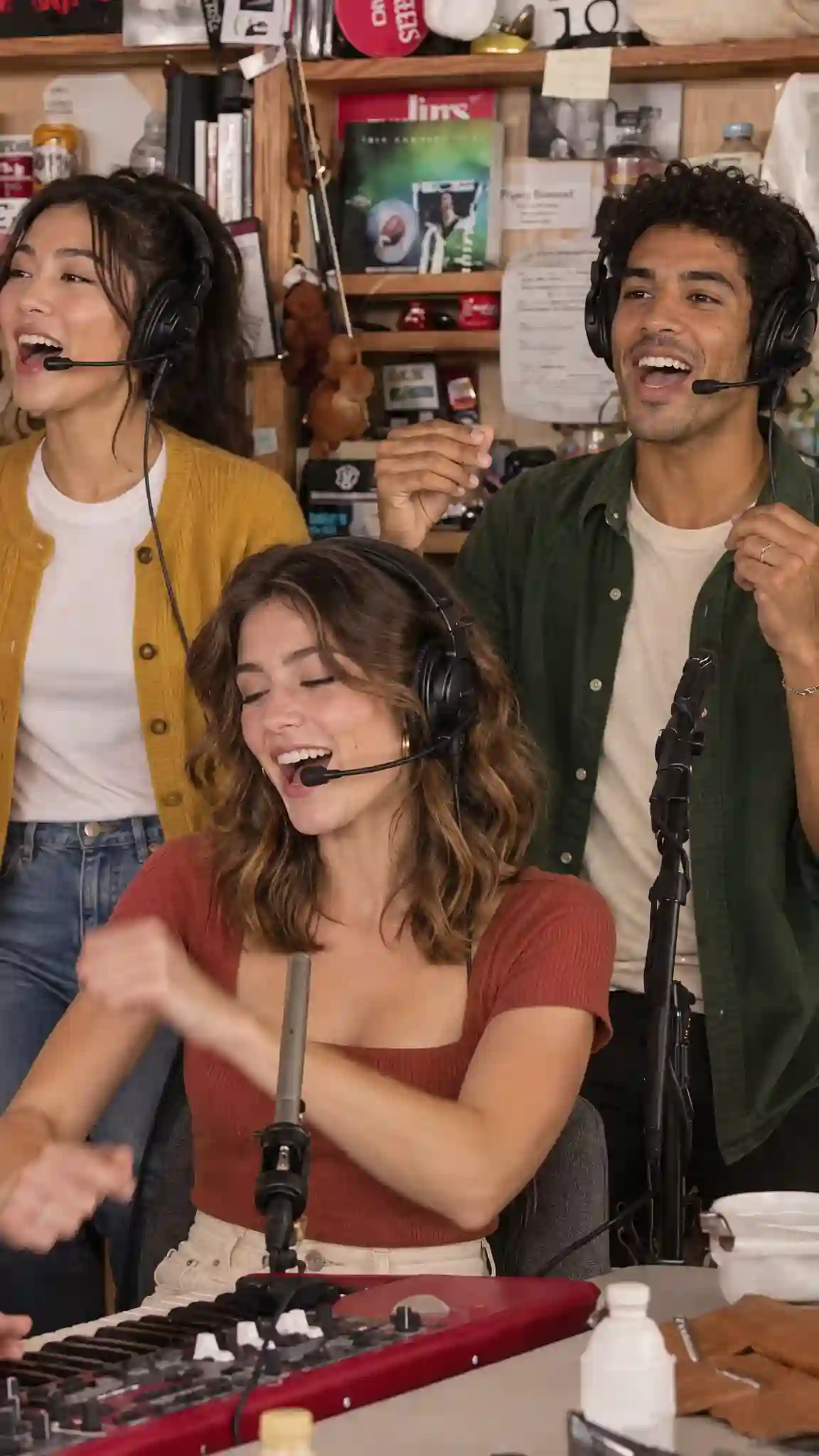
Use an existing group image or create one with PWZ AI image generator.
Check these details first:
Faces: Clear and large enough to recognize.
Mouths: Visible around microphones and hands.
Hands: Correct grip and contact with instruments.
Scale: Instruments match the performers’ proportions.
Space: Enough room for small gestures.
Build a lived-in setting with warm light and a few personal objects.
Keep the cast engaged in the performance. Some can watch their instruments; others can look toward the lead.
Step 4: Direct the Performance in Seedance 2.5
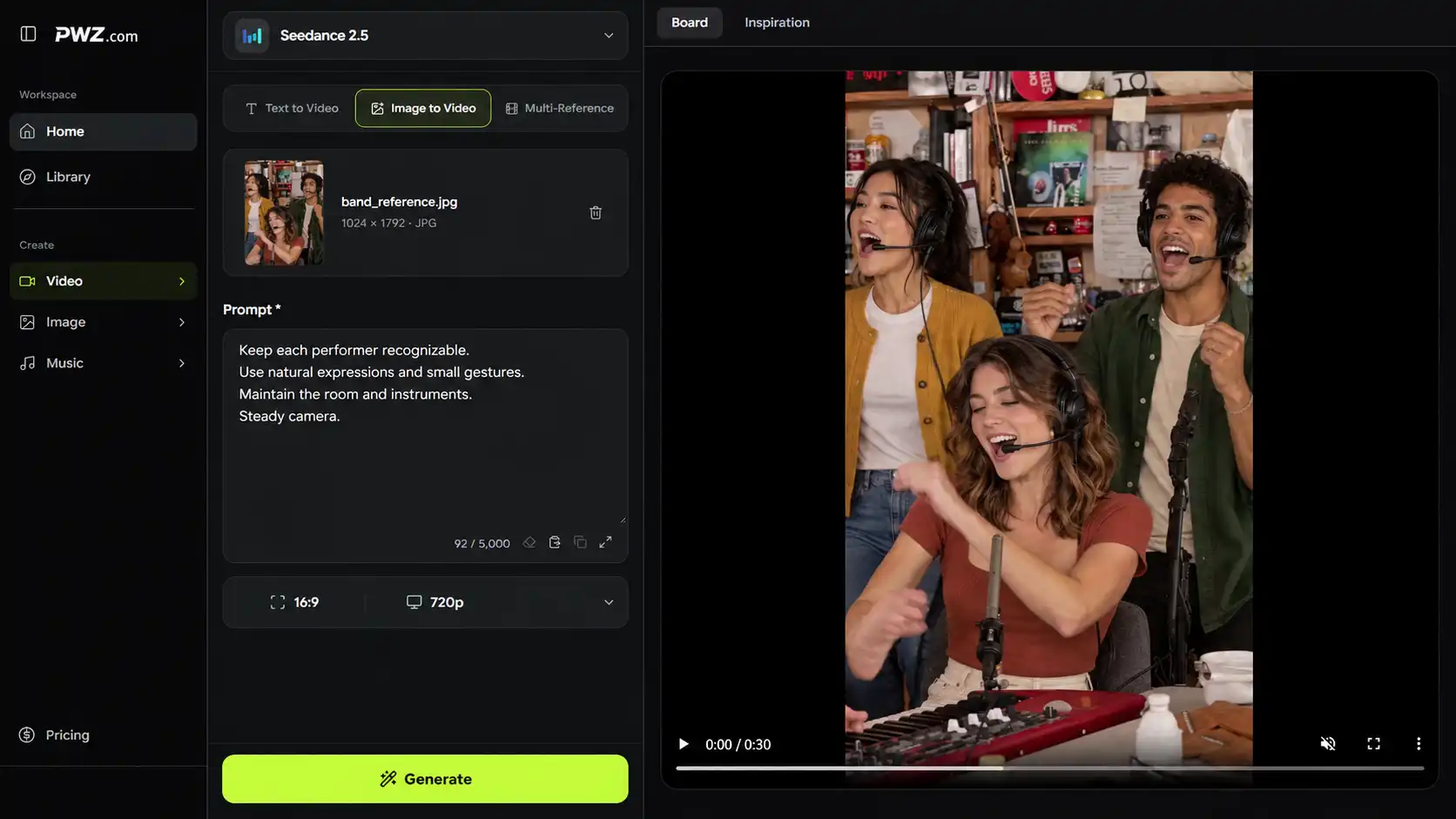
Open Seedance 2.5 on PWZ. Add your approved image and relevant audio or movement references.
Organize the prompt around five decisions:
1.References: Which input controls appearance, movement, or sound?
2.Roles: Who leads, accompanies, or responds?
3.Actions: What does each member do?
4.Camera: What framing or movement serves the passage?
5.Continuity: Which identities, positions, and objects must stay consistent?
Describe interaction in visible terms. A backing singer can glance toward the lead during a pause. Another musician can acknowledge a bandmate’s phrase.
Avoid giving everyone the same action. Leave room for individual timing and reactions.
Choose framing with a purpose:
Group shot: Introduces the lineup and shared energy.
Lead close-up: Shows expression and vocal delivery.
Instrument shot: Focuses on a musical passage and playing technique.
Start with one clear view. Add separate shots when the music calls for them.
Step 5: Review the Band Performance
Check three things separately:
scene energy
vocal timing
instrument accuracy
A clip can succeed visually while still needing musical corrections.
Example: A Small Band Performance Clip
We created this example with Seedance 2.5 on PWZ.
Three headset-wearing performers gather around a red keyboard in a shelf-lined room. Their changing expressions and glances create a friendly group-performance feel.
👉 What we found
Composition: The seated foreground performer provides a focal point. Two standing performers remain distinct behind her.
Expression: Open-mouth expressions alternate with smiles and quieter reactions.
Interaction: The standing performers turn toward each other. The foreground performer also shifts her gaze.
Identity: Hairstyles, clothing, and positions remain recognizable in the sampled frames.
Instrument limits: Continuous keyboard playing is not established. Hand ownership near the left edge needs closer inspection.
Use: The visuals suit a playful social clip. Exact lyric alignment and note-level playing remain unverified.
💡 Creative tips for AI band performances
Direct attention: Give members someone to respond to.
Vary activity: Let one member lead while others support.
Set priorities: Decide whether atmosphere, lyrics, or detailed playing matters most.
Check physical contact: Review hands closely when instrument interaction is central.
Step 6: Edit and Export the Band Video
Cut around musical phrases. Avoid starting midway through a word or ending during an unfinished gesture.
For multiple shots, place every clip against one master audio track.
Before exporting:
Check vocal entries after each cut.
Keep useful pauses and reactions.
Inspect faces and instruments at the final crop.
Check the opening and closing frames.
Review the export with sound.
A fixed audio offset may need a timing adjustment.
Wrong mouth shapes or continuing drift need further performance work.
Tiny Desk AI Video Ideas to Make It Your Own
Give the band a reason to exist.
Friends and Team Bands
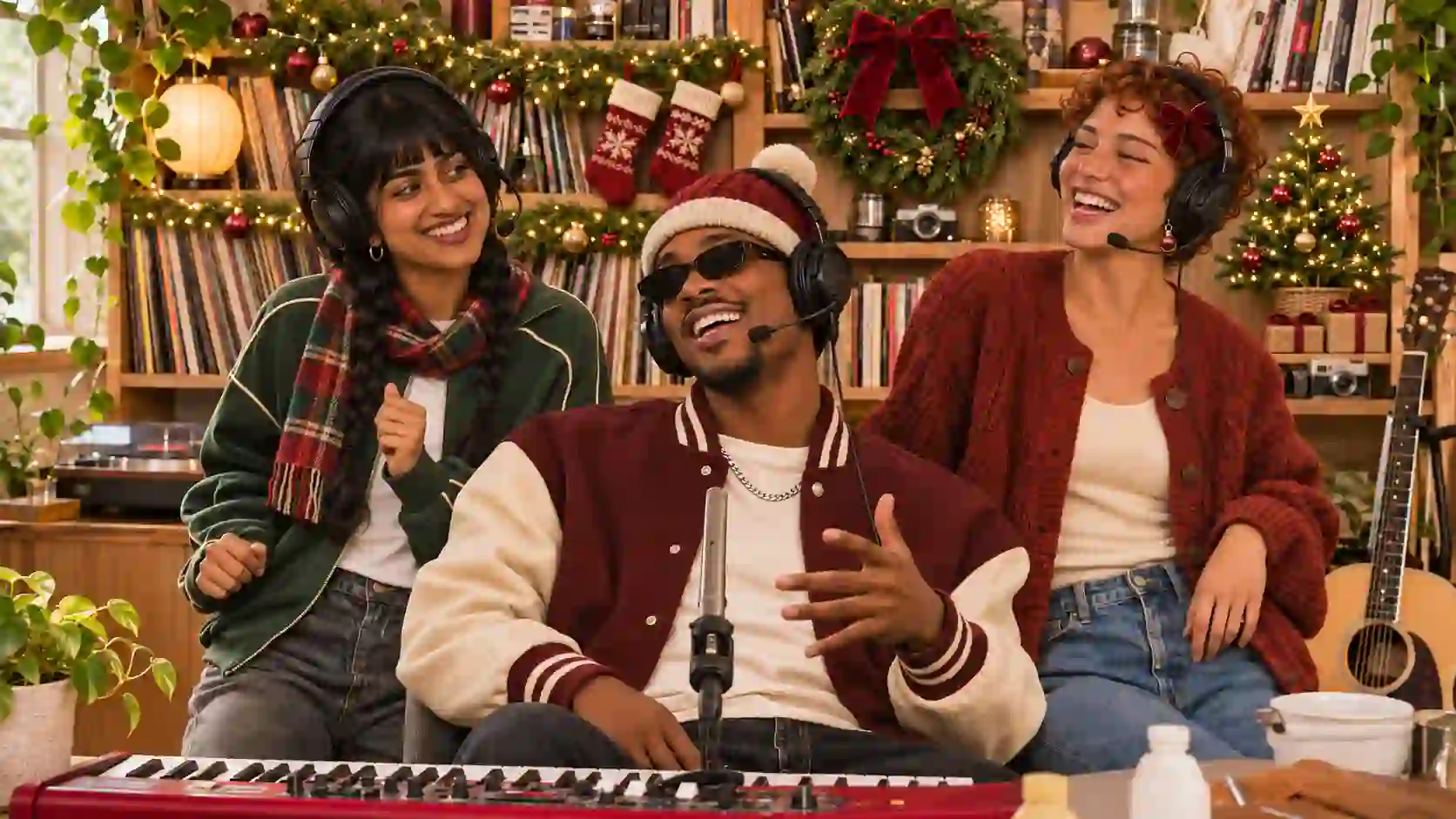
Keep recognizable clothing or accessories.
Assign clear roles and one shared response.
Use the clip for birthdays, reunions, or team celebrations.
Agree on the lineup and sharing plans before using personal photos.
Original Characters and Anime Bands
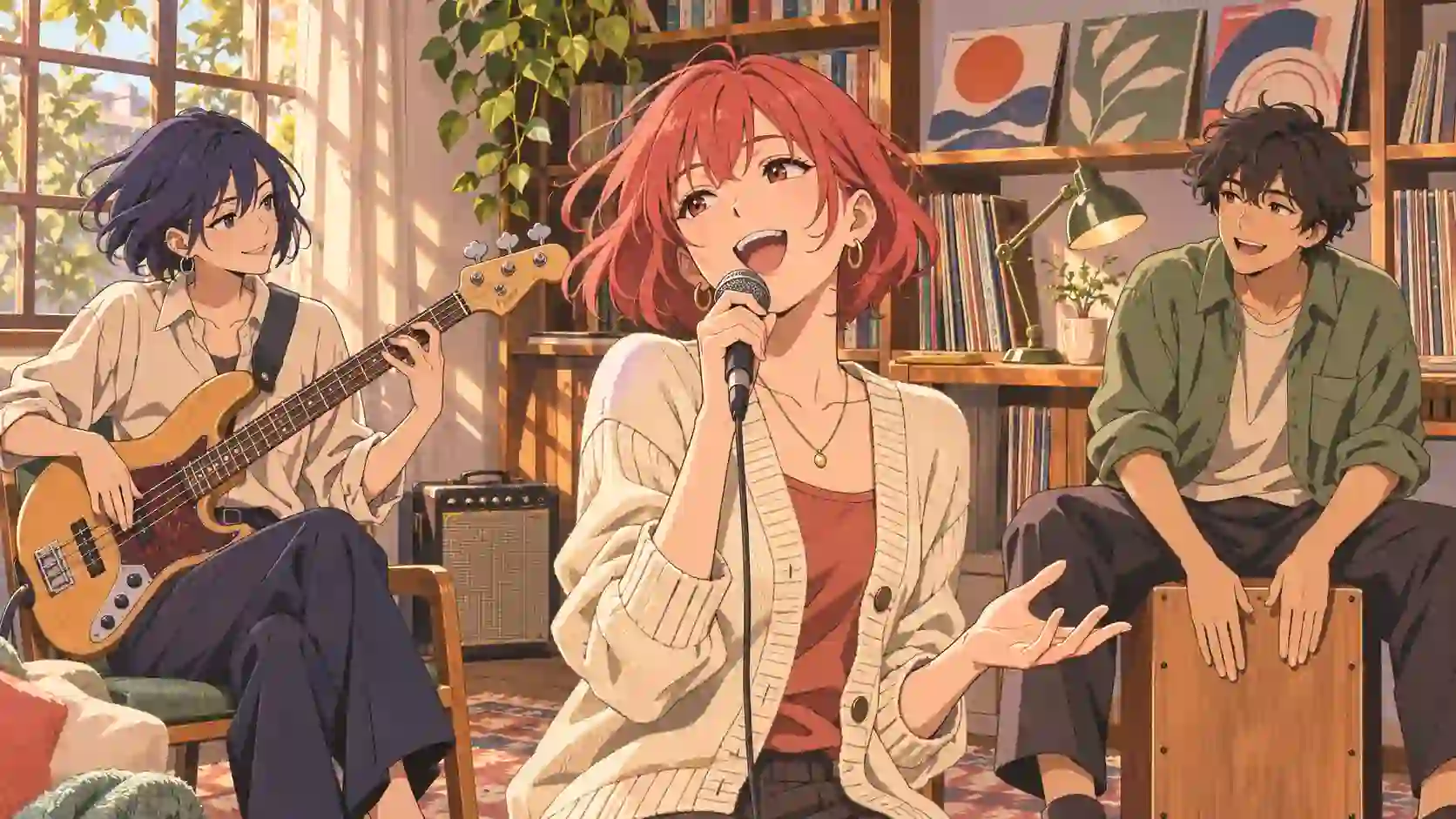
Keep one visual style and consistent proportions.
Match instruments and stage details to that world.
Give each member a distinct performance personality.
Try this for character introductions or virtual-band content. A reserved lead and energetic backing performer can establish a relationship quickly.
Pet and Puppet Bands
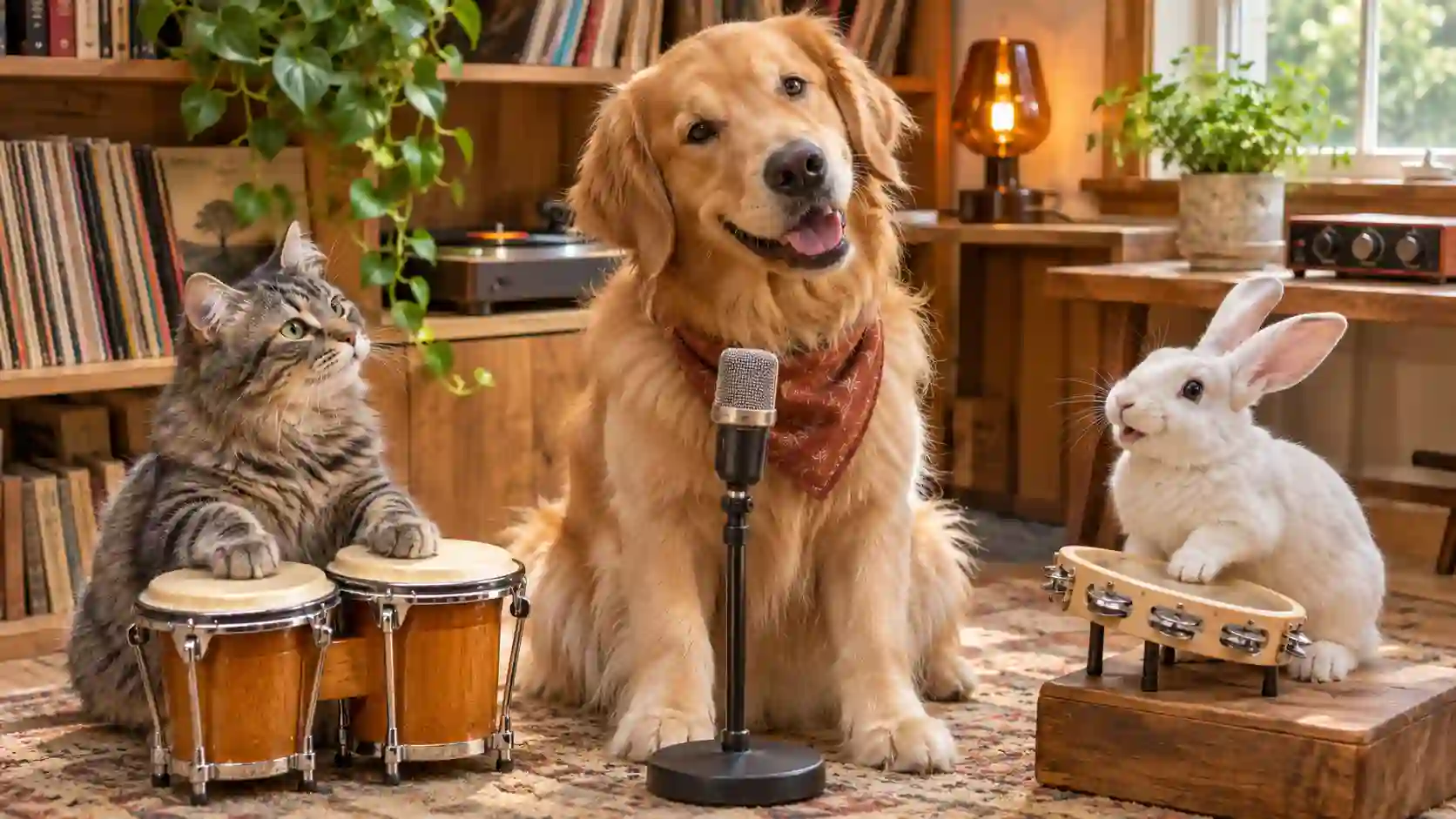
Scale instruments to the characters.
Choose movements that suit their bodies.
Use fur, felt, or miniature equipment to establish the visual style.
A head tilt or small paw gesture can carry a playful moment.
Brand Mascot Sessions

Give the mascot a clear musical role.
Bring brand colors into the room or wardrobe.
Plan one product appearance within the scene.
Use this for an event teaser, product concept, or seasonal greeting.
Want Original Music? Create It with MiniMax Music
Let the music fit the band.
Original music is optional. Continue with an existing track if it suits your project.
MiniMax Music 3.0 accepts music descriptions and optional lyrics.
Describe:
Style and mood: The musical direction.
Instruments: The sound of your lineup.
Vocals: The lead’s character and energy.
Structure: How the song develops.
Add original lyrics when needed. Listen to the result, then select a passage for your video.
Match the visuals to the music you actually hear. Revise either part if the arrangement differs from your plan.
This is a route to original music. It does not recreate the Outstanding recording.
Fix Common Tiny Desk AI Video Problems
Fix the part that breaks the performance.
The Singer’s Mouth Does Not Match the Song
Constant offset: Check the audio start point.
Wrong words or continuing drift: Revisit the performance input.
Moving the audio will not correct inaccurate mouth movements.
Band Members Change Faces or Swap Roles
Check reference clarity and identity assignments.
Make clothing and positions distinct.
Reduce simultaneous actions.
If confusion continues, try generating the affected shot separately.
Hands and Instruments Look Wrong
Inspect the starting image’s scale, grip, and contact points.
Try a smaller action or another angle.
Recheck the output before using it.
For instrumental close-ups, compare finger movements with the actual sound.
Everyone Moves in the Same Way
Assign individual tasks. Let one member lead while another accompanies. Give others a response or listening moment.
The Video Feels Like a Slideshow
Add one meaningful action and one interaction. Connect them to the musical passage.
A glance or expression change may be enough for an intimate song. Use camera movement when it serves the performance.
Turn One AI Band into a Reusable Series
Keep the band recognizable between performances.
Save a compact reference kit:
Character images and approved group composition.
Member names, roles, and positions.
Clothing, instrument, and room references.
Prompts, audio, settings, and adopted clips.
Change one major element for the next performance. Try a new song, outfit, mood, or location.
For longer videos, plan lead, ensemble, instrument, and reaction shots. Edit against one master track. Check continuity when each performer returns.
Start Creating Your Band Video
Tiny Desk AI Video FAQs
Do I Need a Template to Make a Tiny Desk AI Video?
No. Generate custom clips with Seedance 2.5, then use your preferred editor. Templates can help when you want a predefined shot sequence.
Can I Make a Tiny Desk AI Video for Free?
PWZ lists free starter access. Model availability and generation costs can vary. Check your balance and the quote before generating. See current pricing.
Can I Turn a Full Song into an AI Band Video?
Use a multi-clip workflow for longer songs. Seedance 2.5 on PWZ supports clips up to 30 seconds. Plan musical sections, then edit and review the complete sequence.