
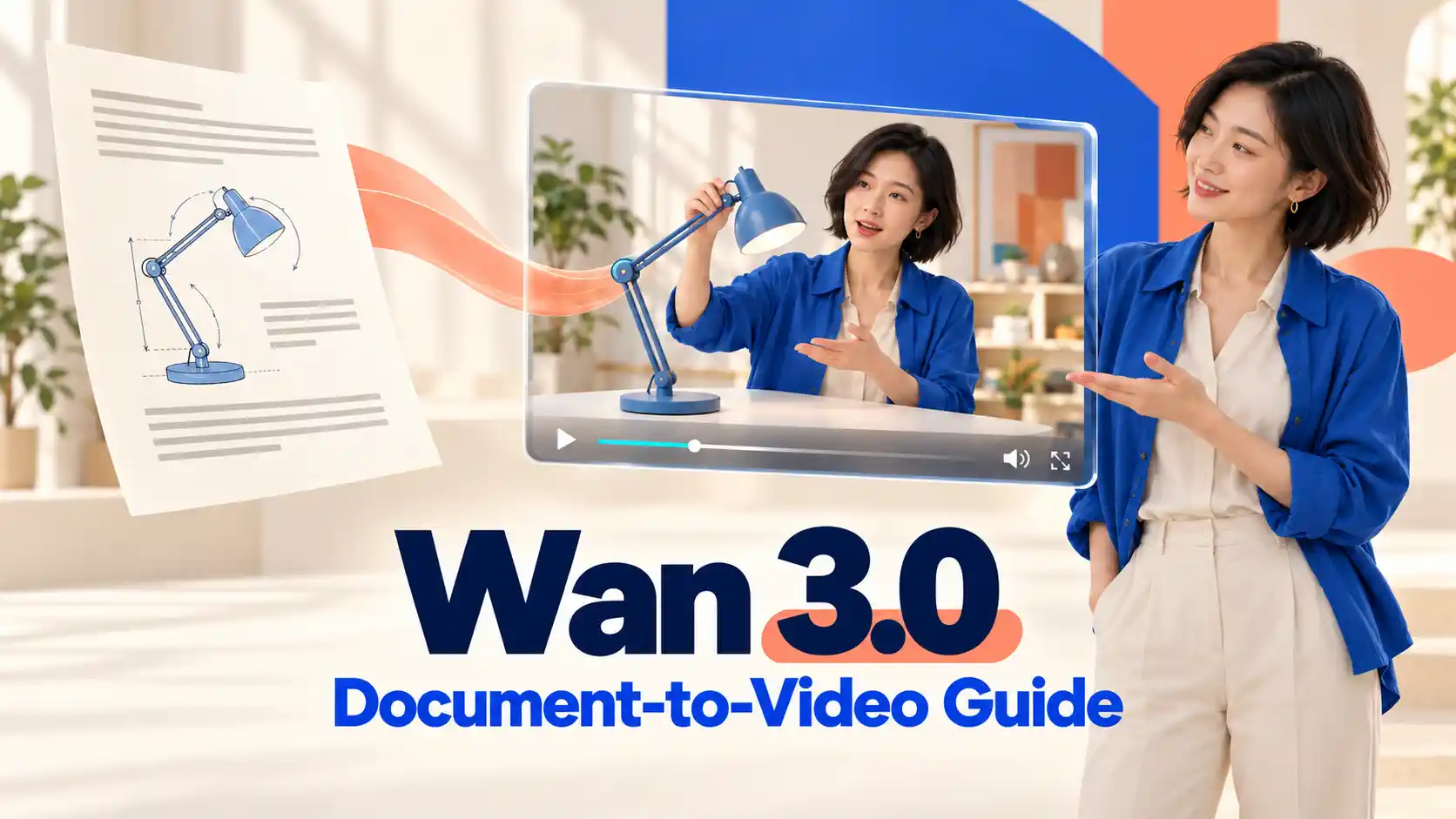
With Wan 3.0 on PWZ, you can use documents as references for short AI videos. Start with one useful topic, then decide what viewers need to see and understand.
TL;DR: Wan 3.0 Document-to-Video Guide
Give each video one job: explain a feature, teach a step, answer a question, or develop a story moment.
Separate information from appearance: use the document for source content and relevant images for visual guidance.
Direct what happens: specify the actions, sequence, and sound that communicate your point.
Build lasting value: organize longer documents into independent topics, keep the source versions, and review every result for accuracy.
Why Use Wan 3.0 for Document-to-Video Creation?
Give your source material a visual direction.
Wan 3.0 brings together capabilities relevant to this workflow:
Document references let you base a video on written information.
Multimodal references let images, video, or audio contribute appearance, movement, and sound guidance.
Up to 30-second generation with native audiovisual output provides room for a short explanation or story.
Explore the current output options on the Wan 3.0 model page.
Prepare Your Document for a Clear Video
Choose the takeaway before choosing the shots.
Select a relevant section for your document-to-video project. Retain necessary facts, steps, and conditions; remove unrelated material.
Use this brief before writing your prompt:
Brief element | What to decide |
Audience | Who is watching, and what do they already know? |
Goal | What should they understand or be able to do afterward? |
Source facts | Which details and conditions must remain correct? |
Visible action | What needs to happen on screen? |
Intended result | What will show that the task or explanation is complete? |
Translate broad wording into something observable.
Check that your chosen action actually matches the source description.
When appearance matters, add a clear product or character reference and identify the details it should guide.
How to Generate a Document-Based Video on PWZ
Tell the model how to use what you upload.
1. Select Wan 3.0 and the Reference Workflow
Open PWZ Studio, select Wan 3.0, and choose its reference workflow for document input.
2. Upload Your Document and Relevant Assets
Add your prepared document and any supporting materials with a distinct purpose.
Assign each asset a purpose: the document provides information, a product image guides appearance, and a motion reference can guide a particular action. Use the file names or reference labels shown in the interface.
3. Describe the Video You Need
Include the audience, source topic, visible sequence, sound, and details to preserve.
For example, adapt this Document-to-Video prompt structure:
Use the uploaded document to create a short video for [audience] explaining [one topic]. Show [opening], followed by [main action], and end with [observable result]. Use the reference image for [appearance detail]. Include [brief narration or sound direction]. Keep [source facts and conditions] accurate. Do not add unsupported features or claims.
4. Set the Output and Generate
Choose an available duration, aspect ratio, and resolution.
Check the credit amount before generating, then review the full result against your brief.
For upload requirements and workspace guidance, use the PWZ AI Video Creation Guide.
Practical Document-to-Video Workflows with Wan 3.0
Match the video to what the viewer needs.
Product Explainers: Show What a Feature Does
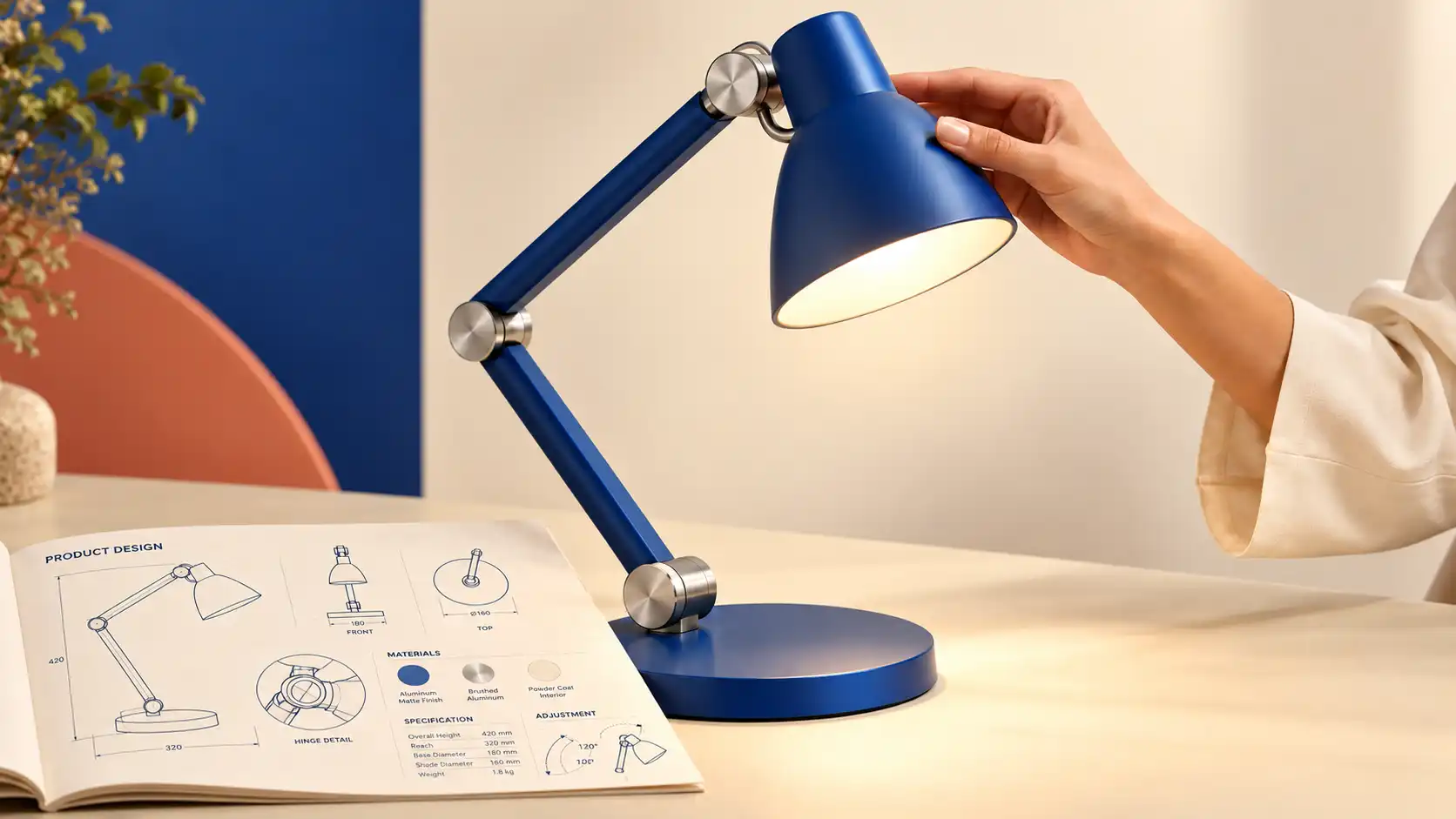
Start with: a product manual, feature description, or product brief.
An AI product explainer video should connect a feature to a recognizable use. Choose one function and build around the situation, the action, and the result.
✅ How to build it:
Introduce the context in which the feature matters.
Showthe relevant part of the product performing its function.
Hold the final state long enough for viewers to understand the benefit.
Keep the product image and the source description together when planning. Identify details that must stay stable, such as a connector, handle, opening mechanism, or material finish.
💡 Prompt tip:
Ask for a restrained camera move when a close-up needs to remain readable.
Choose a camera angle that keeps the important action visible.
For a product launch, use the same method to introduce one new capability. For a product page, emphasize what shoppers need to understand before choosing. In both cases, check that the result shows the real product’s behavior and does not invent performance claims.
Training and Tutorials: Make Each Step Easy to Follow

Start with: a quick-start guide, SOP, lesson outline, or teaching notes.
An AI tutorial video needs a clear learning outcome. Decide whether the viewer should perform an action or understand a concept, then organize the scene accordingly.
✅ How to build it:
State the task or question.
Present the necessary actions in order, or use a simple visual explanation.
Show the completion state or summarize the key idea.
For a hands-on task, keep the relevant objects visible and leave time to recognize each change.
For an employee workflow, make the next action and handoff clear.
For a classroom concept, a simple comparison may communicate more than a dense paragraph of narration.
💡 Prompt tip:
Name the transitions between steps: “After the first action is complete, show the next action.” Avoid simultaneous movements that make the order difficult to follow.
Software training may require real screenshots or screen recordings for exact menus and clicks. You can combine those with generated introductory or explanatory scenes in an editor. Treat each short learning unit as part of a larger lesson when more depth is needed.
Customer Support Videos: Answer One Question Clearly

Start with: a help article, support FAQ, or a curated list of recurring customer questions.
Customer support videos begin with a problem the viewer already recognizes.
The useful structure is question or symptom → relevant condition → solution → confirmation.
✅ How to build it:
Show or describe the issue using familiar customer language.
Present the appropriate action from the source instructions.
Explain how the viewer can tell whether it worked.
Keep prerequisites close to the action they affect. A support clip can become misleading if it leaves out a condition from the original instructions. Where several causes require different solutions, give each issue its own topic.
💡 Prompt tip:
Request the successful end state explicitly. “Finish with the component correctly seated and clearly visible” is easier to assess than “finish with everything fixed,” provided that action matches the manual.
Link the finished clip to the relevant help article or product version for details that do not fit into a short video. Review it when the instructions change.
Creative Storytelling: Turn Written Ideas into Scenes
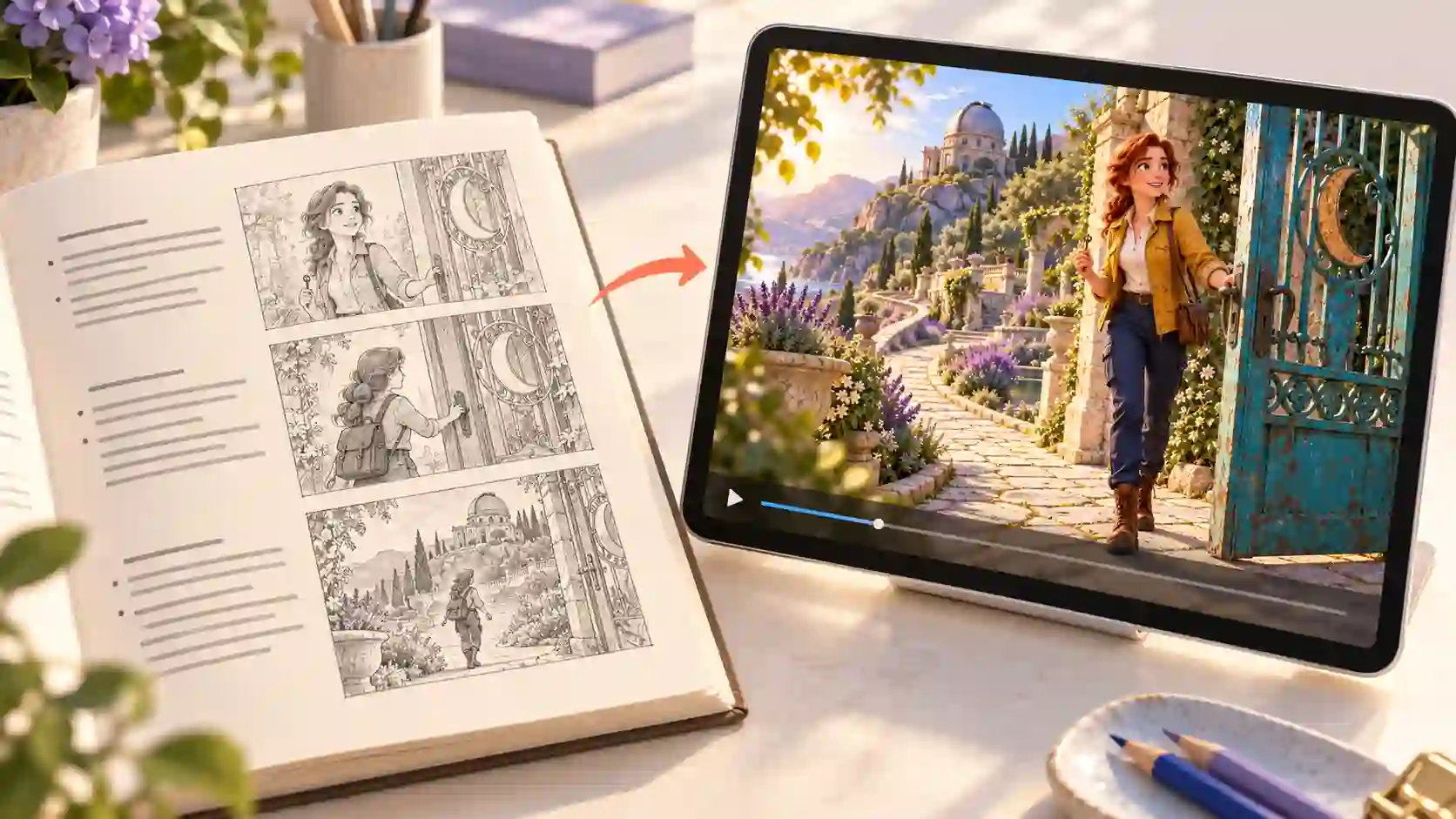
Start with: a short story, script excerpt, character description, brand narrative, or creative brief.
For creative expression, choose one moment with a clear change: a discovery, a decision, an unexpected encounter, or a shift in emotion.
✅ How to build it:
Establish who wants something and where the scene happens.
Introduce the event that changes the situation.
End on a reaction or consequence the audience can read.
Use references for recurring characters and settings. Identify the narrative details that must remain intact, while allowing room to explore lighting, framing, and visual style.
💡 Prompt tip:
Describe behavior that expresses emotion. Gives the performance a visible progression.
Plan sound around that change. A quiet environmental cue or a brief line of dialogue may support the scene better than continuous music. For a brand story, translate a documented value into a fictional situation without presenting invented events as company history.
Turn Long Documents into a Reusable Video Series
Build around topics that can stand on their own.
A long manual or training deck can support a useful collection of short videos. Organize it around viewer questions, with each clip understandable on its own.
For example, a product manual might support this topic map:
Source section | Viewer question | Video task |
Feature overview | What does this feature do? | Demonstrate one function |
Getting started | What should I do first? | Show the first-use sequence |
Troubleshooting | How do I resolve this specific issue? | Show the relevant correction and check |
Make updates easy.
Save each clip’s source section and version, reference assets, prompt, and review date. When the document changes, identify which videos need revision.
Keep the series consistent.
Reuse approved visuals and terminology. Give each video a brief introduction so viewers can understand it independently.
Adapt for each channel.
Use the library across product pages, help centers, training, and social posts. Adjust the opening and framing for each destination, then review before publishing.
Review Accuracy, Clarity, and Sound Before Publishing
Check what the viewer learns, not just how the video looks.
Play the full clip with sound and check:
Source accuracy: facts, conditions, and step order match the document.
Visible detail: the product, character, and important actions remain clear.
Text and numbers: labels, figures, and instructions are correct.
Audio alignment: speech and sound support the intended action and mood.
Viewer outcome: someone can identify the main point or next step.
Add critical wording, figures, or captions in an editor when needed.
Revise the main mismatch first.
If the action is unclear, simplify the sequence;
If the facts drift, strengthen the source direction.
Changing everything at once makes the next result harder to evaluate.
Create Your Document-Based Video with Wan 3.0
Start with one section worth showing.
Choose a useful document passage and define what the viewer should understand.
Open Wan 3.0 on PWZ, add your source material, and create a first version you can review against that goal.
Creating with Wan 3.0 AI Online
Wan 3.0 Document-to-Video FAQs
Which Document Formats Can I Use on PWZ?
PWZ’s video guide lists supported formats including DOCX, PDF, PPTX, XLSX, and TXT, with one document up to 100 MB. Check the upload area for current requirements.
Will Wan 3.0 Preserve My Original PowerPoint Layout?
Treat the presentation as source material for new video scenes. Do not assume the output will preserve every slide, font, or editable element. Use presentation export or dedicated editing tools when exact layout reproduction is the goal.
Can I Upload Several Documents for One Video?
The current PWZ guide specifies one document. Prepare a focused source file containing the relevant information, or create separate videos for independent topics.
Does Adding a Reference Video Affect the Output Duration?
Yes. PWZ’s guide states that the reference video duration plus the generated video duration must not exceed 30 seconds. Account for the source footage when planning how much new video to generate.